Secure Passwordless Authentication with Oracle Wallet
Used Case: Store credentials in the wallet and access the database using sqlplus /@TNS_ALIAS
Creating an Oracle Wallet is a secure way to store credentials and enable passwordless authentication for database connections. Here’s a step-by-step guide to set it up:
🛠️ Steps to Create an Oracle Wallet
1. Create a Wallet Directory
Create a secure directory to store the wallet files:
On Window OS
mkdir C:\test1\wallets

On Linux
mkdir -p /u01/app/wallets
2. Create the Wallet
Use the mkstore utility to create the wallet:
on Windows:
mkstore -wrl c:\test1\wallets\ -create

On Linux
mkstore -wrl /u01/app/wallets/ -create
Example: It ask for password to setup
C:\test1>mkstore -wrl c:\test1\wallets\ -create
Oracle Secret Store Tool Release 19.0.0.0.0 - Production
Version 19.3.0.0.0
Copyright (c) 2004, 2019, Oracle and/or its affiliates. All rights reserved.

Enter password:
Enter password again:
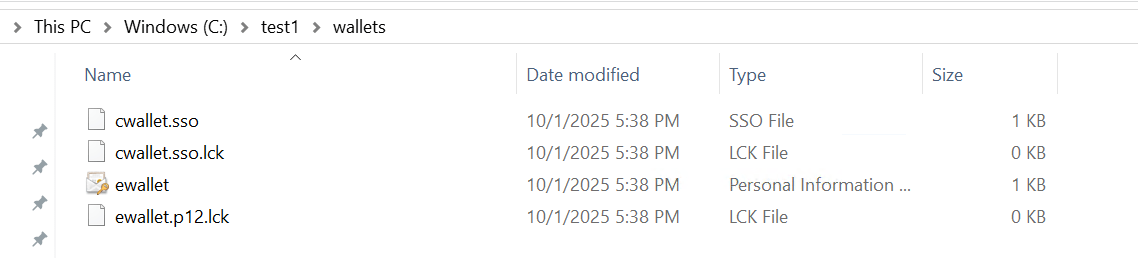
3. Verify Wallet Files
Check that the following files are created:
cwallet.ssoewallet.p12
These files store the credentials and encryption keys.
4. Configure SQLNET.ORA
Check the location of listener directory used with lsnrctl status command
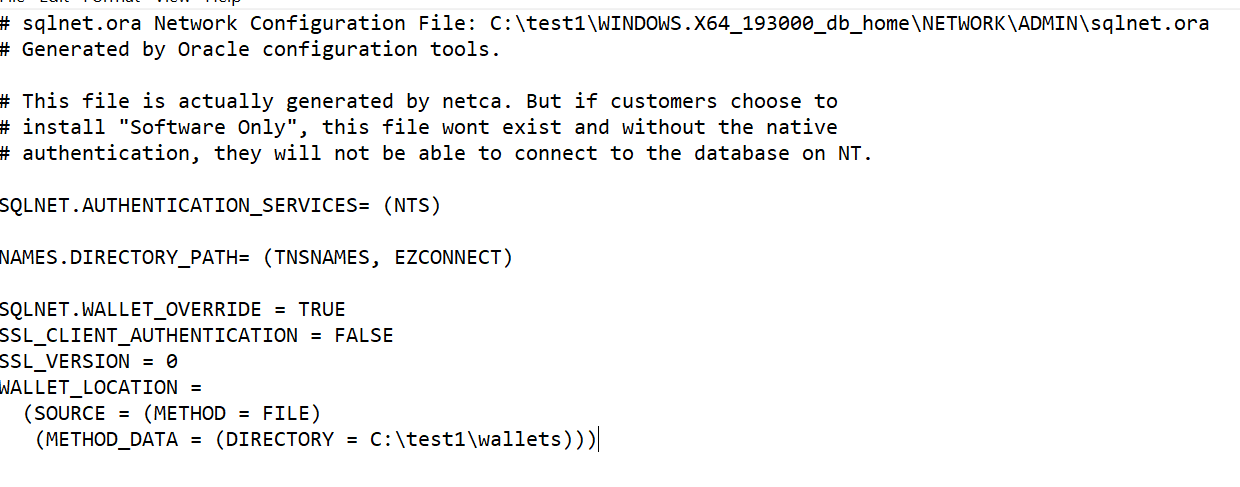
Edit the sqlnet.ora file to enable wallet usage:
On Windows:
SQLNET.WALLET_OVERRIDE = TRUE
SSL_CLIENT_AUTHENTICATION = FALSE
SSL_VERSION = 0
WALLET_LOCATION =
  (SOURCE = (METHOD = FILE)
   (METHOD_DATA = (DIRECTORY = C:\test1\wallets)))

on Linux:
SQLNET.WALLET_OVERRIDE = TRUE
SSL_CLIENT_AUTHENTICATION = FALSE
SSL_VERSION = 0
WALLET_LOCATION =
  (SOURCE = (METHOD = FILE)
   (METHOD_DATA = (DIRECTORY = /u01/app/wallets)))
Example: Check the Oracle network path with lsnrctl status command to find the SQLNET file.

Edit the SQLNET file with above configuration.
5. Create a Database User (Optional)
Connect to the database and create a user:
CREATE USER C##mir_wallets IDENTIFIED BY mirwallets;
GRANT CONNECT, RESOURCE TO C##mir_wallets;
6. Store Credentials in the Wallet
Add credentials to the wallet:
mkstore -wrl /u01/app/wallets/ -createCredential <TNS_ALIAS> <DB_USER> <DB_PASSWORD>

Example
mkstore -wrl C:\test1\wallets\ -createCredential ORCL C##mir_wallets  mirwallets
7. Test the Connection
Use the TNS alias to connect without specifying the username/password:
sqlplus /@<TNS_ALIAS>This setup allows secure, passwordless connections using Oracle Wallet
