Steps to install SQL Server 2022 Developer Edition
- Go to the Microsoft site for download the latest developer edition 2022:
https://www.microsoft.com/en-IN/sql-server/sql-server-downloads
2. Scroll down the page and you will find at end the developer and express edition free to download
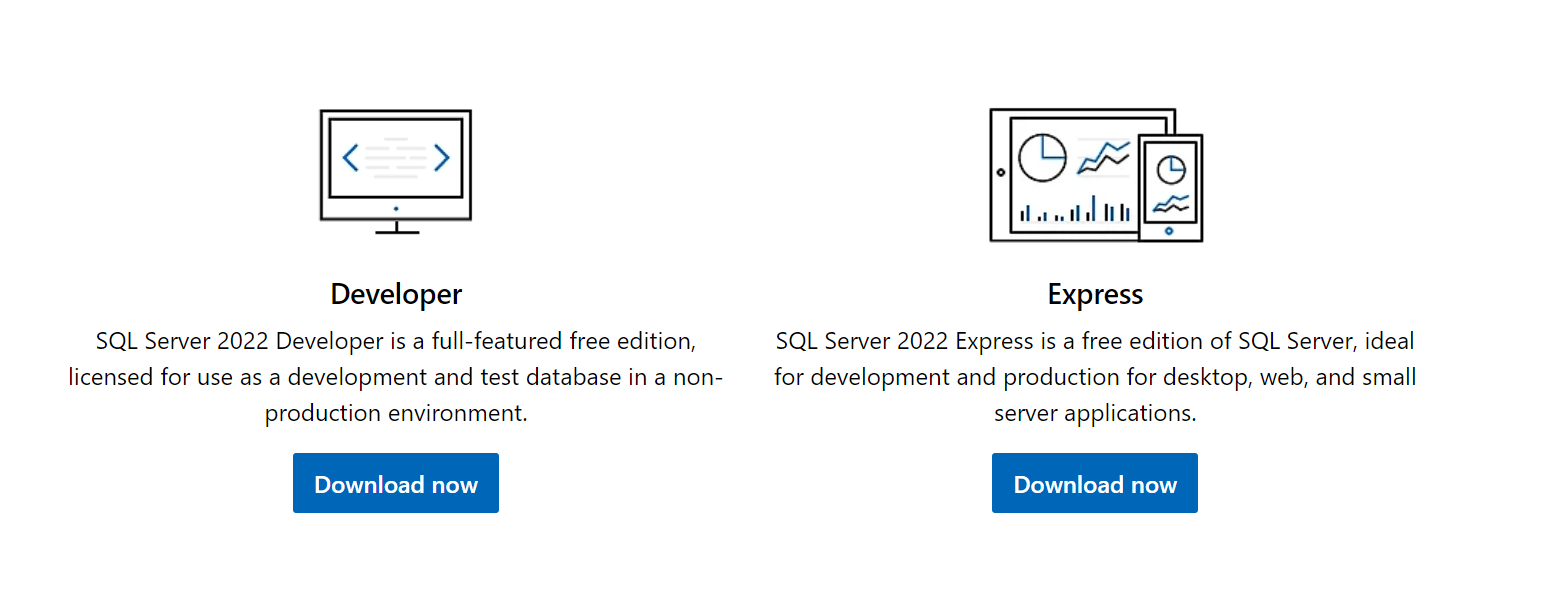
3. Download the developer edition, it will download a download utility.

4. Double click on utility and you will have a screen to download the developer edition.
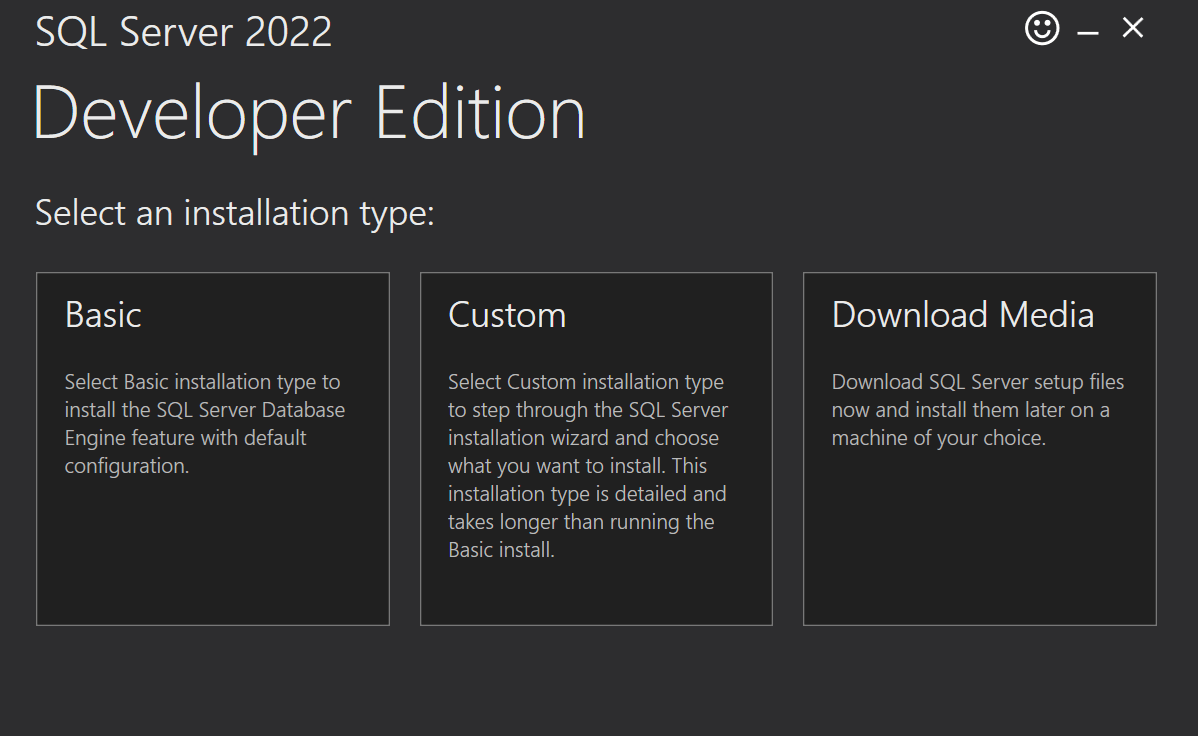
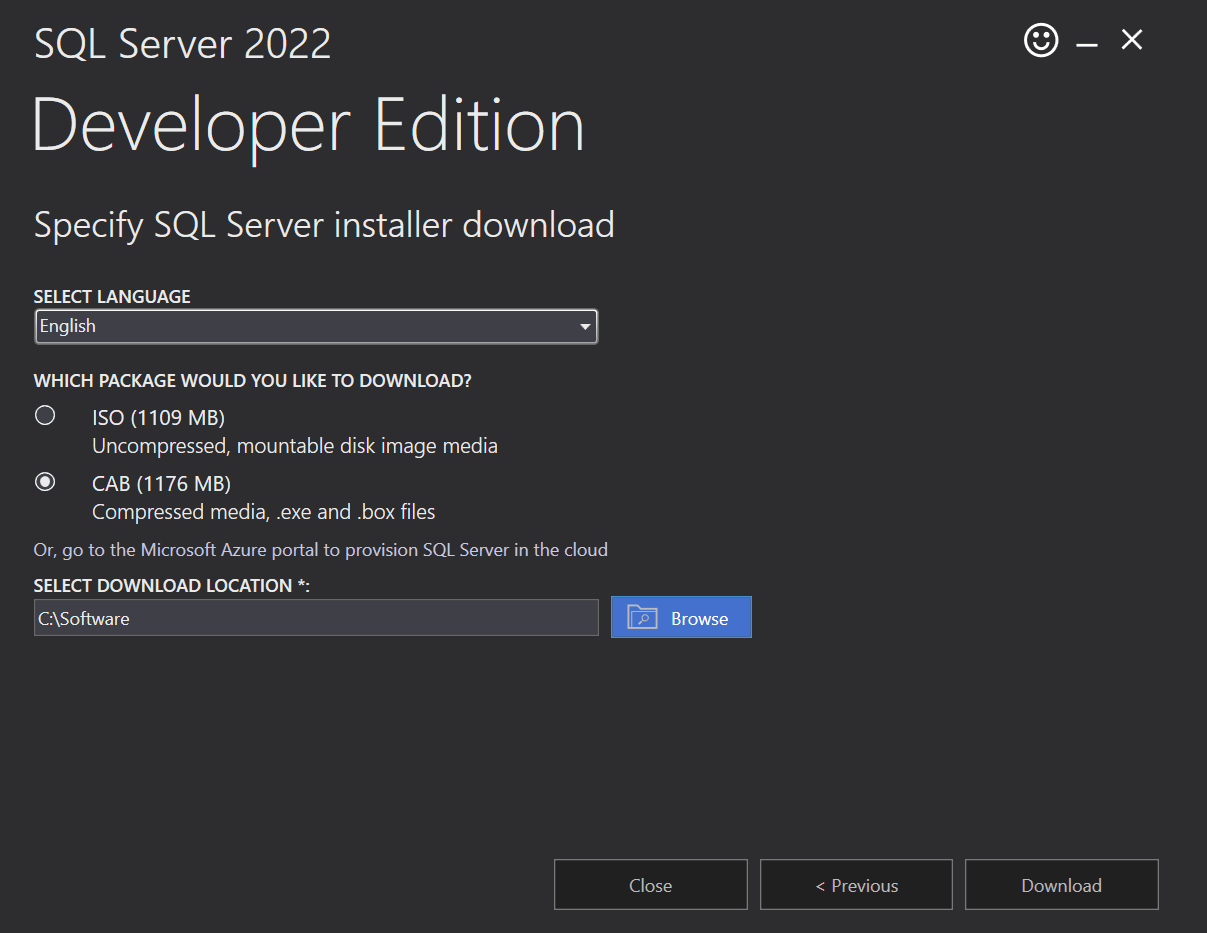
5. Go to option download media and choose the cab option for setup download in your specified folder location.
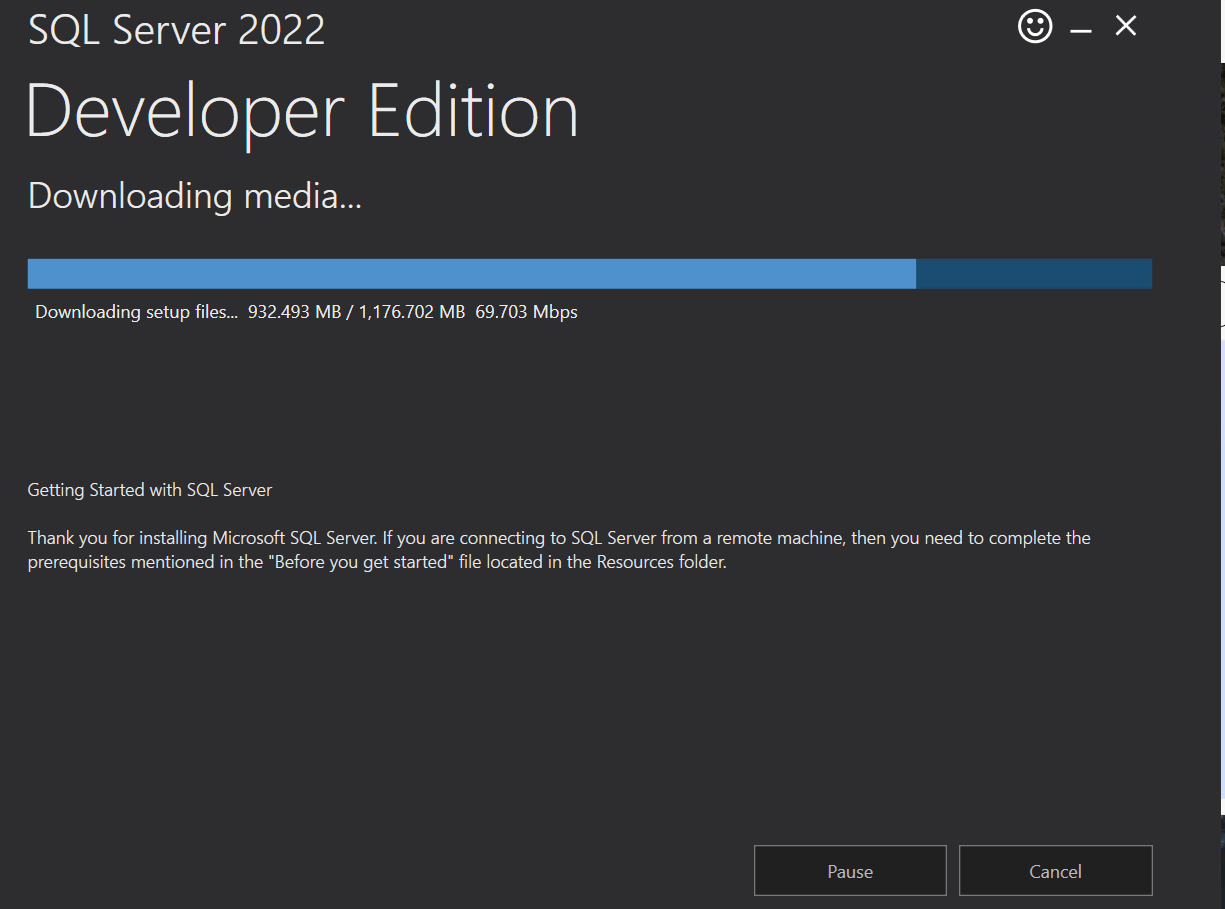
6. Download is beginning as follows:
7. Download done and close this windows and go to location of downloaded software.
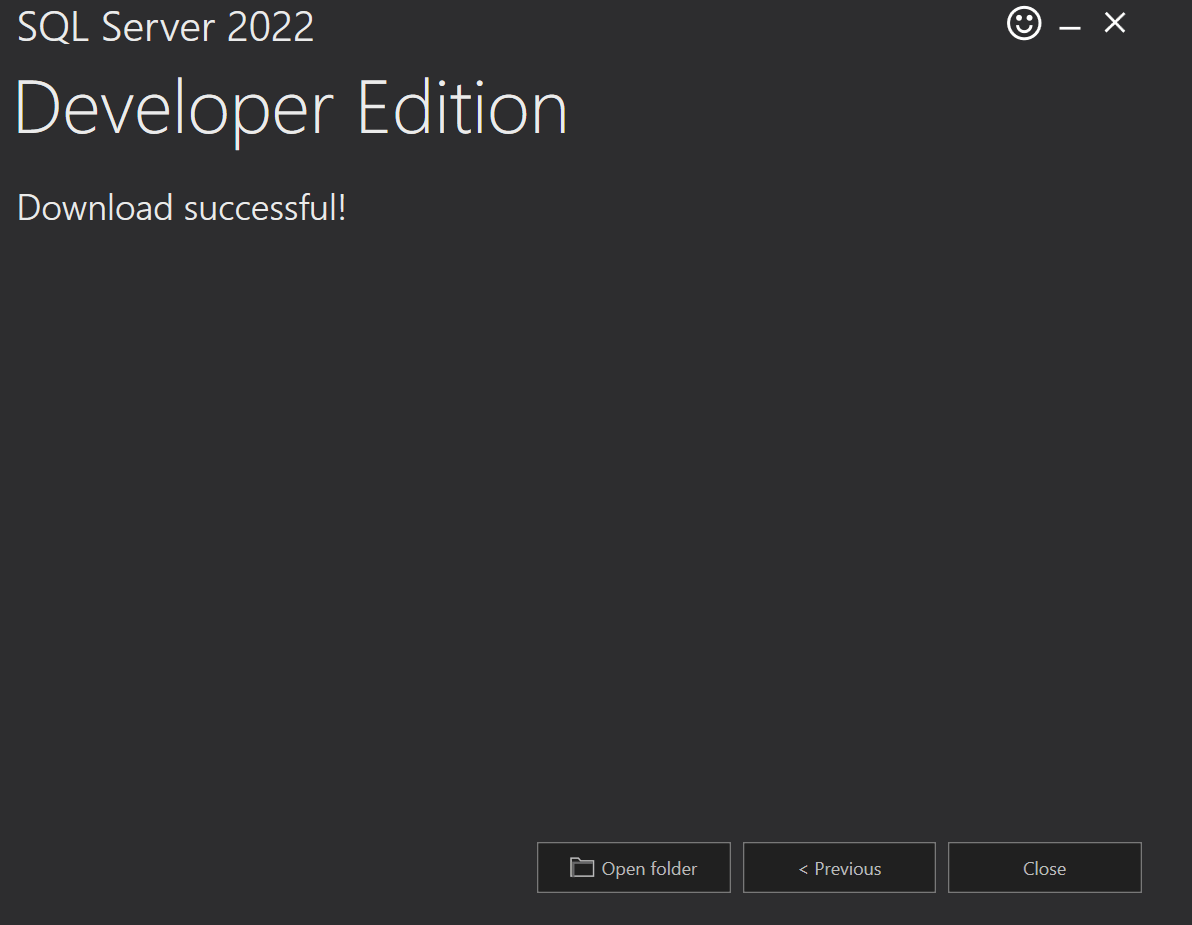
8. the downloaded software look like as follow.

9. Double click on SQLServer2022 application and it will open a dialoug box for extract the software as follows:
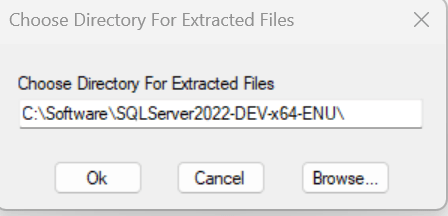
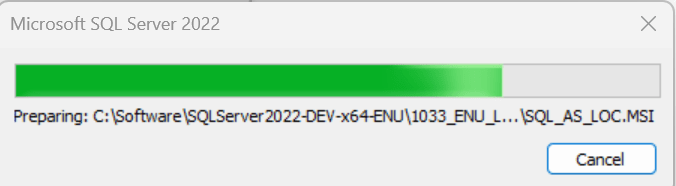
10. Press ok and extract the software.
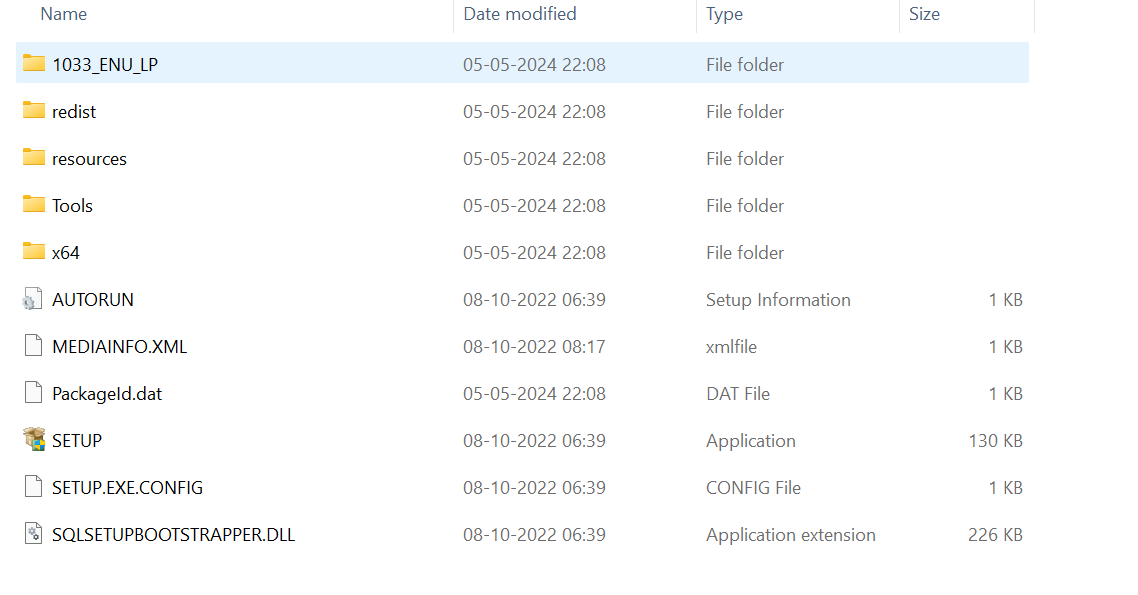
11. Go to the extracted folder and click on setup for installation of SQL Server database developer edition.
12. Double click on setup will open installation page for SQL Server
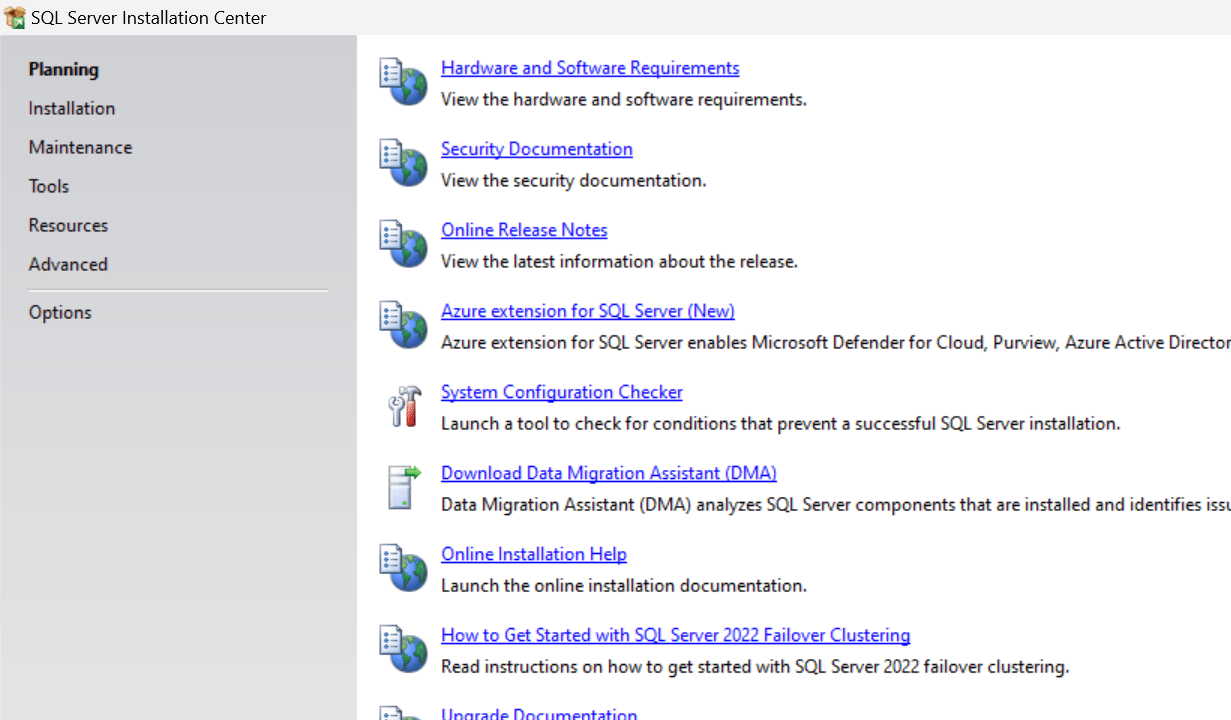
13. On left panel, choose the installation and from right panel, choose first option Standalone installation
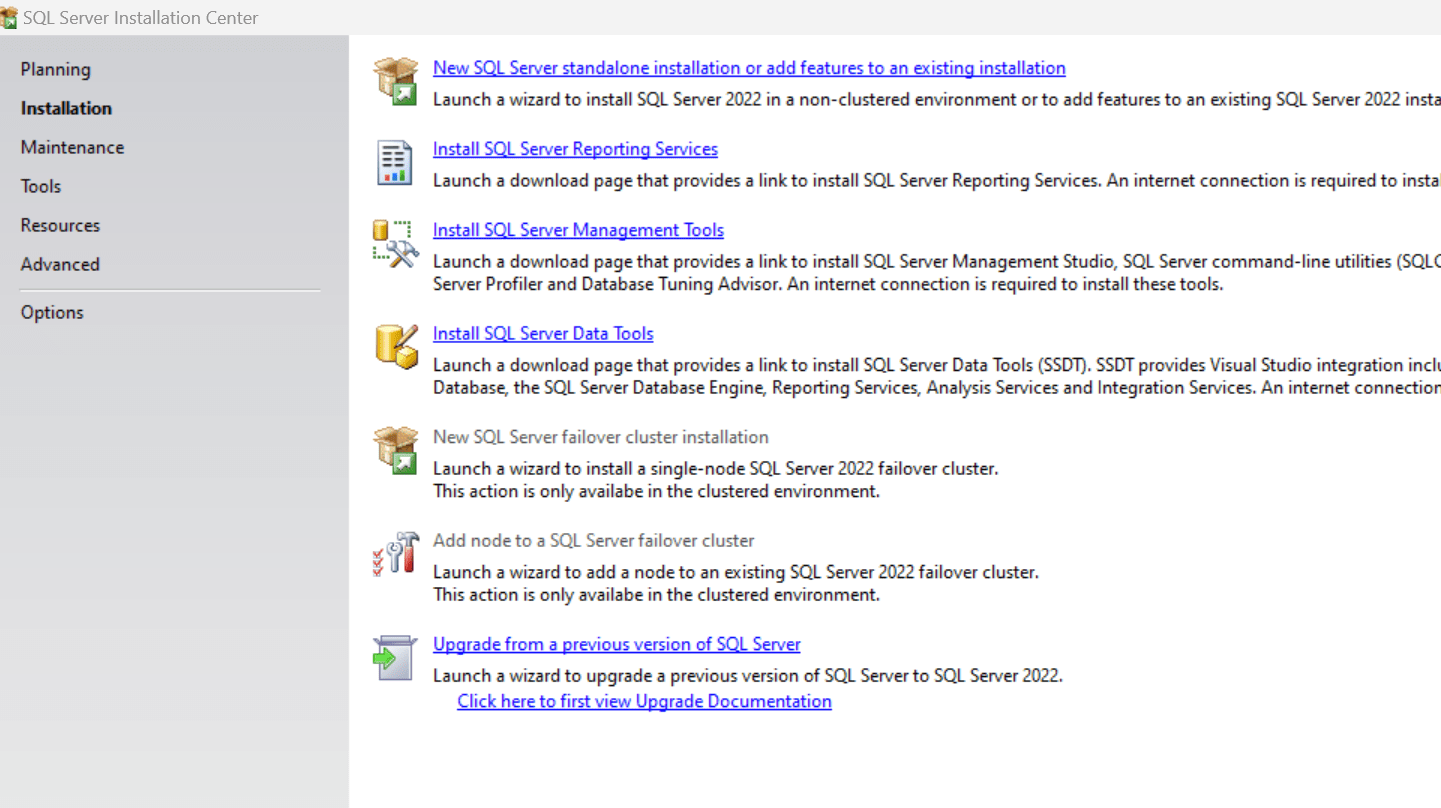
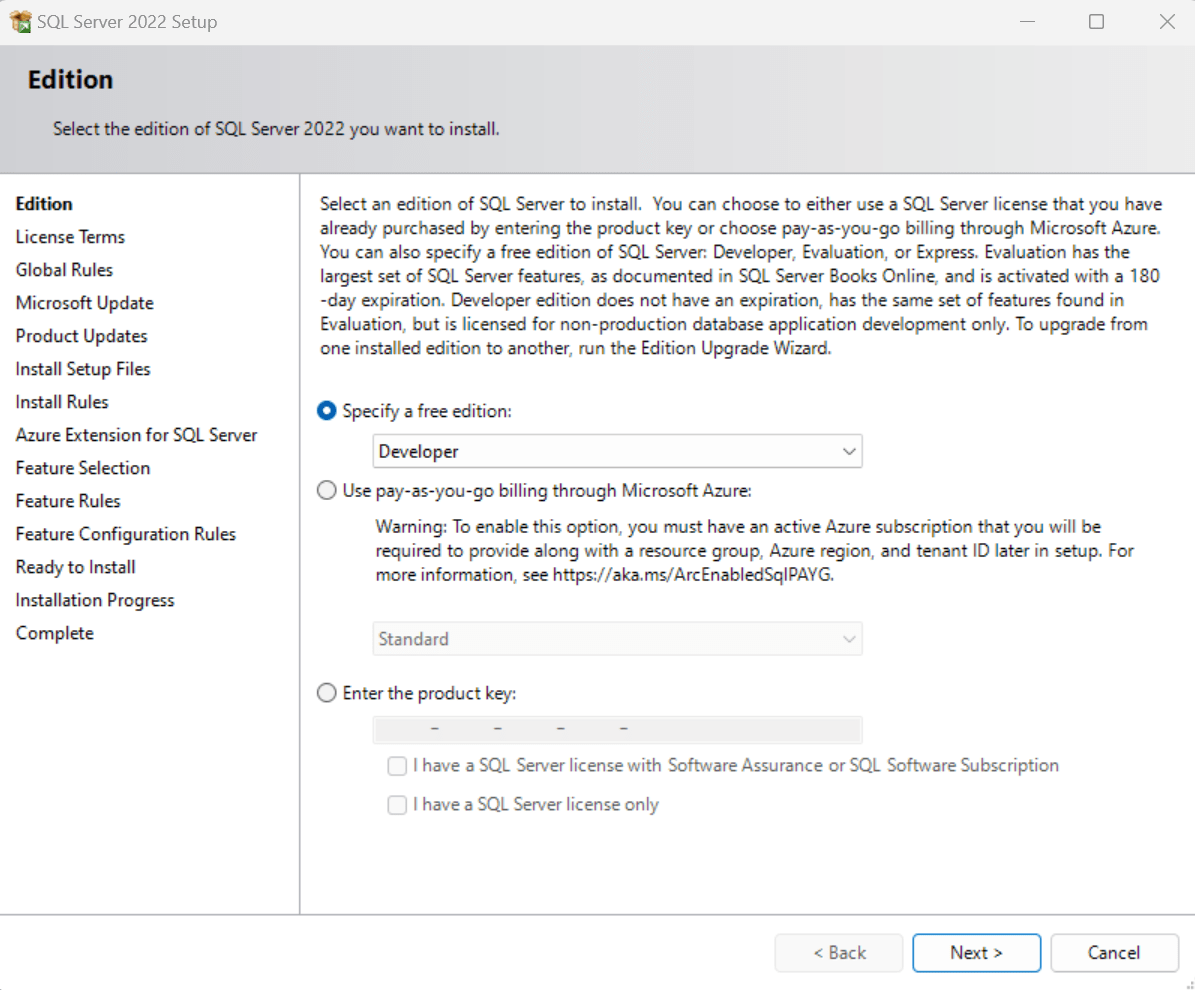
14. Go for developer edition as follow and press next
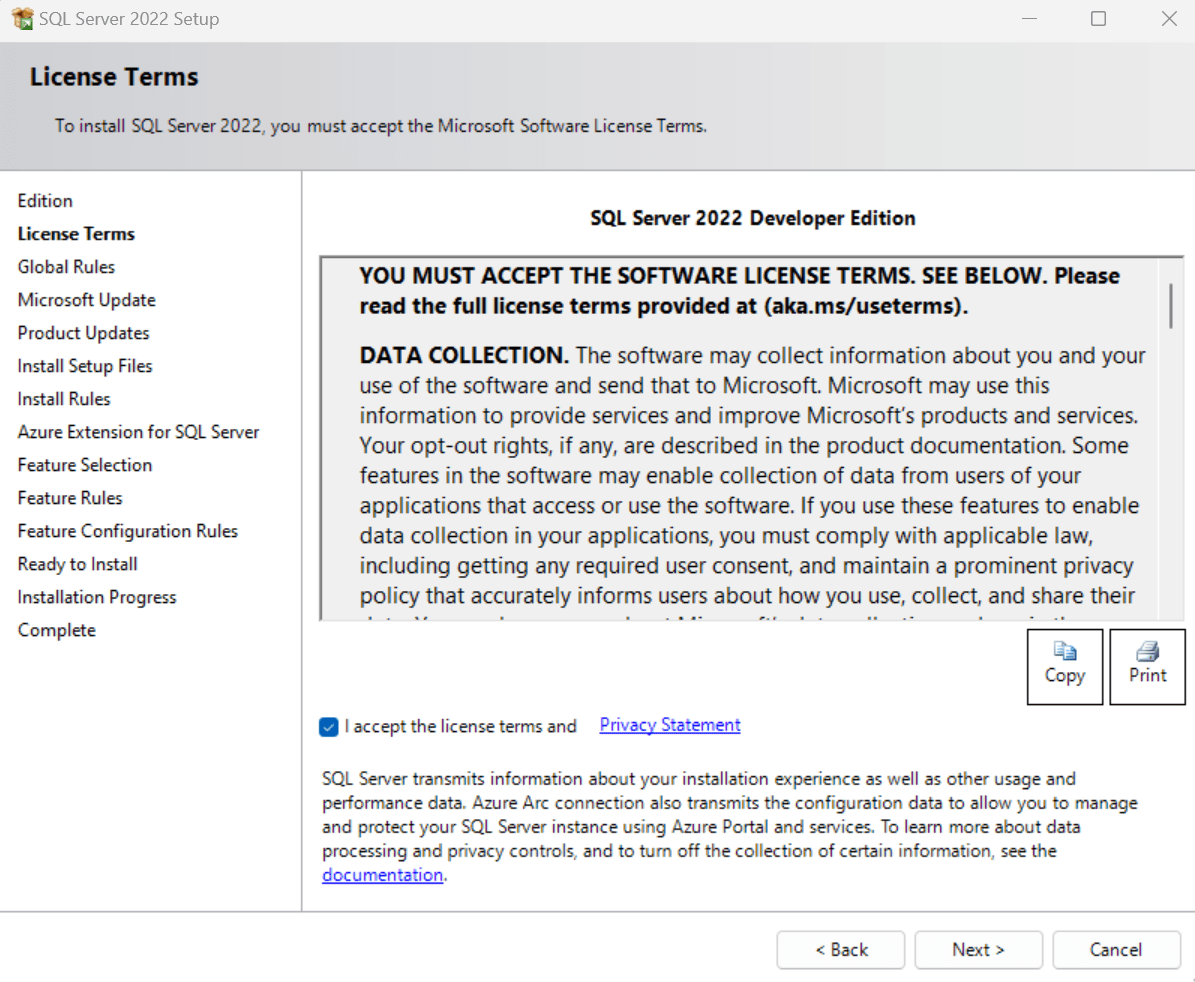
15. Read the license term and go next
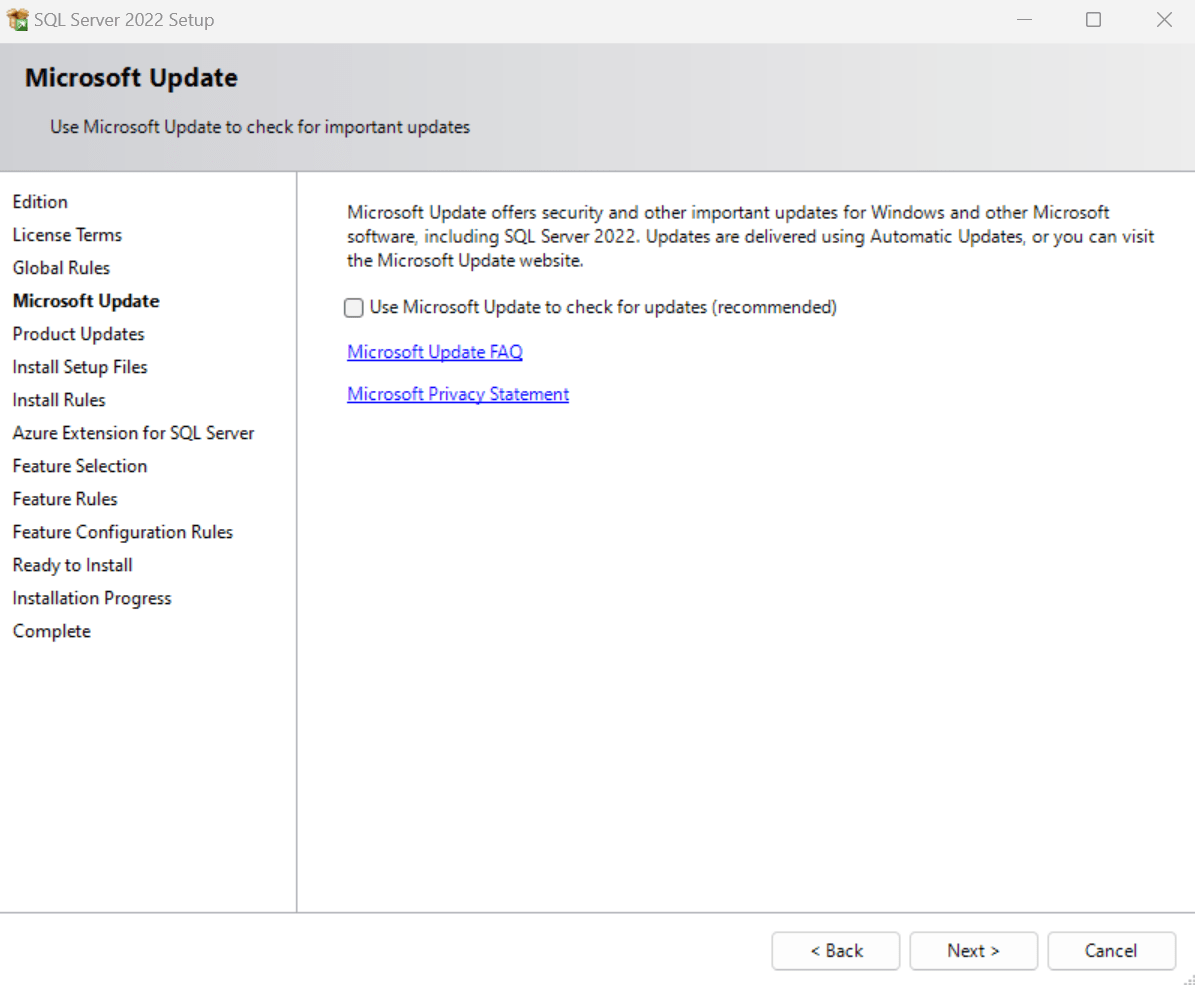
16. Press Next and leave microsoft update uncheck.
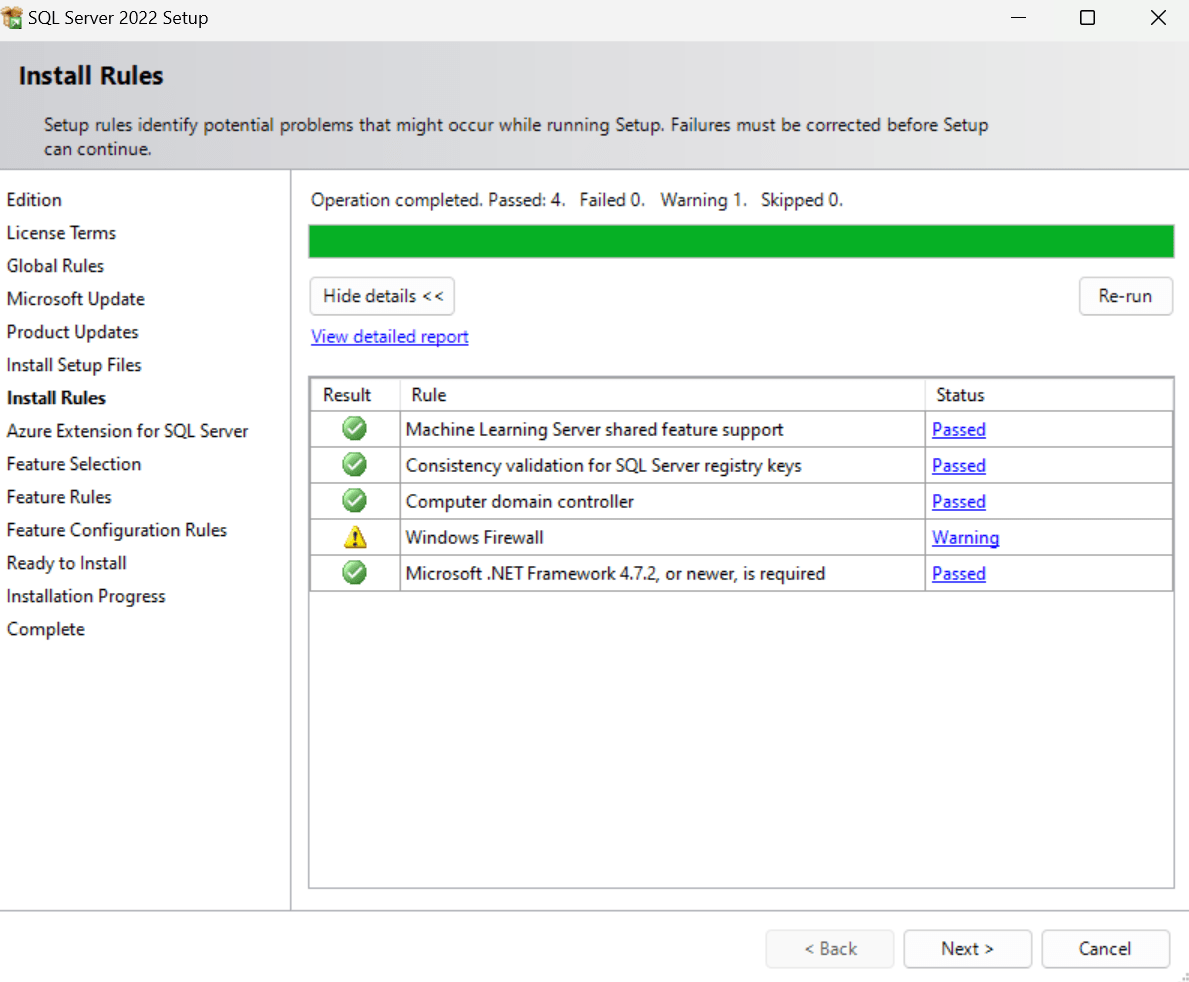
17. Press Next, ignore the warning for firewall.
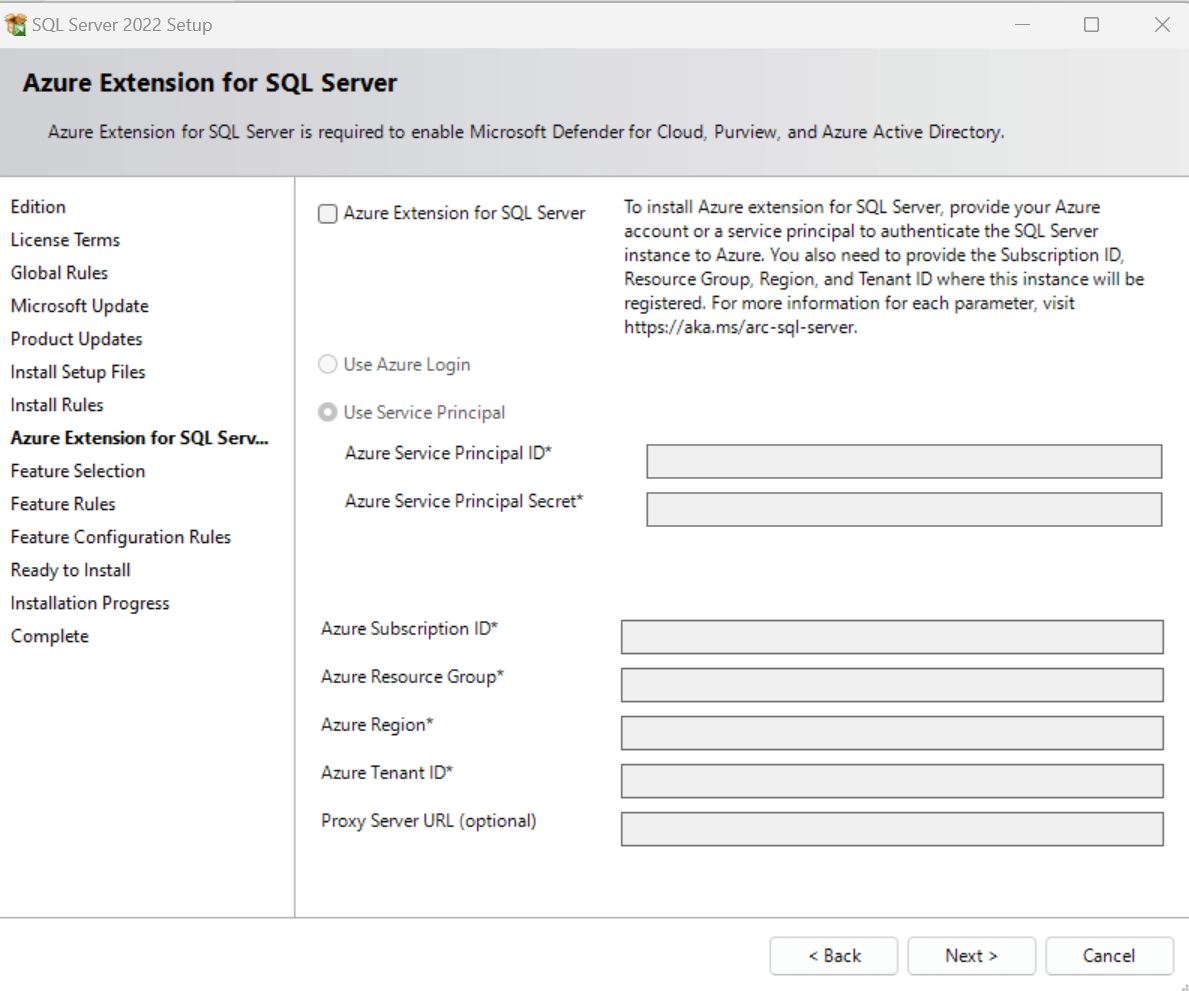
18. Uncheck the Azure configuration, if you have you can fill the detail according to your need. I am uncheck that option as follows:
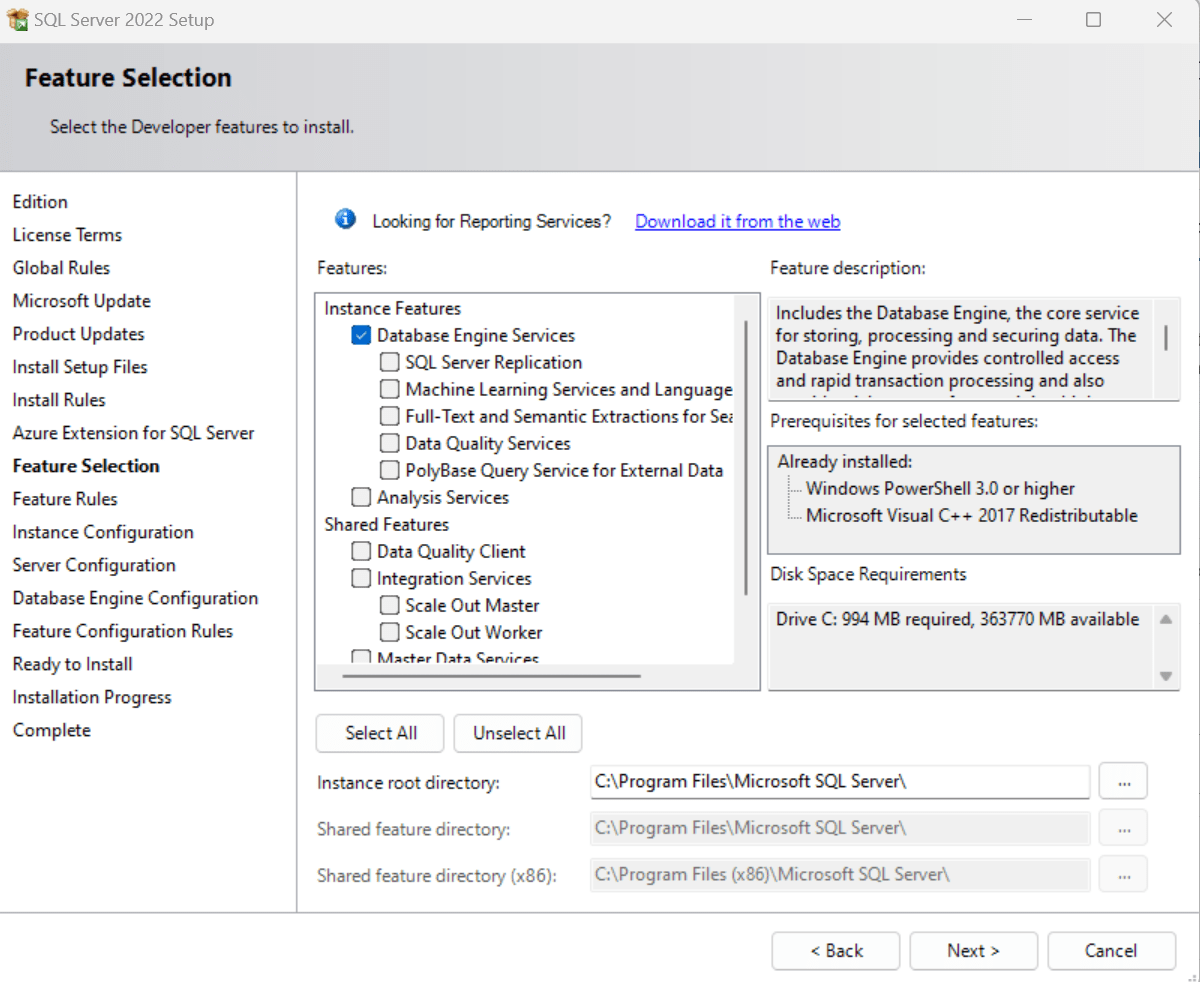
19. I choose only database engine service, if you need additional services you can choose according to your need. Press NEXT
20. You can choose named or default instance. i preferred to go with default instance as MSSQLSERVER (it is the name of instance in SQL Server).
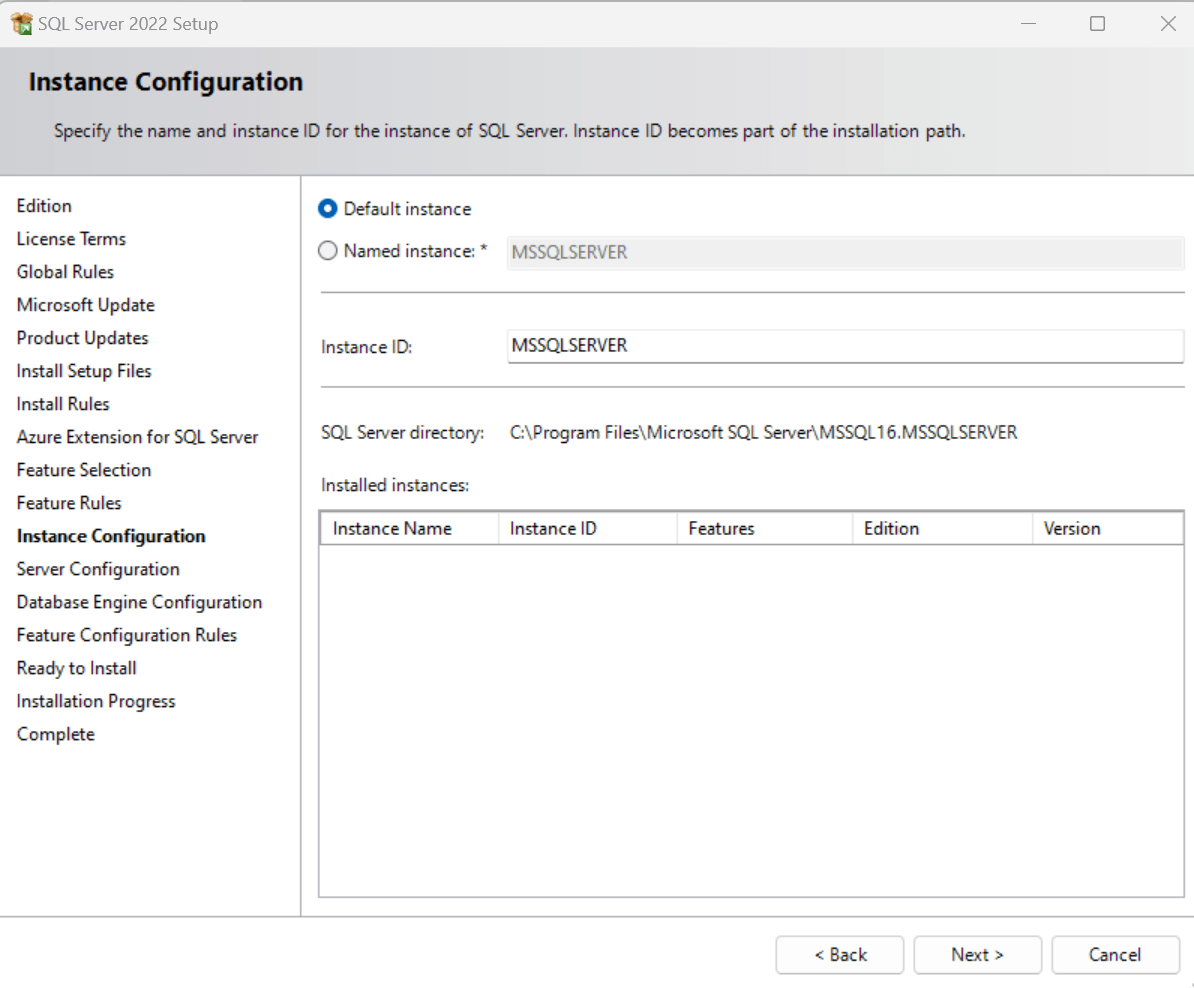
21. Server configuration has service accounts details which service are installed on Windows machine.
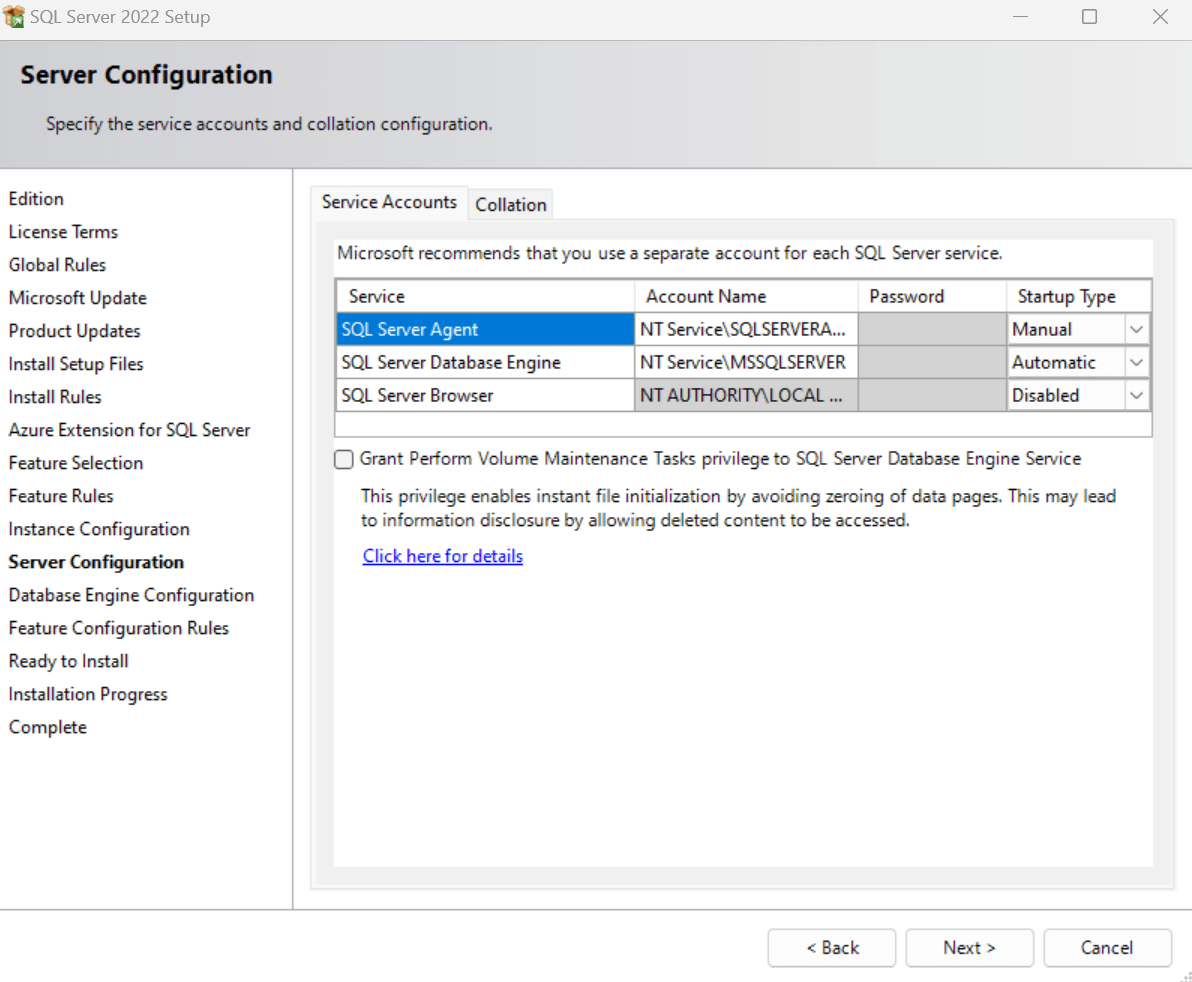
22. From this screen, you have different options to choose like server configuration, data directories, tempdb setting, parallel degree Max DOP & Memory setting etc.
Choose the mixed mode to set the sa account password.

23. Ready to install screen will show the summary of choosing parameters at end. Press INSTALL if everything seems fine.

24. Installation is inprogress.
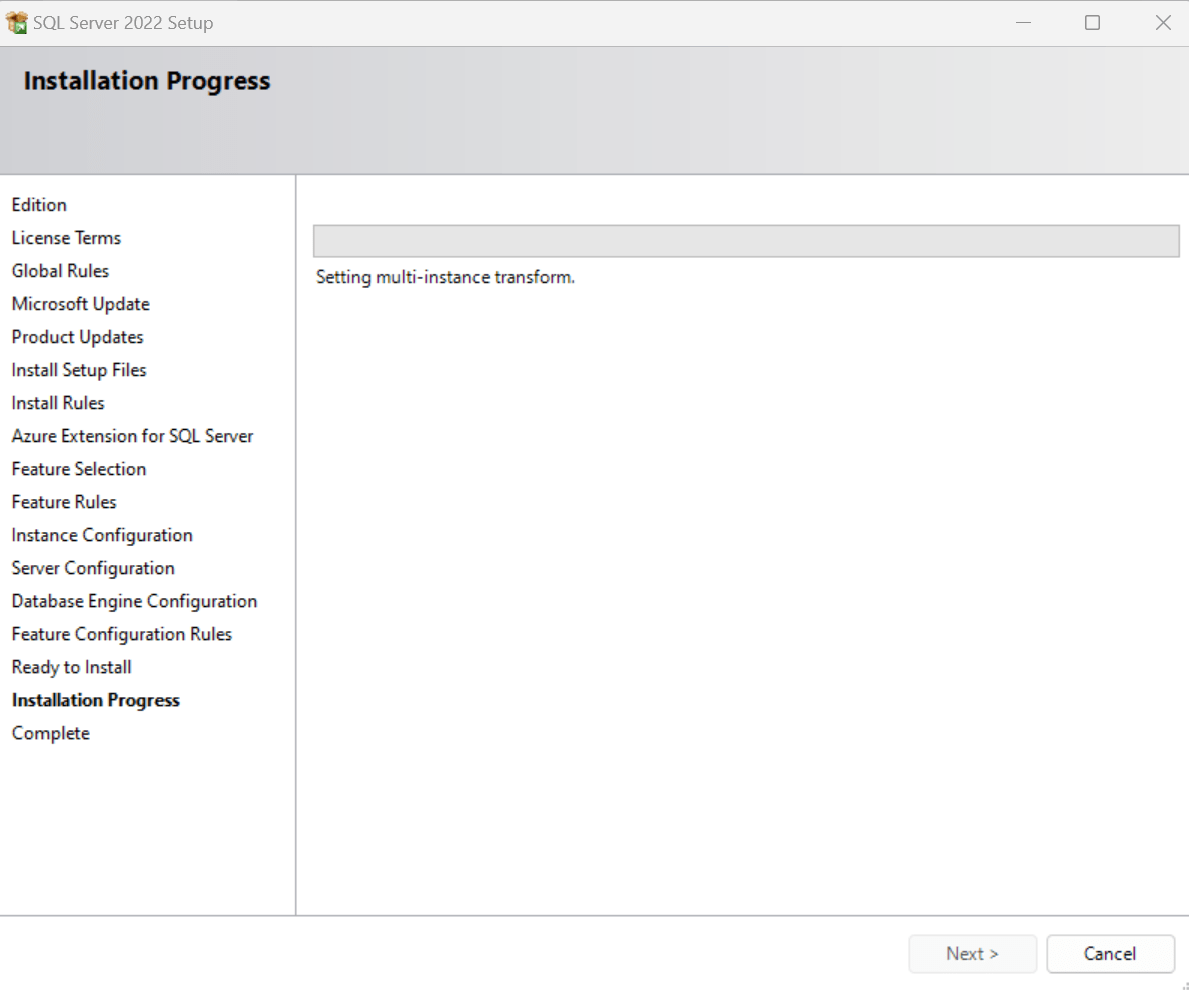
25. Complete. Your SQL Server 2022 developer edition installation completed successfully.

Note: If you don’t have SQL Server Management Studio, then you have to install again by open this software again and choose SQL Server Management Studio as follows:
Right panel 3 option: Install SQL Server Managment Tools
