Configure a sperate Machine or VM for configure the Domain controller and Active Directory for Configure of SQL Server Always on Availability Groups.
Install window server and give it IP address 10.0.29.15 for domain Server.
We are going to enable the following features in this VM:
- Domain Controller: A domain controller servers all security authentications requests for a Windows Server domain. In an organization, each server is a member of the domain controller.
- DNS: DNS used to associate names with IP address. You can use name with this instead of IP address. For example, we can easily remember to smarttechways.com instead of its IP address.
- Active Directory: It is a container that consists of organization units for all users, their credentials, groups. All users must authenticate themselves to use an organization resource.
Launch the server manager -> dashboard.
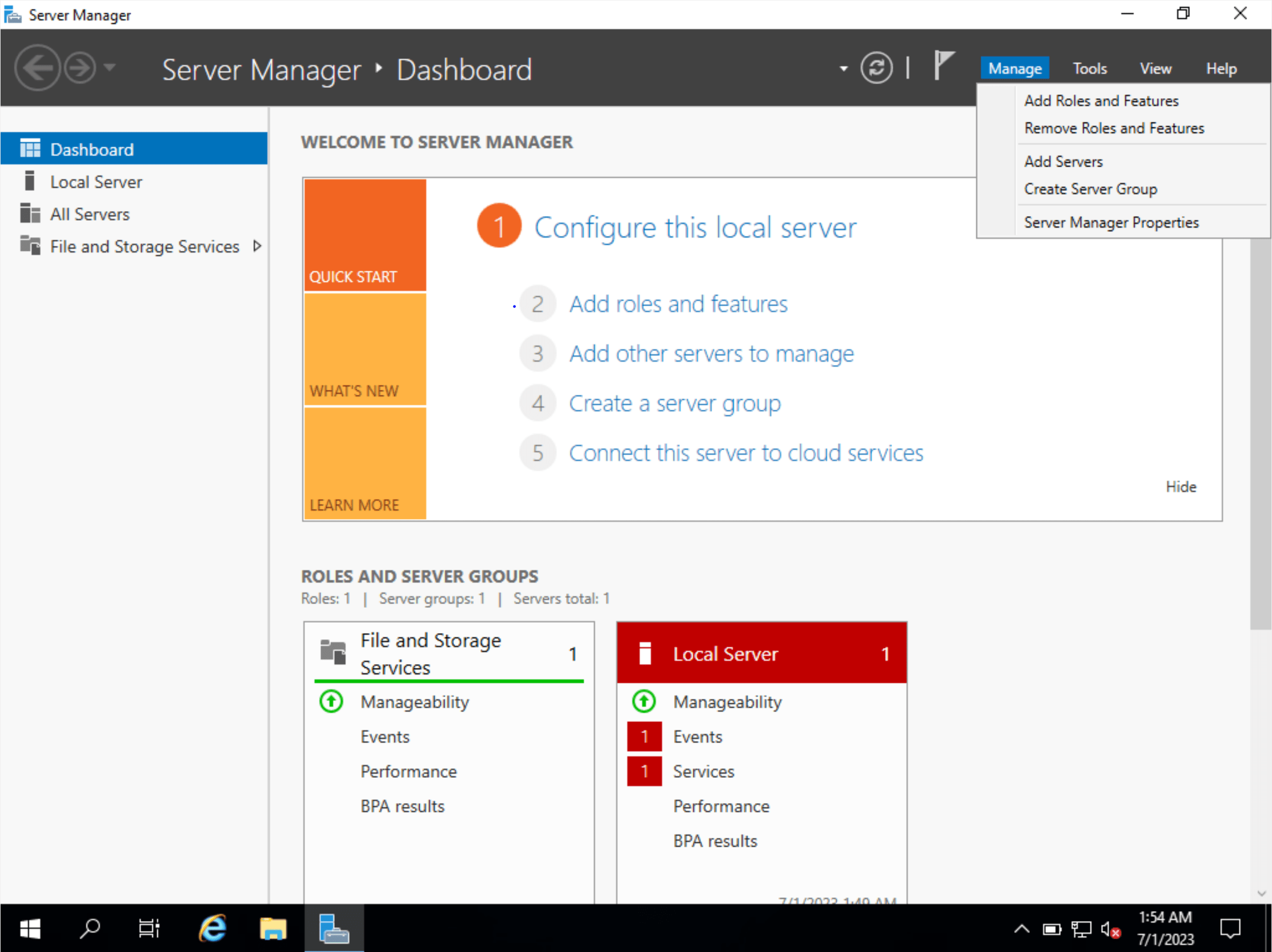
Go to Manage –> choose Add roles and features.

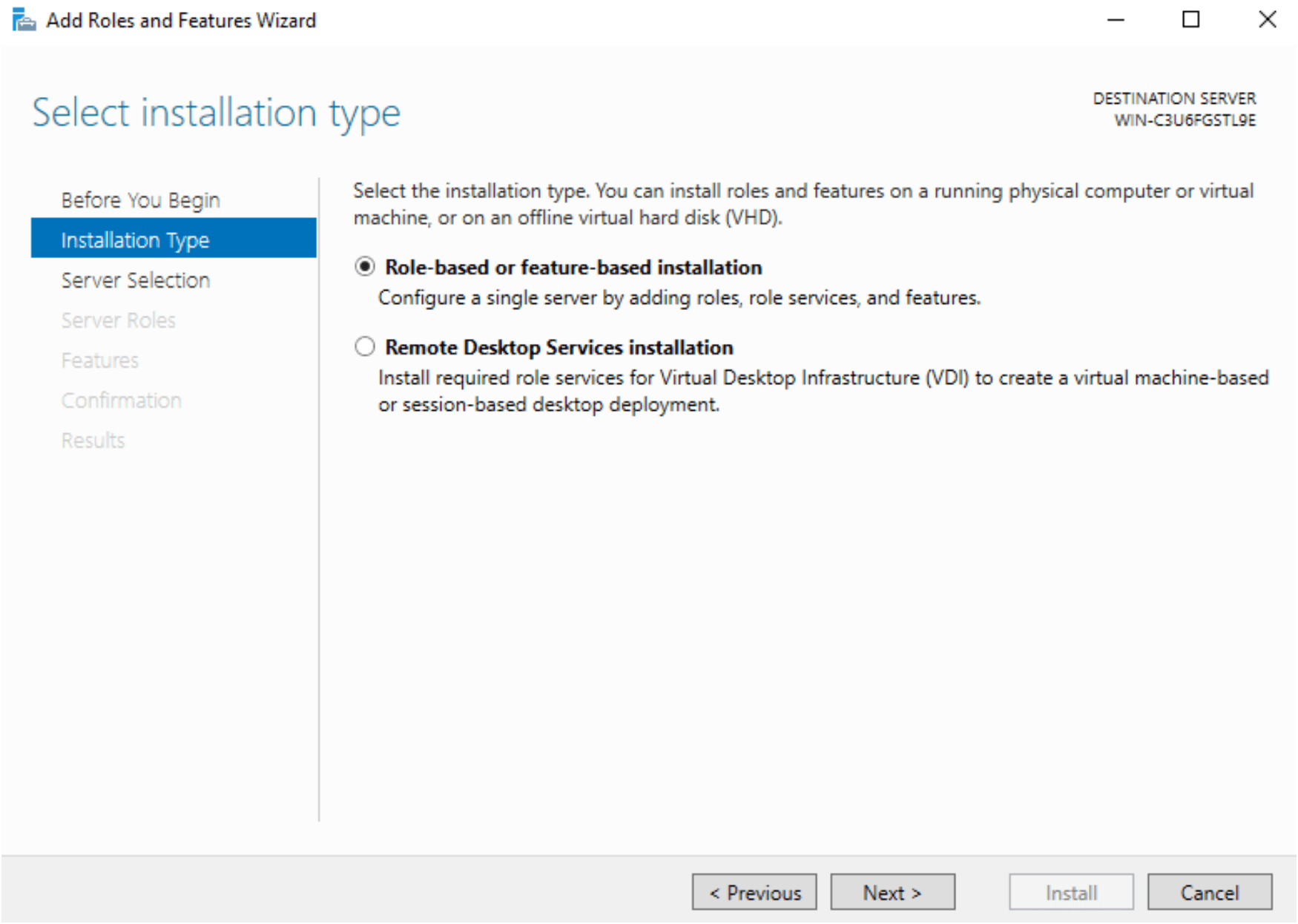
Select option Role-based or feature-based installation and click Next.
Select the installation type. You can install roles and features on a running physical computer or Virtual machine or on an offline virtual hard disk.
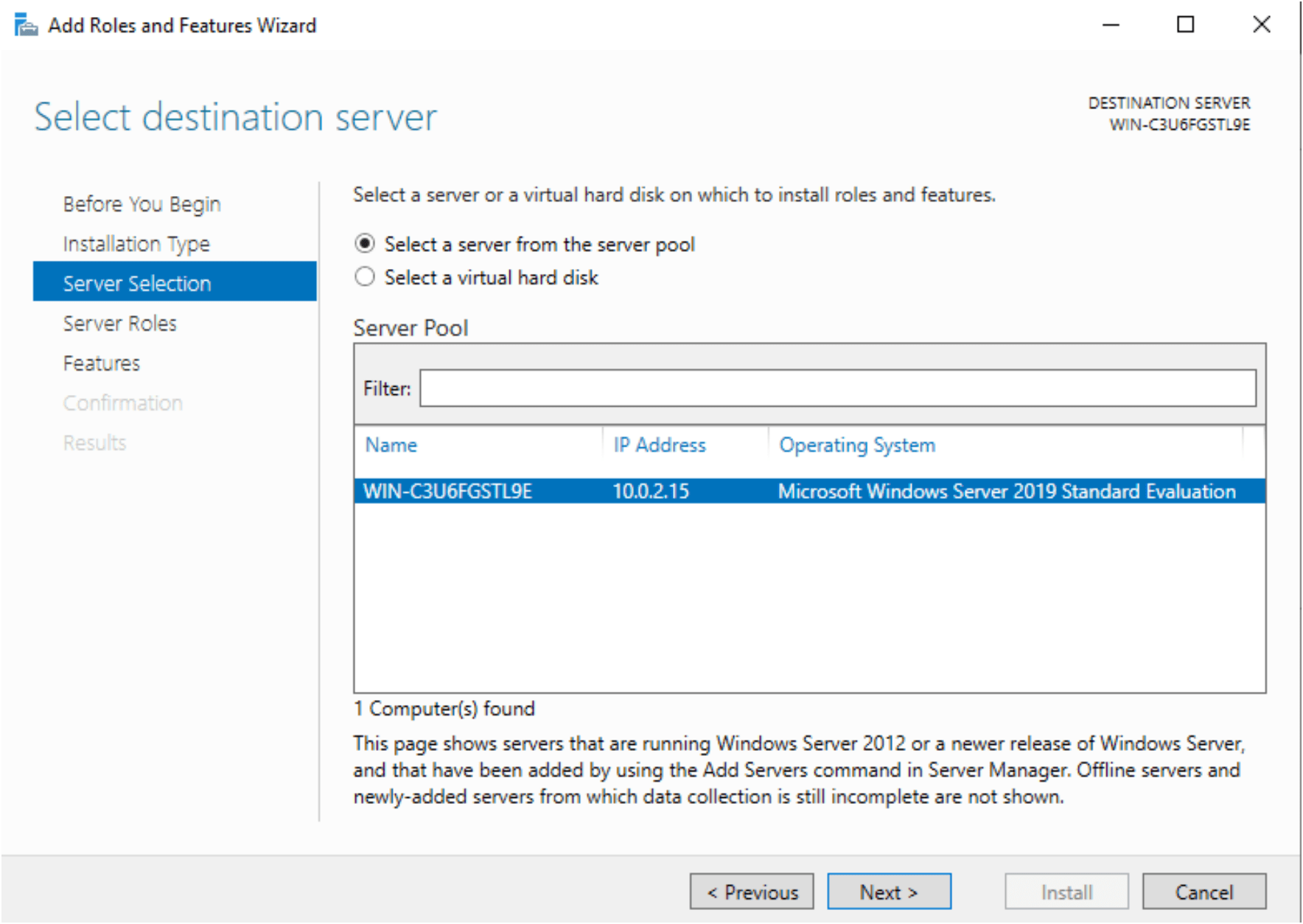
Select Server Destination in which check the Server Name & IP address:
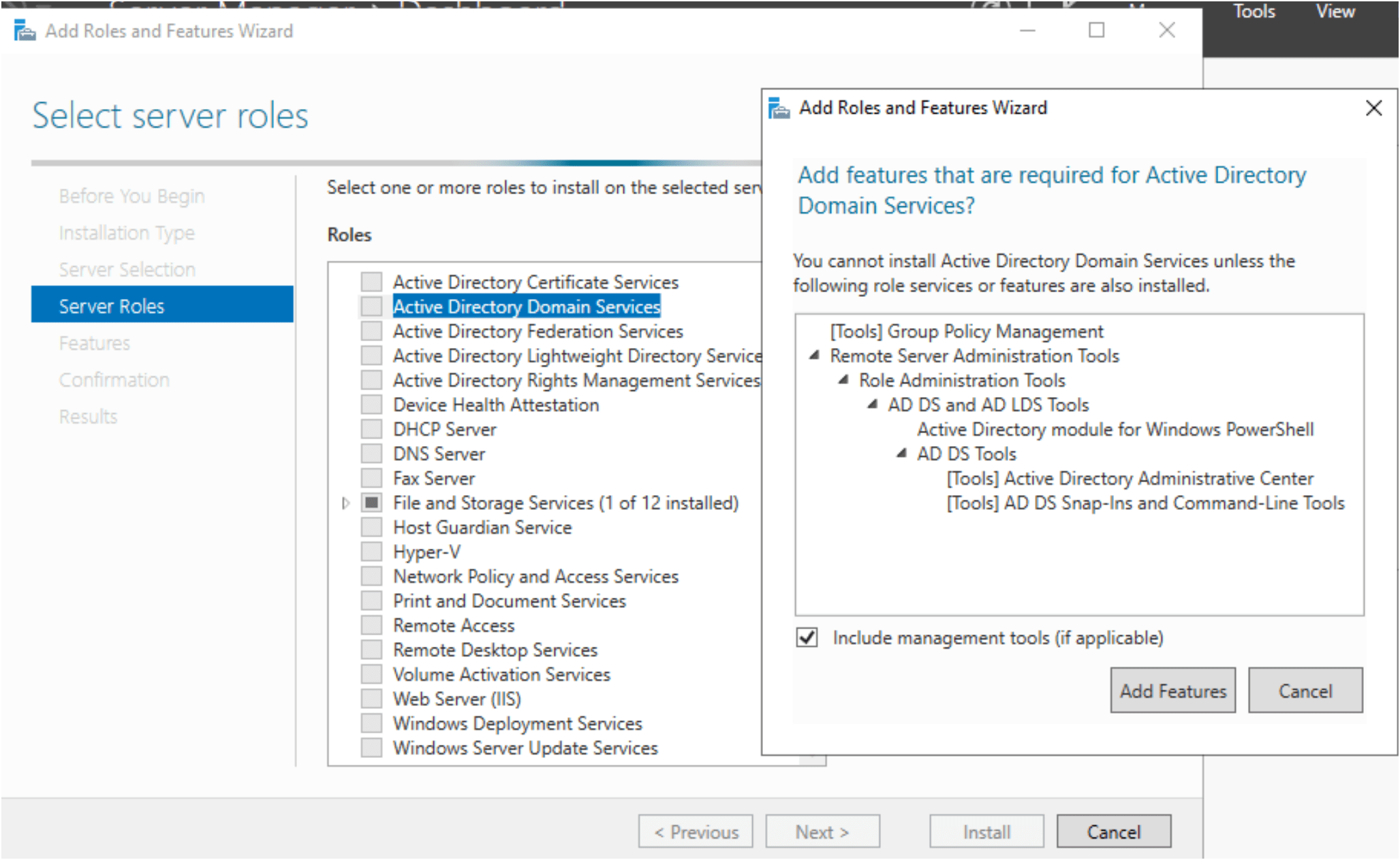
Choose the Server Roles as Active Directory Domain Services and it will open dependences click on Add Features button also on Popup window.
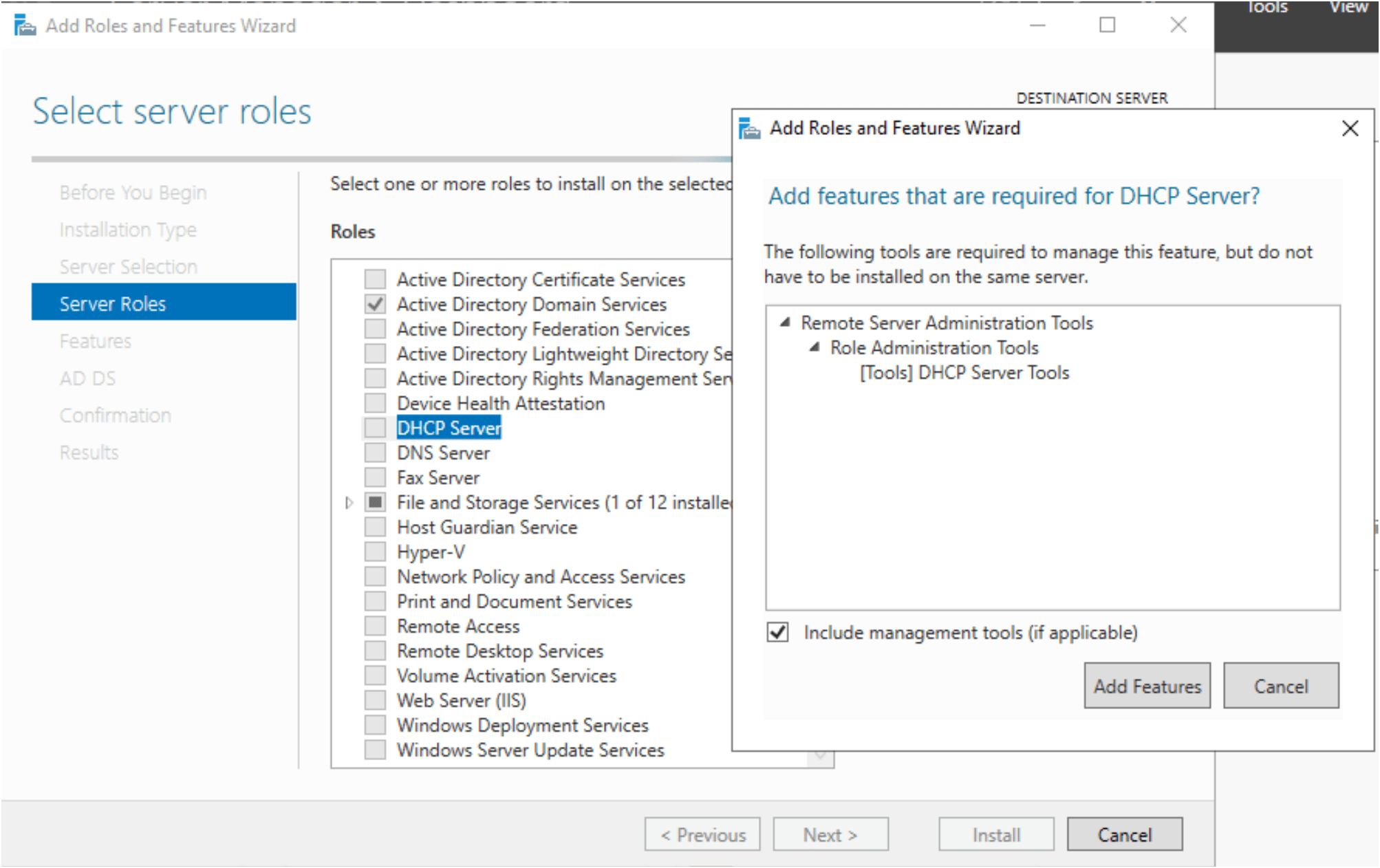
Then Select DHCP Server
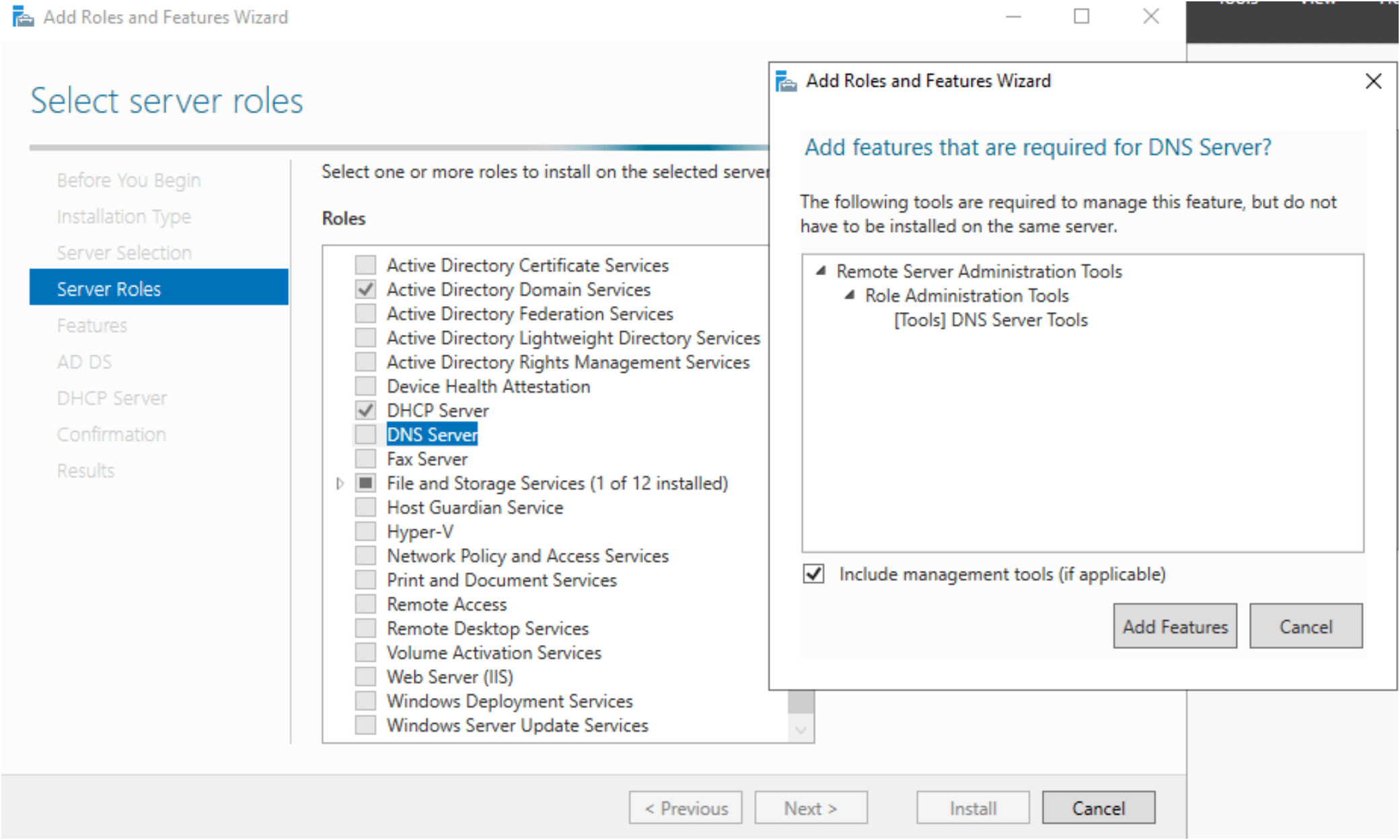
Select DNS Server:
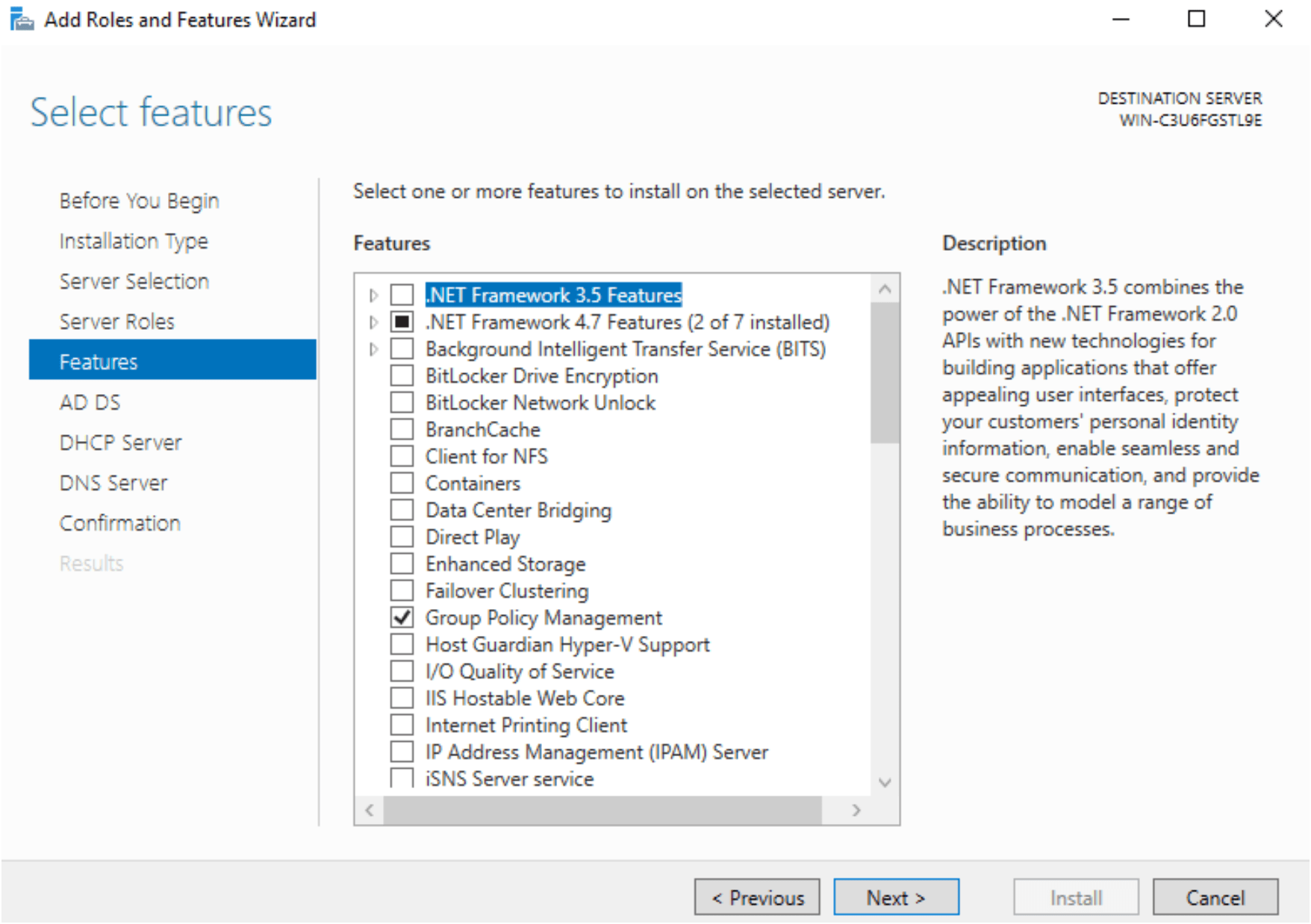
Click next from features window:
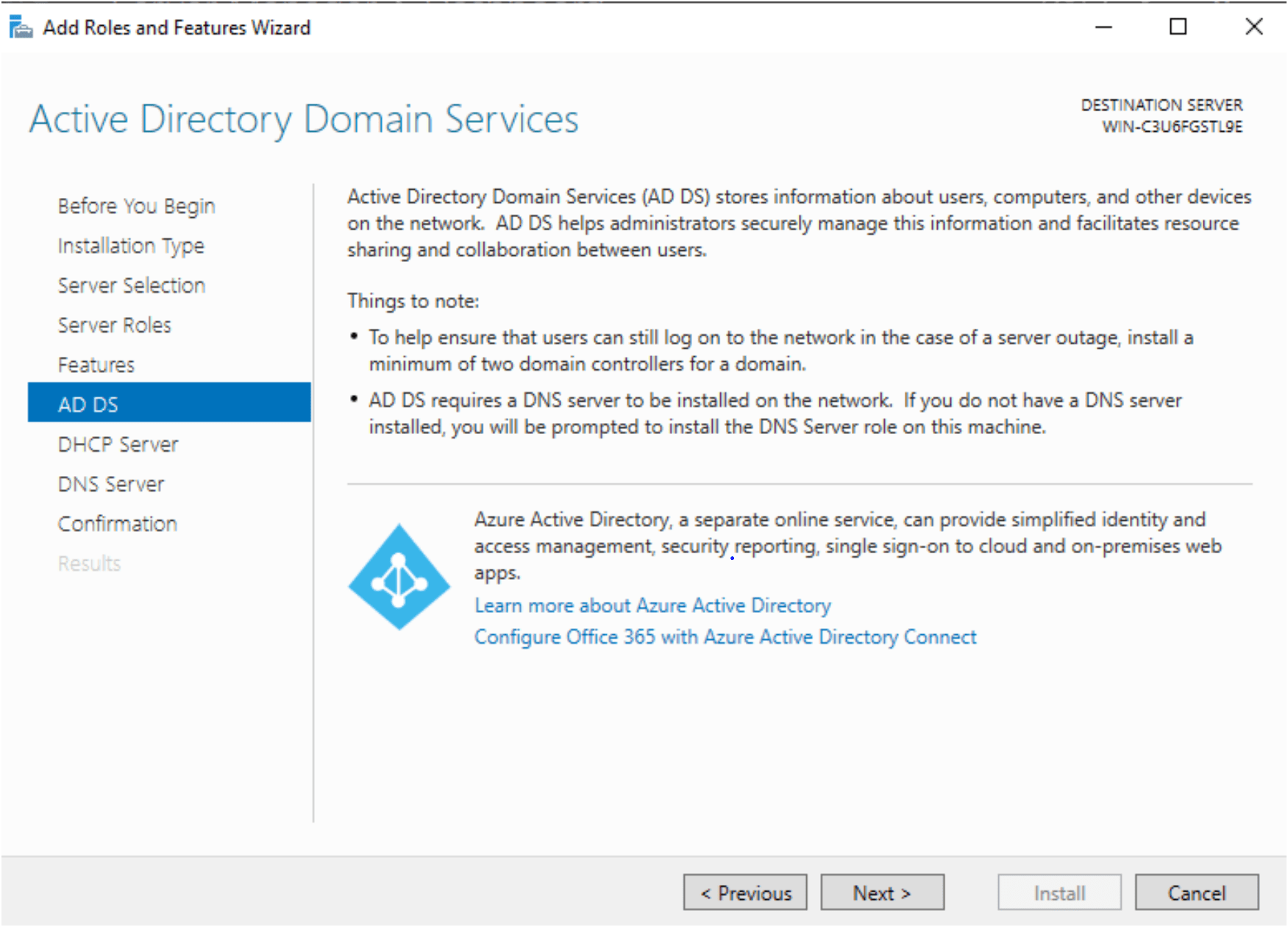
Click next on introduction page for the active directory.
Click next on DHCP Server pages.
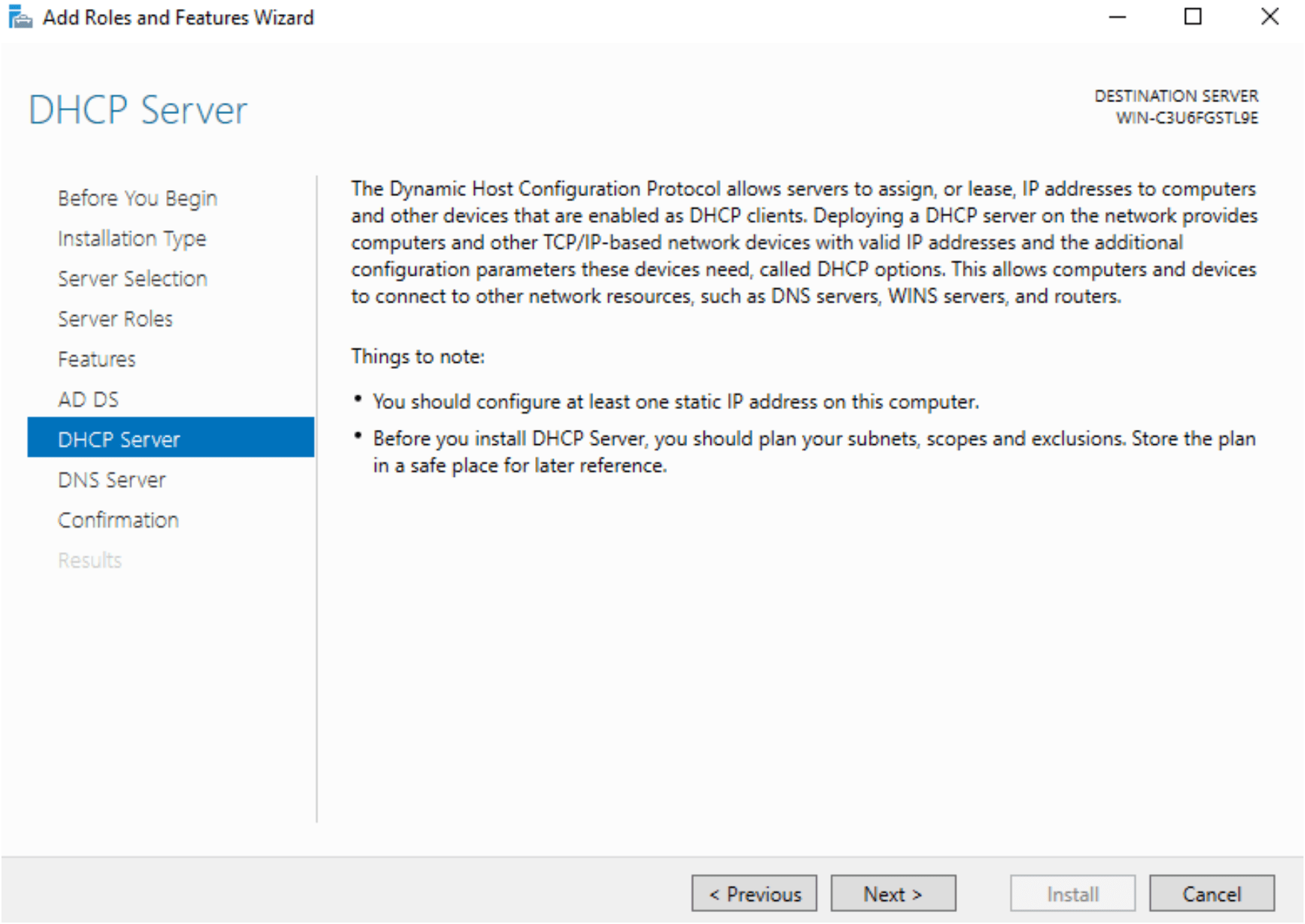
Click Next on DNS Server:

Select the Restart option and start the installation button.
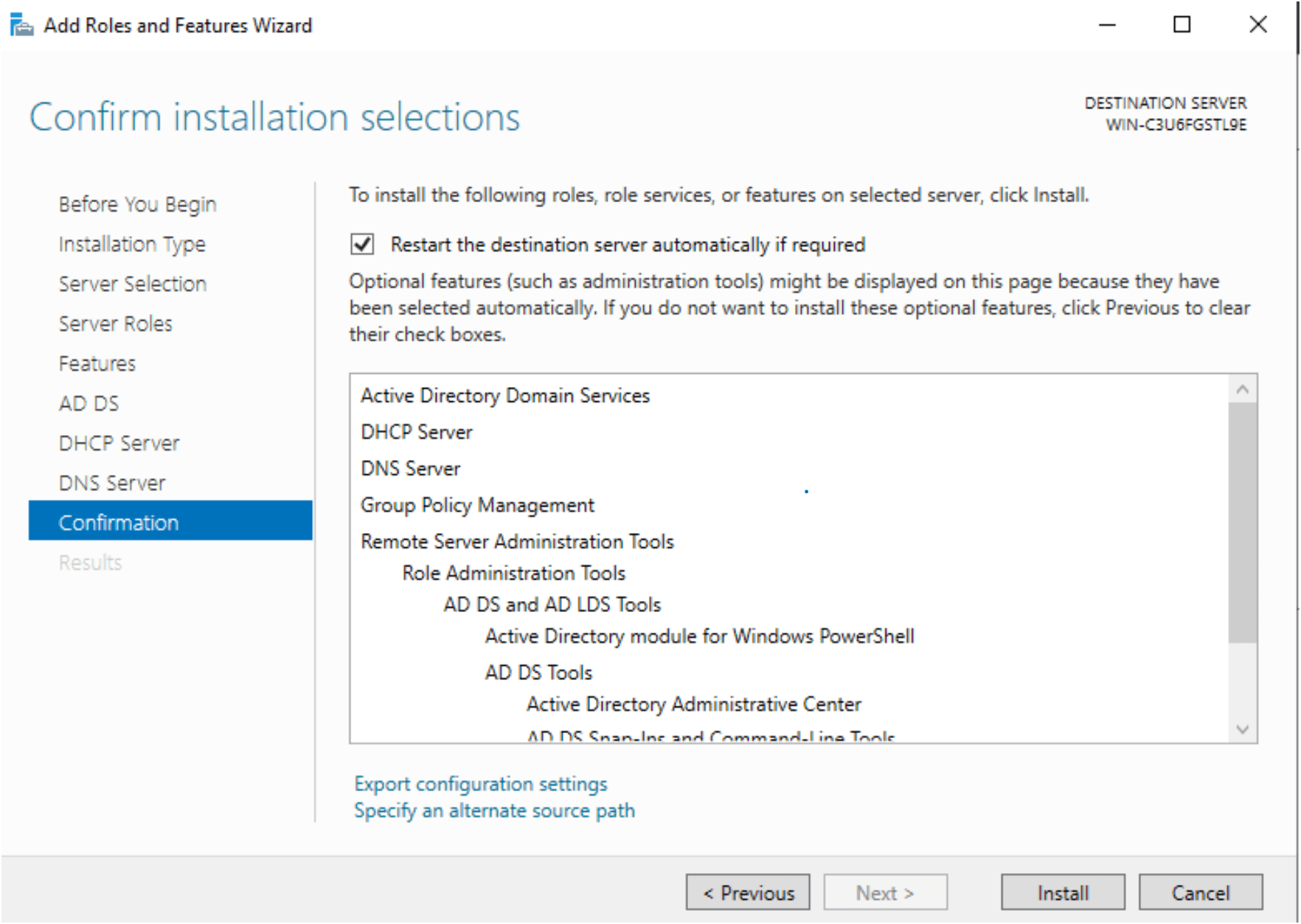
Installation in Progress for domain server :
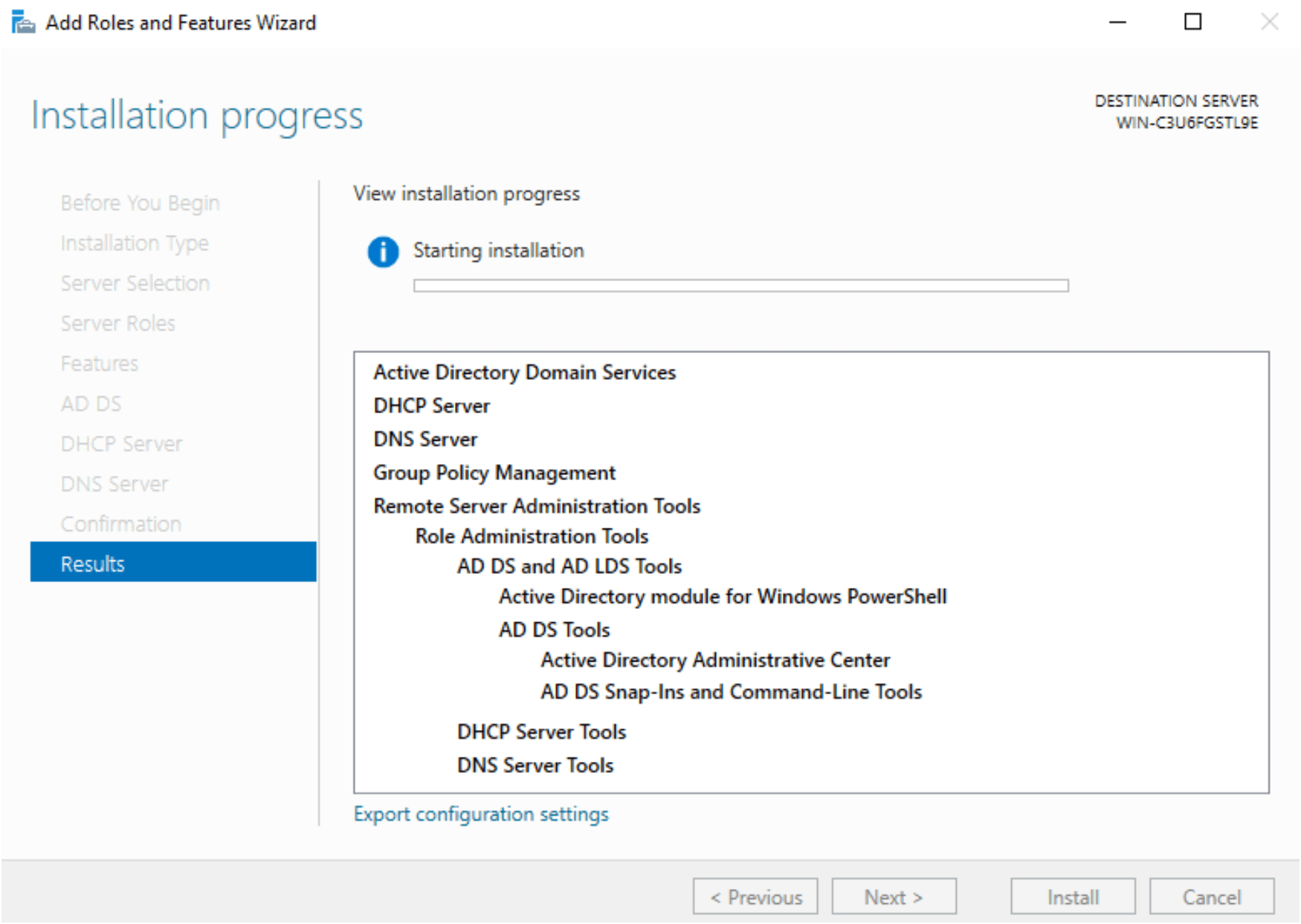
After complete press the close button
Next step, in server manager, you will continue with promote this server to a domain controller.
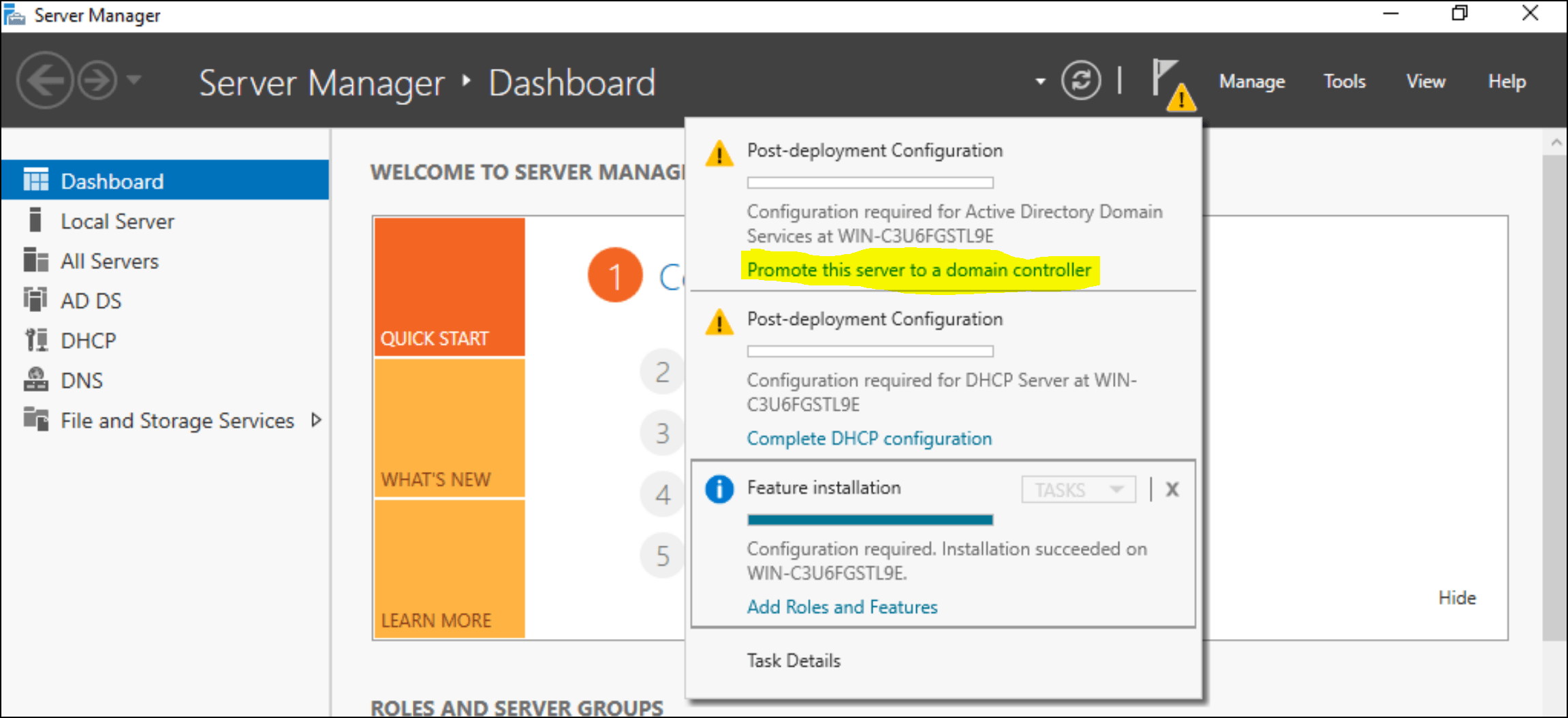
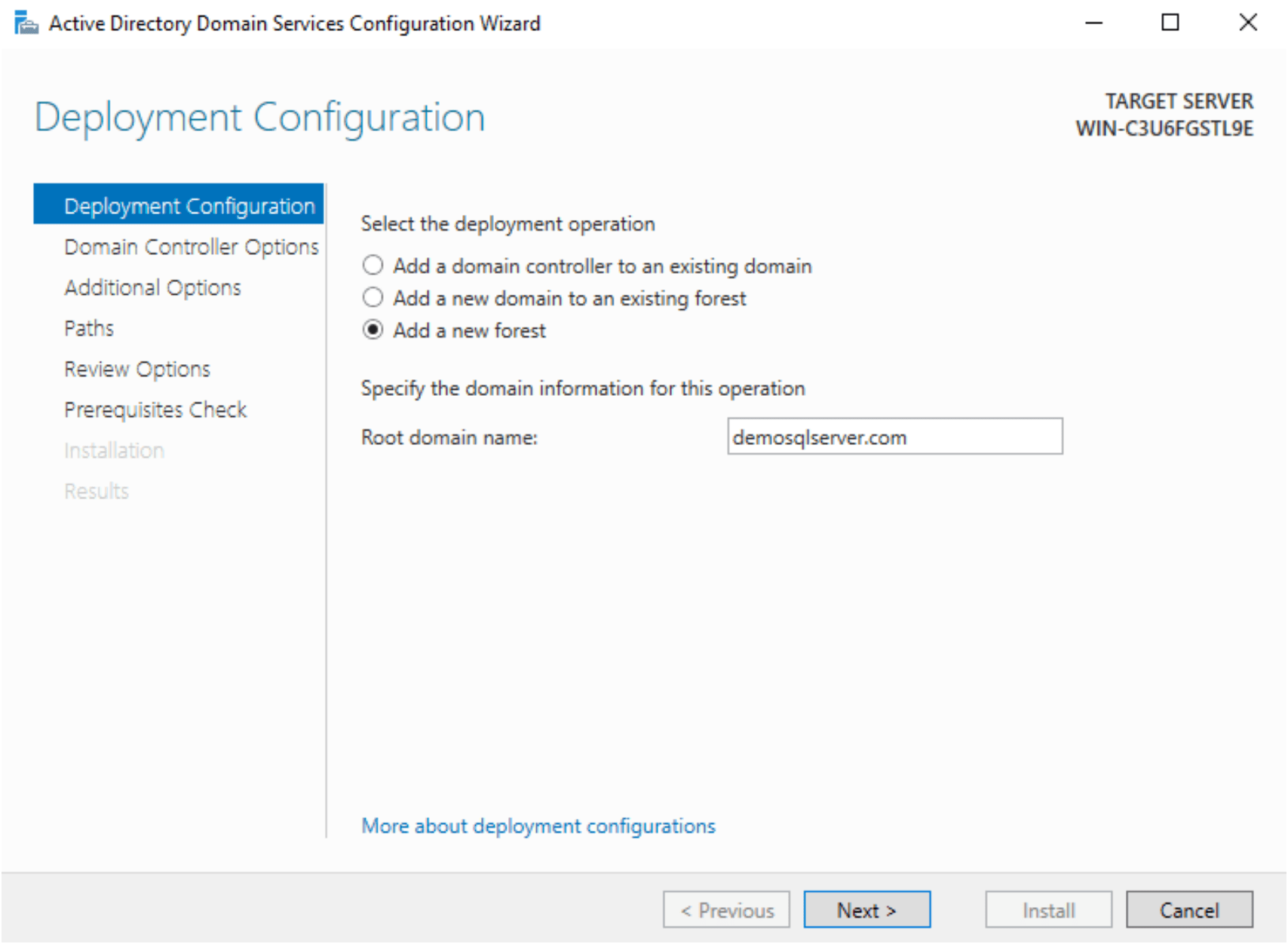
select Add a new forest and specify the root domain name. My domain name as demosqlserver.com
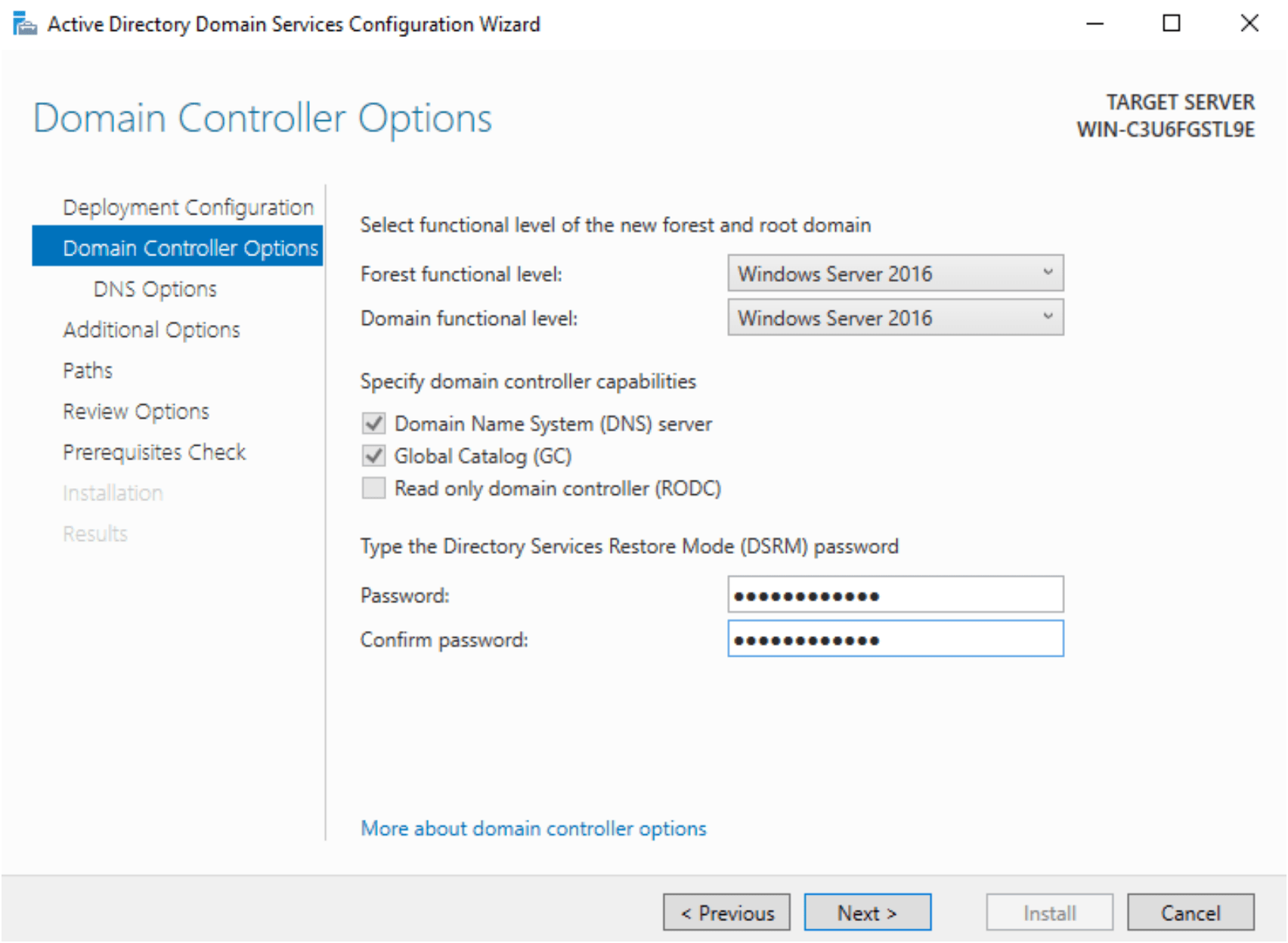
Set the password for Domain controller
Click next

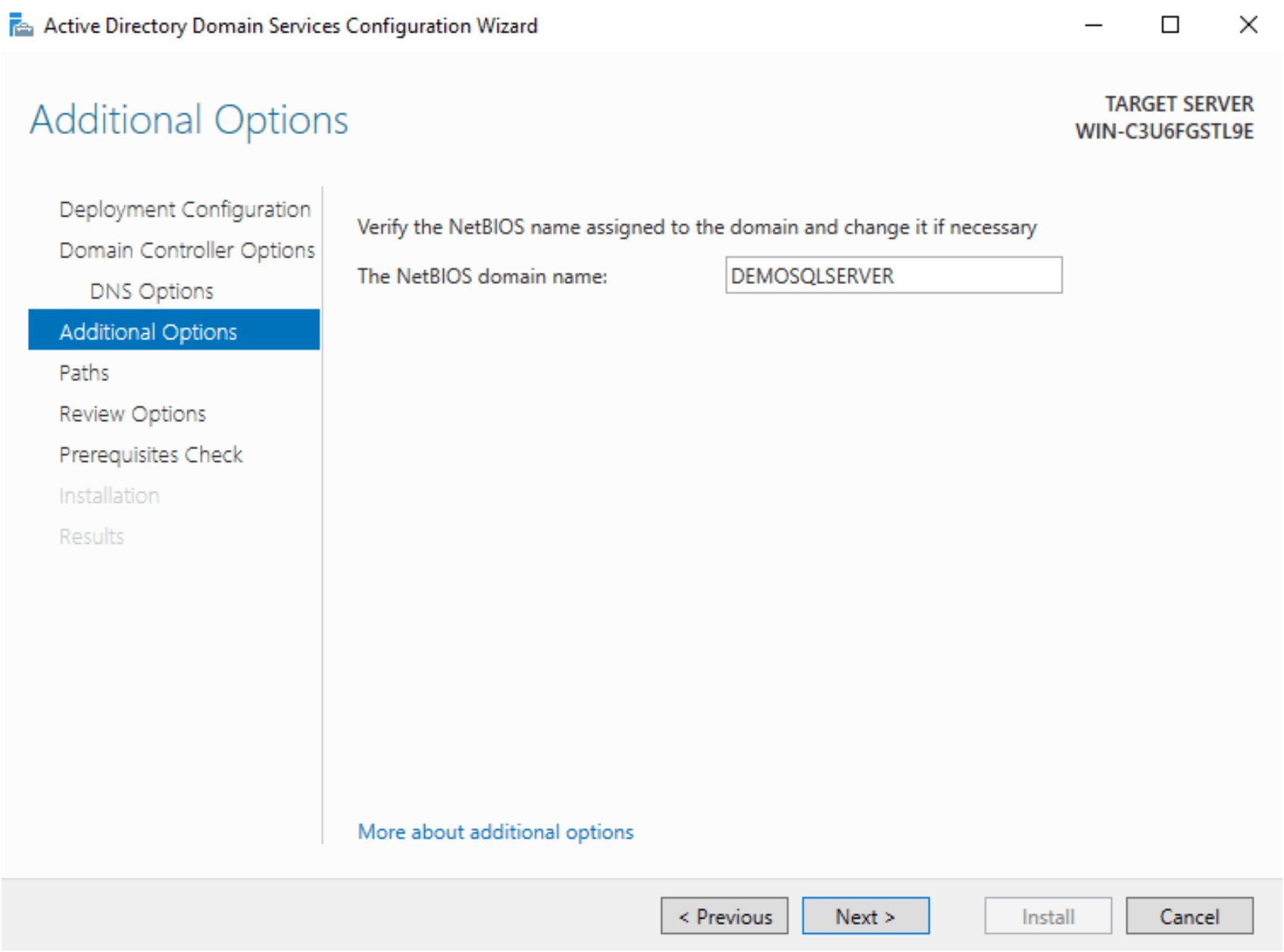
The NetBIOS is the domain name without .com suffix. Enter the domain name without .com
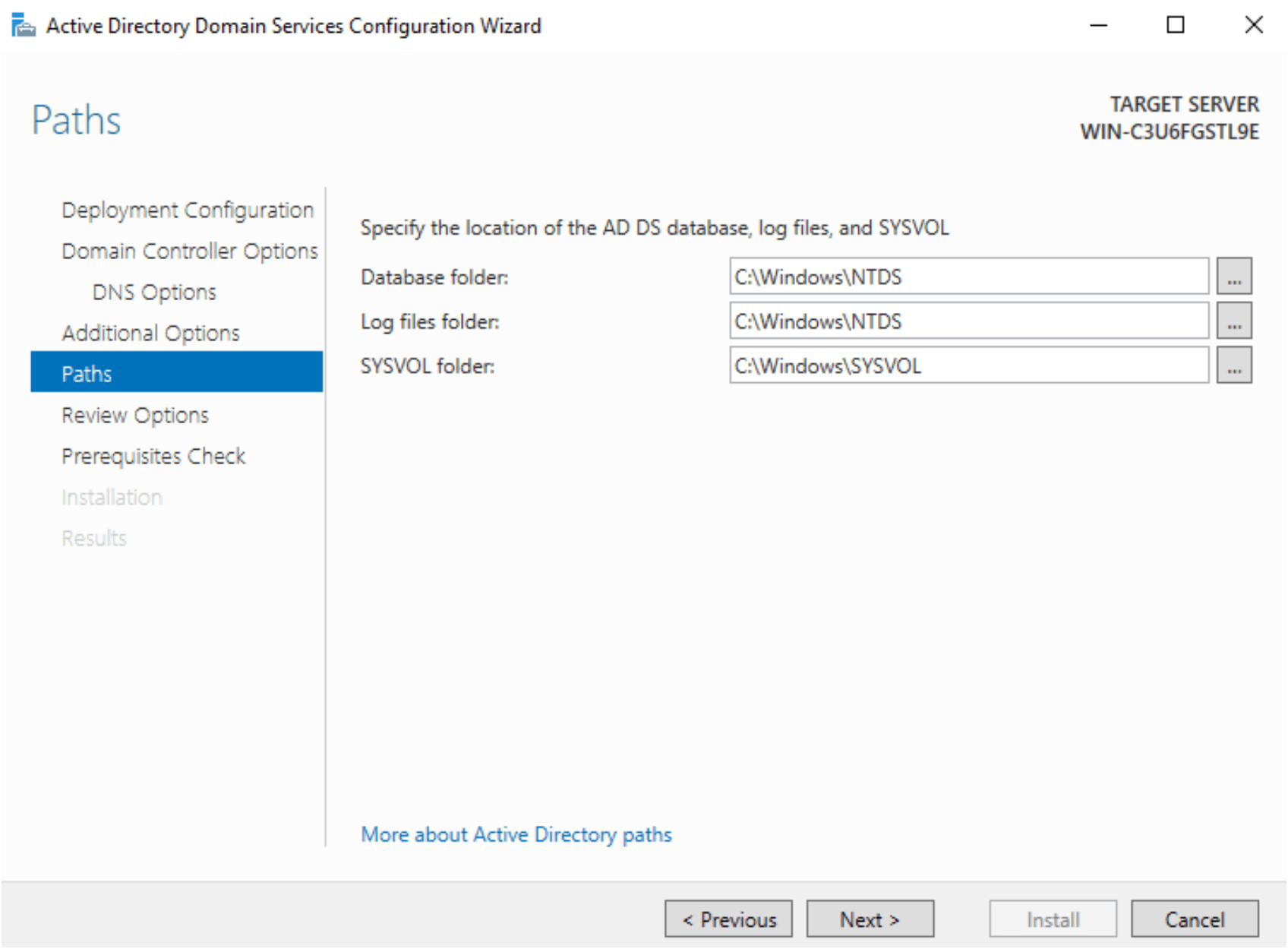
Define the Paths for Domain Services. keep at default location:
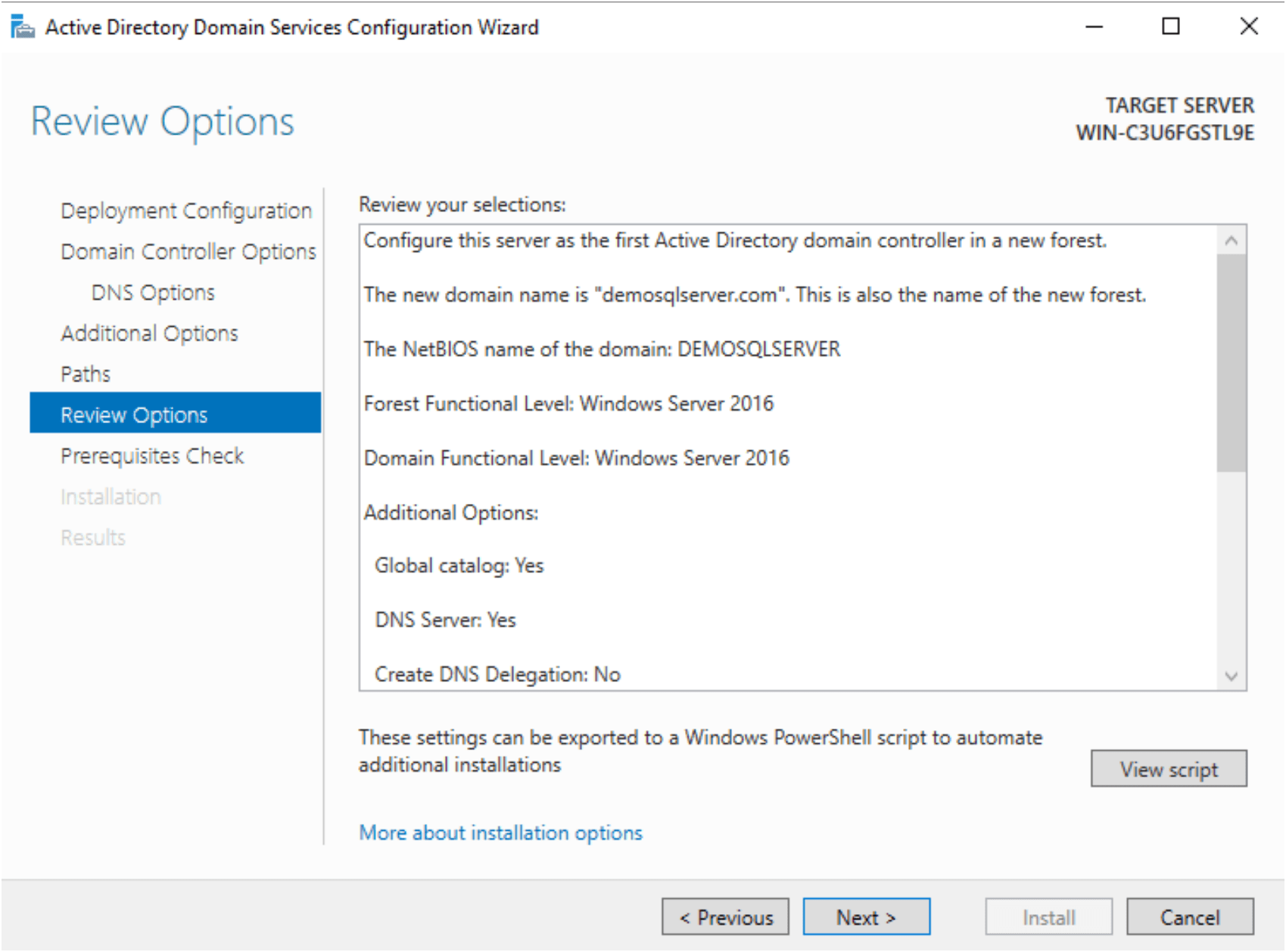
Review and click Next
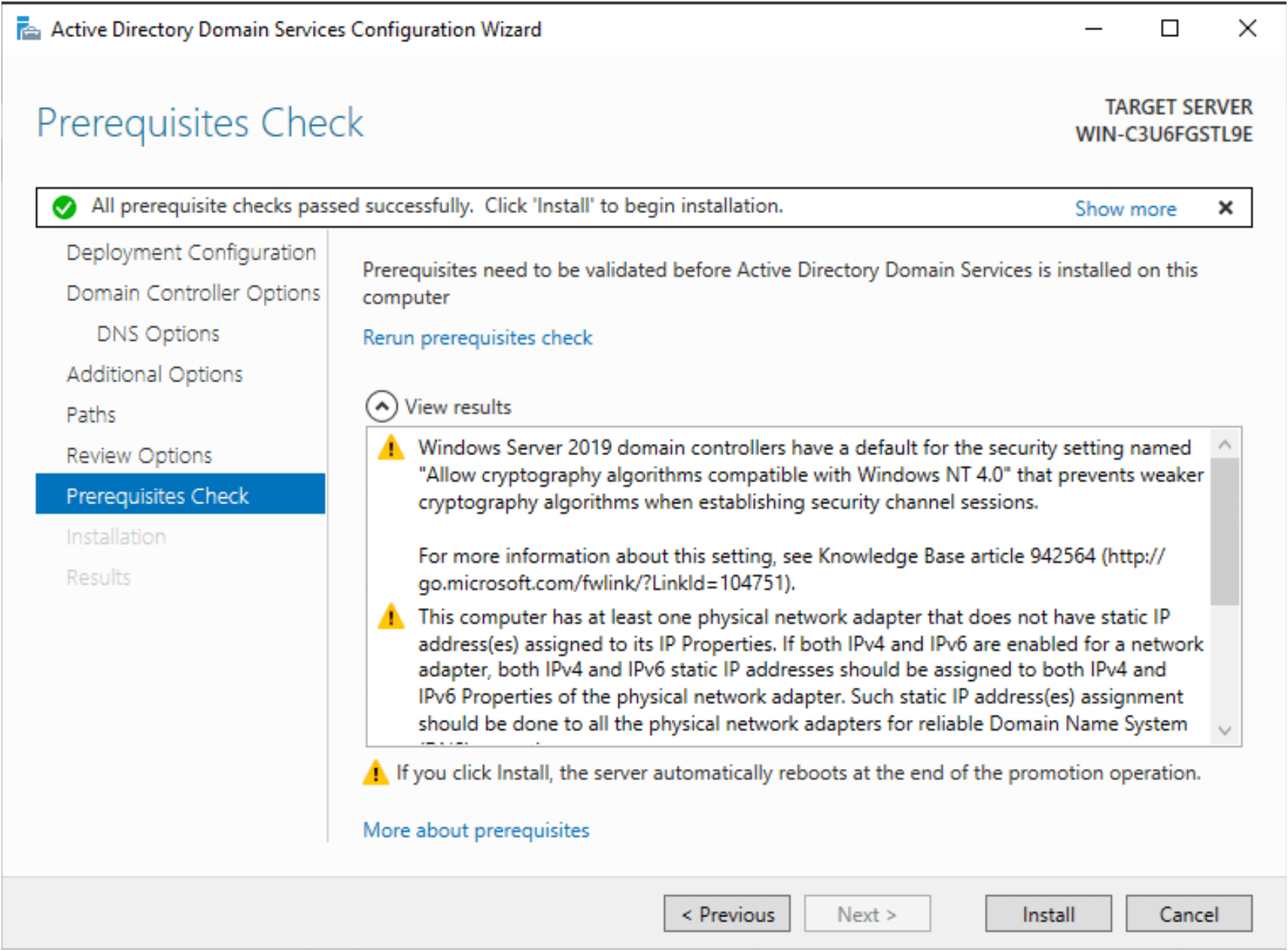
Prerequisites check for windows server.
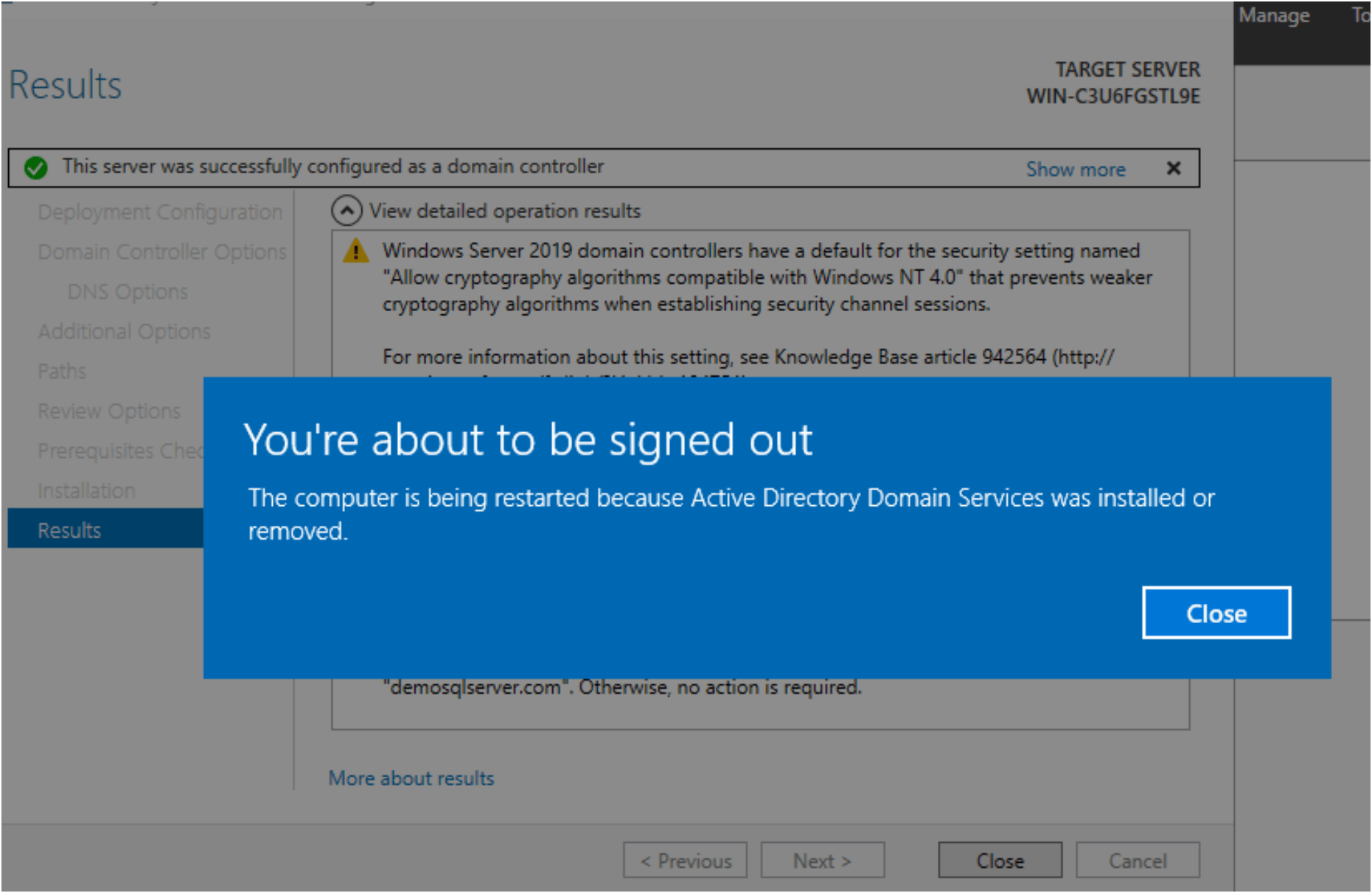
after installation system restarted and login with domain controller.
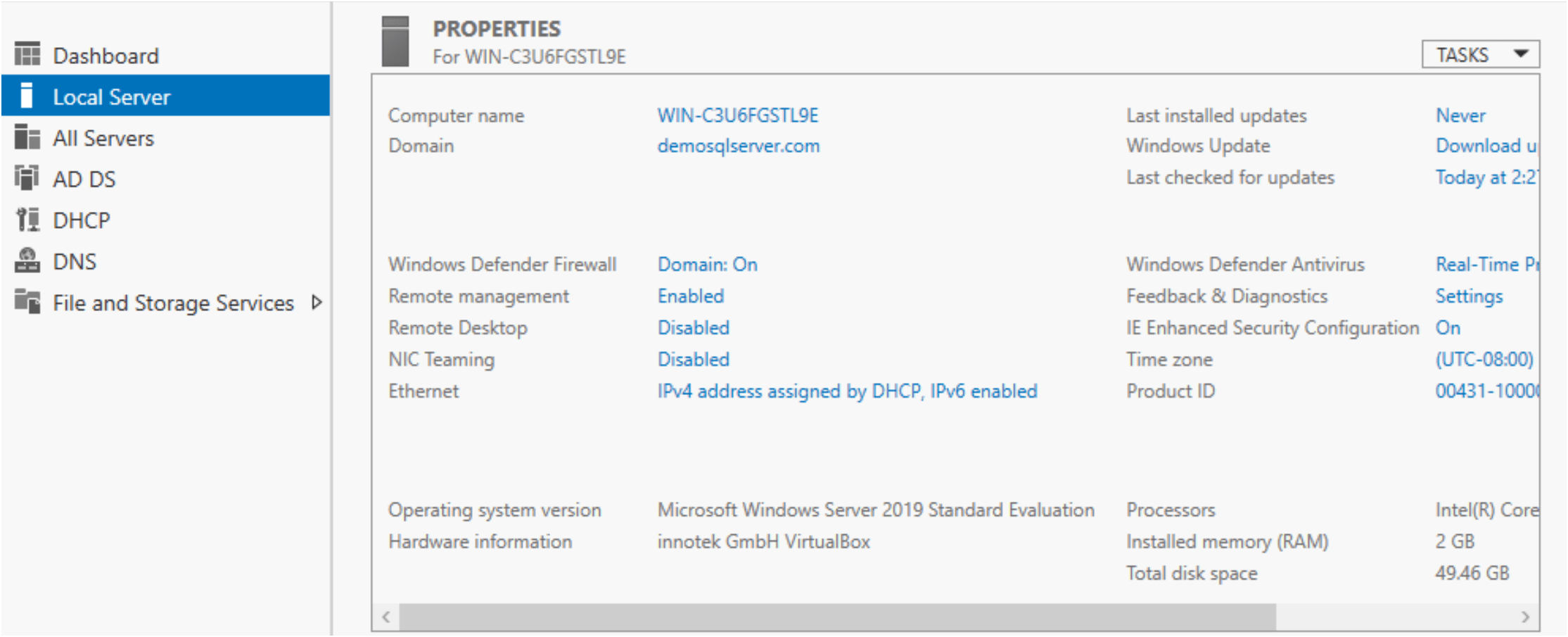
After reboot, please see in server manager setting.
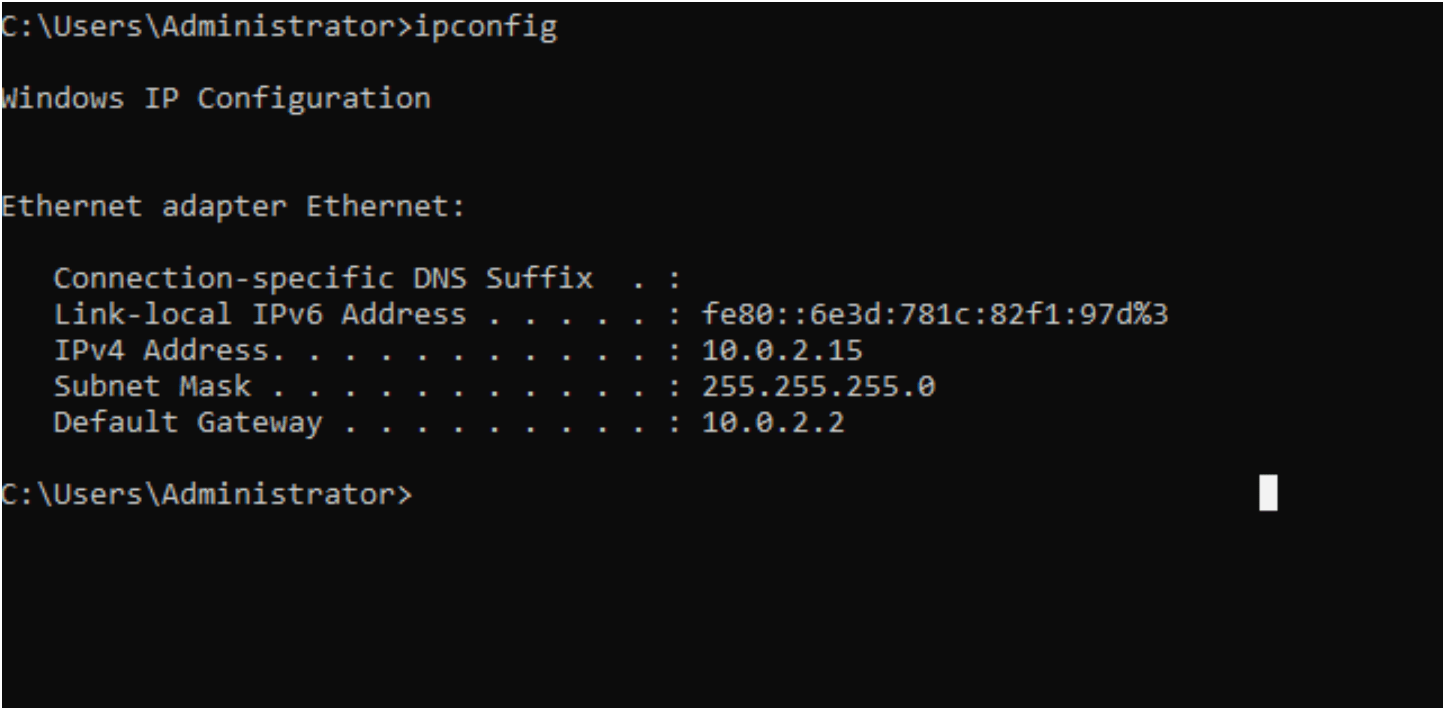
Verify IP address:
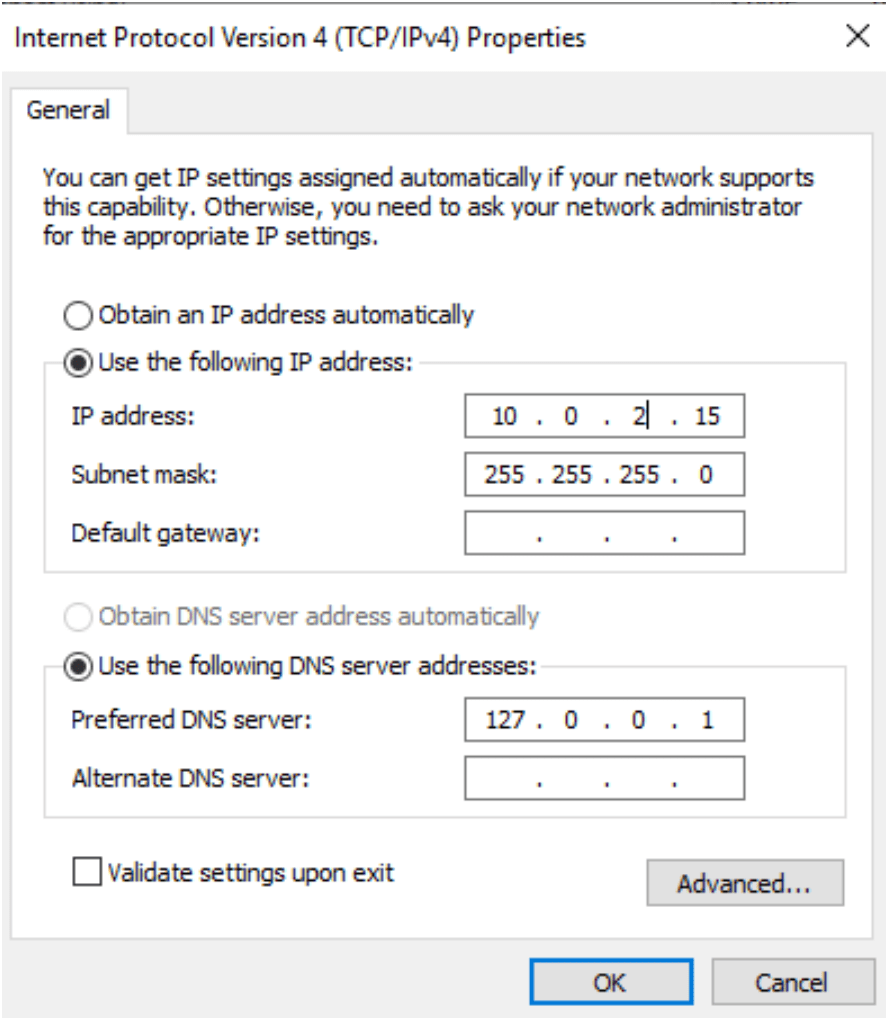
we need to add DNS preferred as 127.0.0.1 because this server is domain server.
Configure Reverse lookup zones in DNS for SQL Server Always On Availability Groups
Open the Server Manager again..

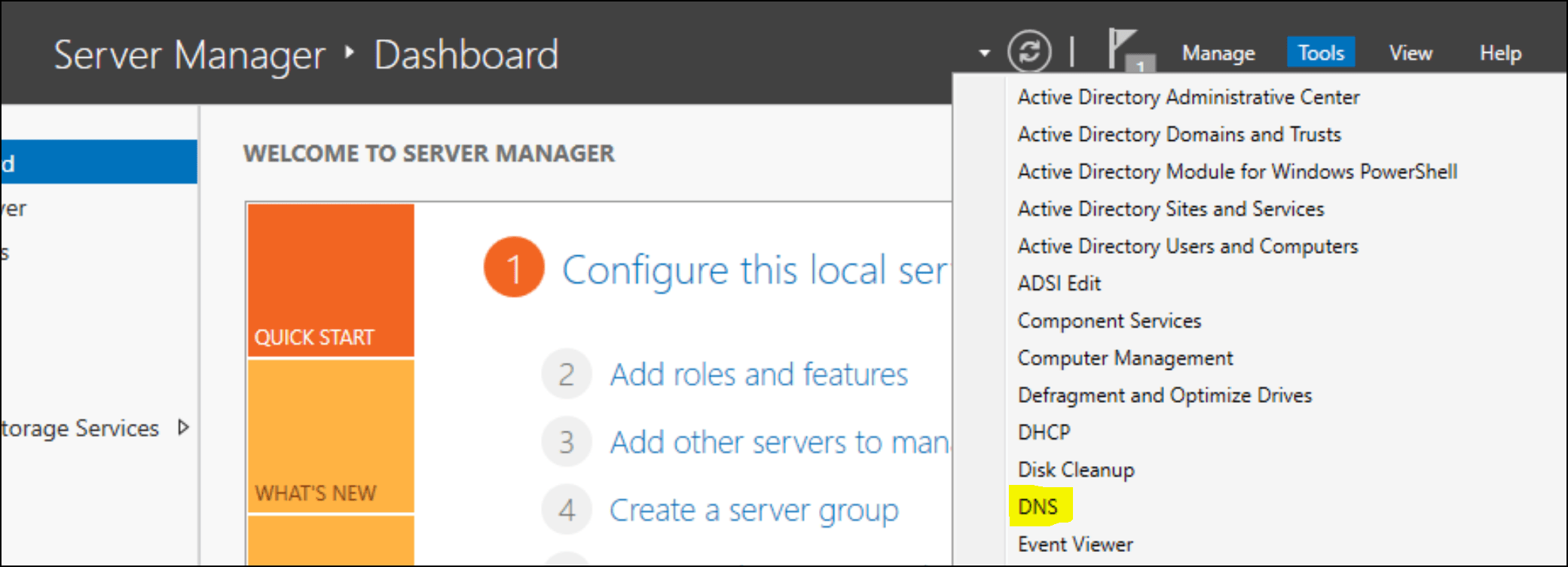
Go to Tools –> Click on DNS
DNS Manager will open
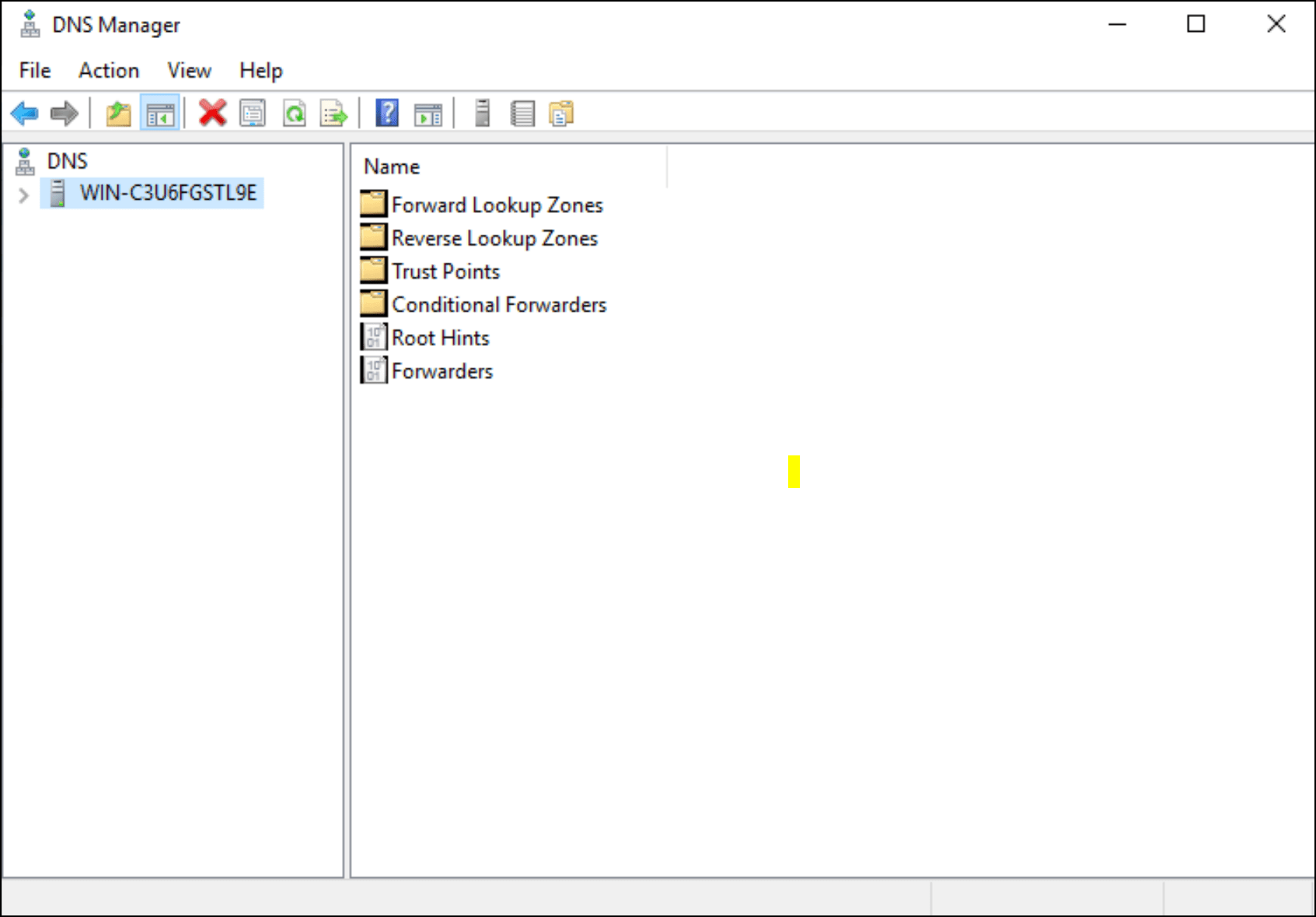
Right click on DNS machine and select new zone to create reverse zone setup
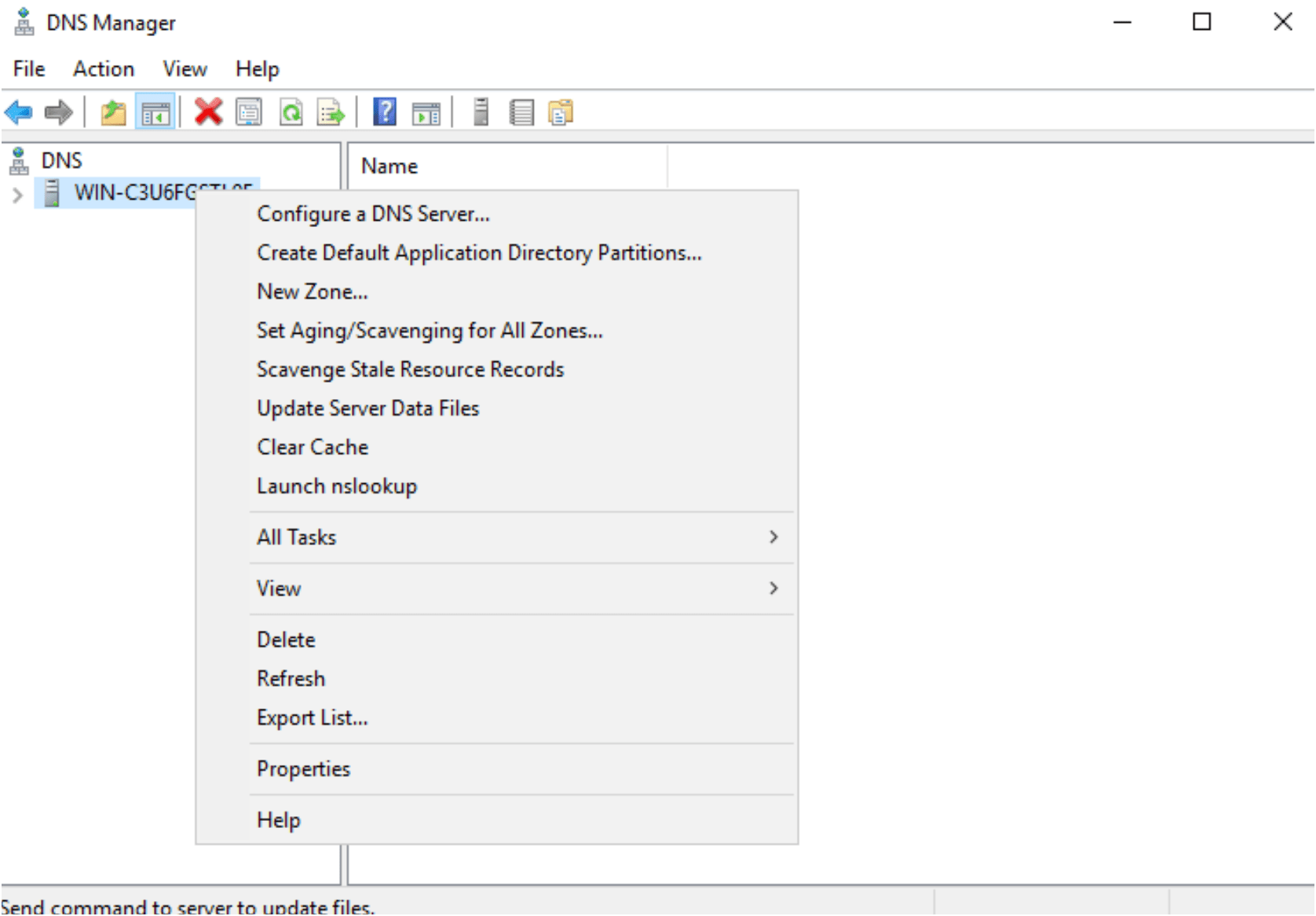
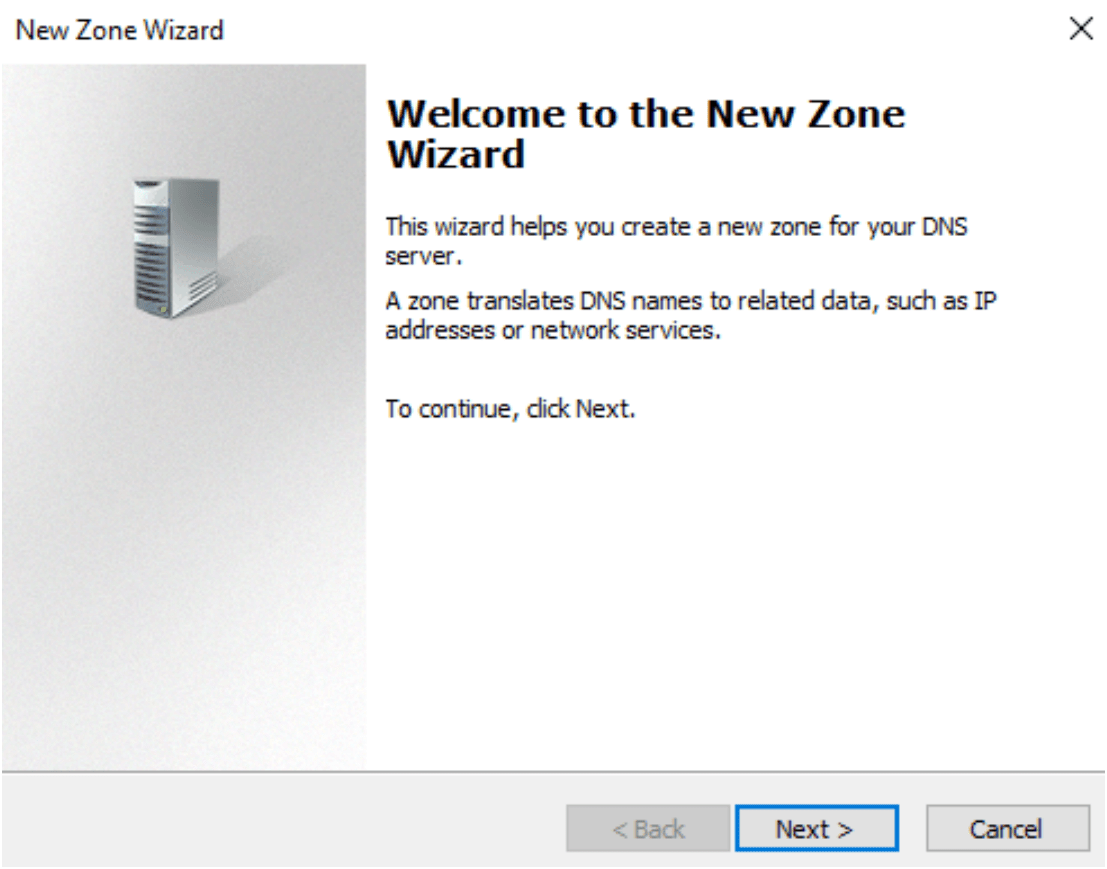
New Zone wizard is open as shown below:
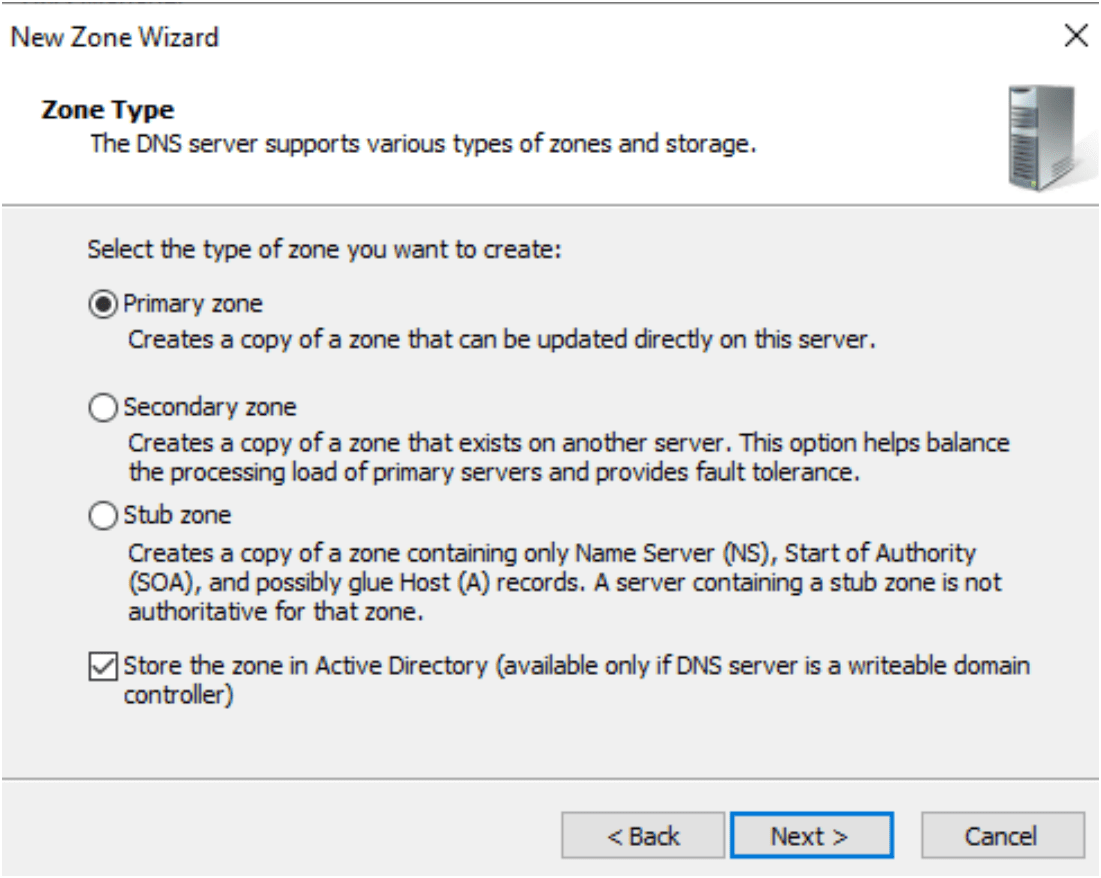
Choose the zone type as primary zone, press next
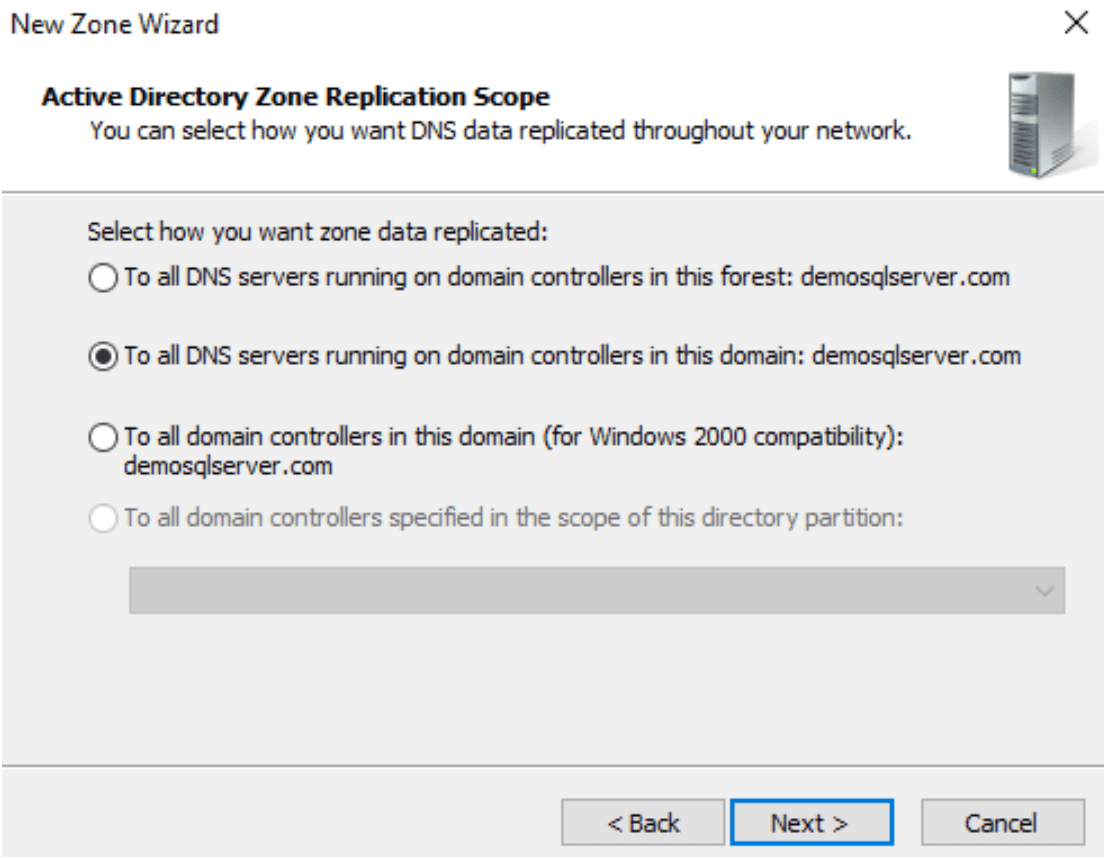
Select the zone replication scope- To all DNS servers running on domain controllers in the domain: demosqlserver.com
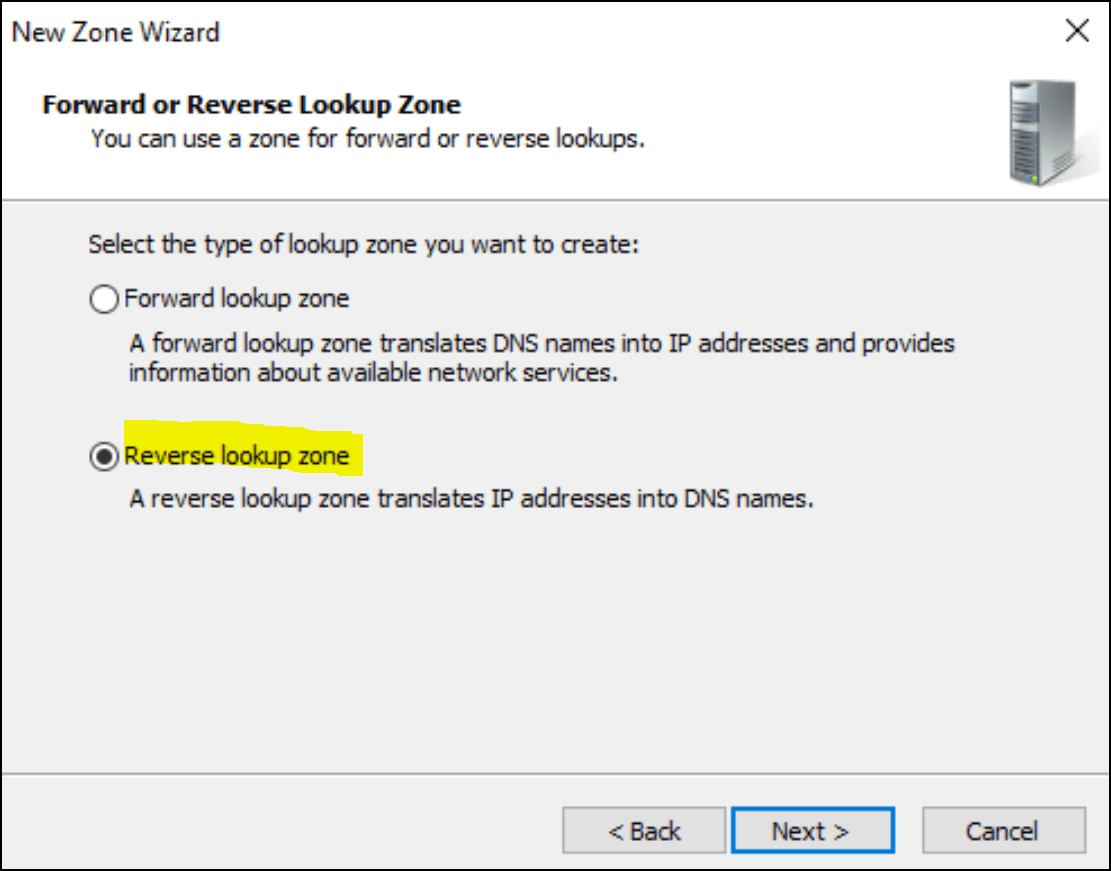
Select the type of lookup zone as a Reverse lookup zone.
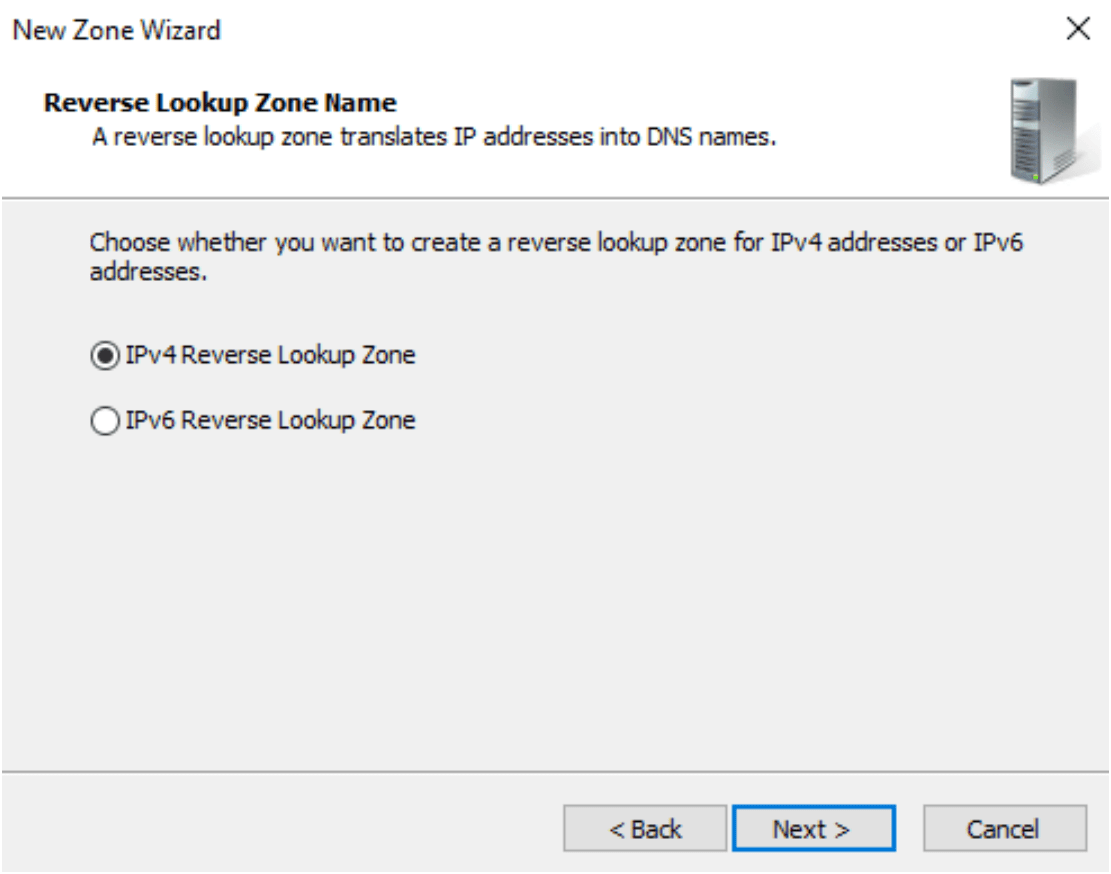
Choose the IP address as IPv4 Reverse Lookup Zone. It’s translates IP addresses into DNS names.
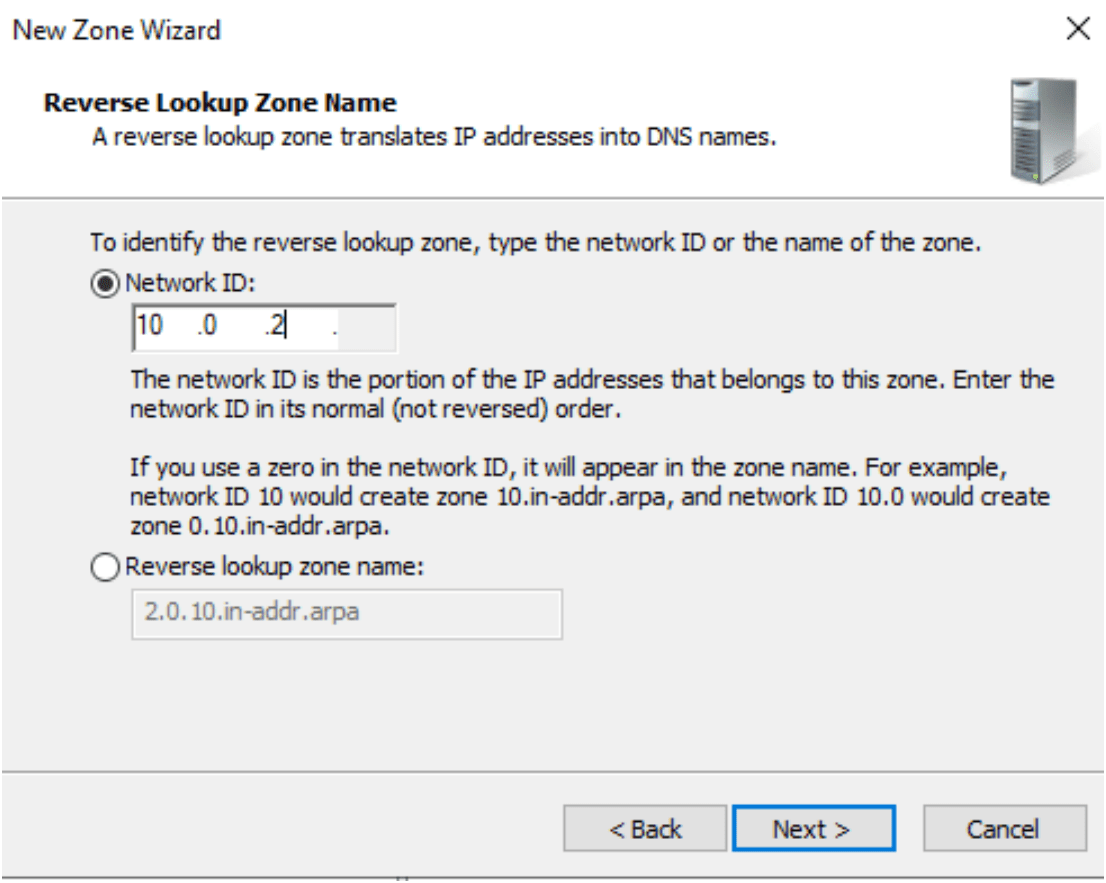
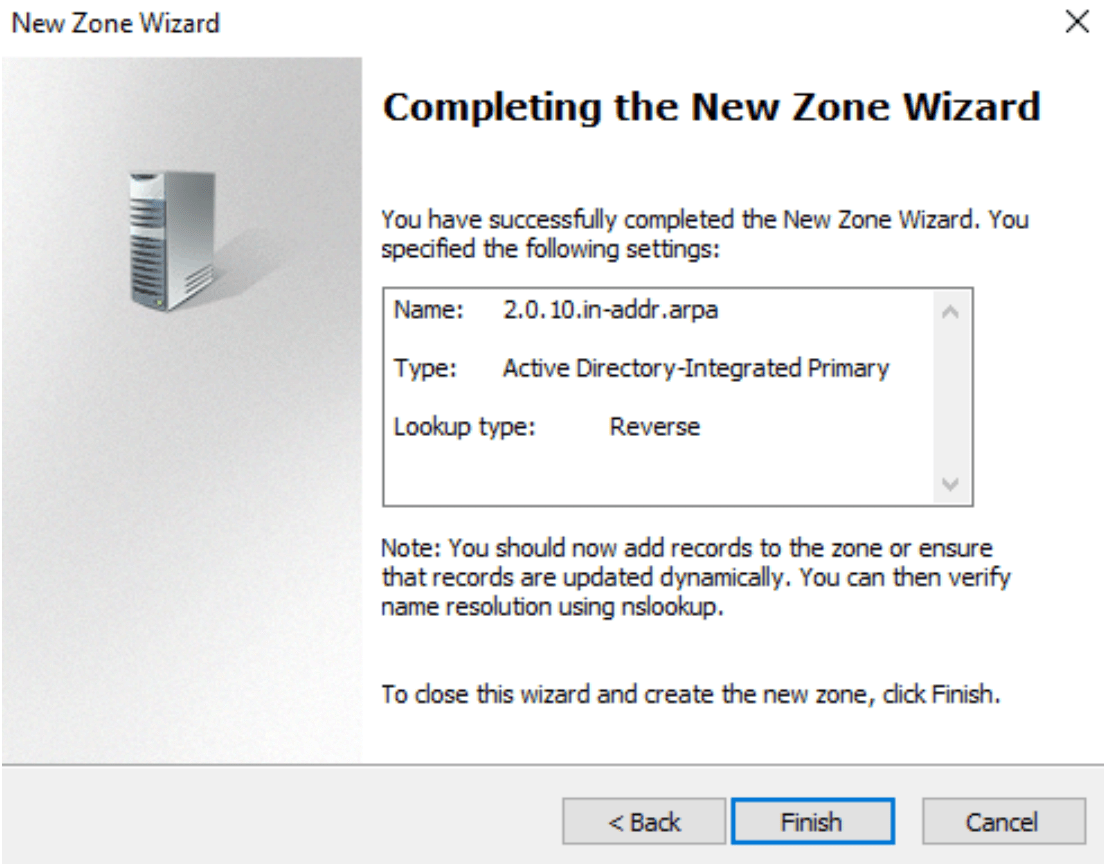
In reverse lookup zone setting, Enter the network ID (10.0.2) of the IP address as shown below:
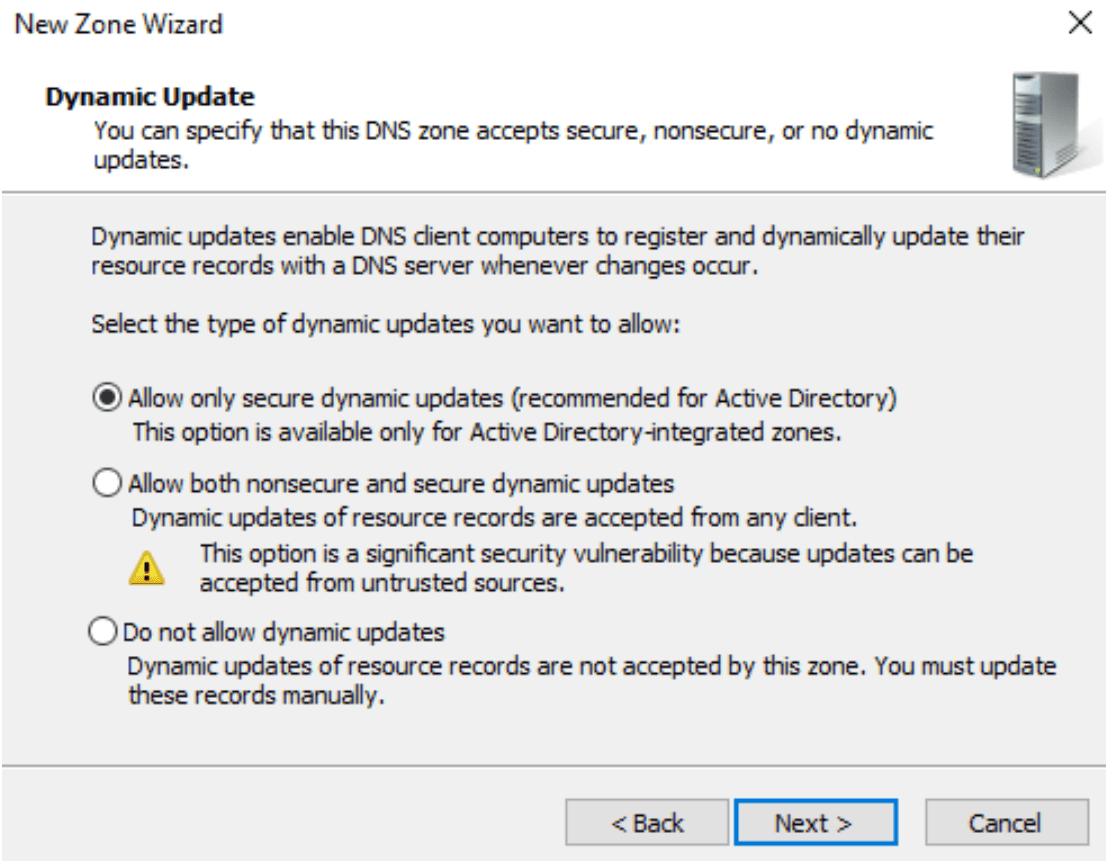
Select the type of dynamic updates as Allow only secure dynamic updates.
Completing the New Zone Wizard for reverse lookup type.
It show in DNS Manager in Reverse Lookup Zones:

Create an active directory user and assign domain admin permissions for SQL Server Always On availability groups
Open the DSA.msc in the run or command prompt.. Active Directory Users and Computers window open as shown below.
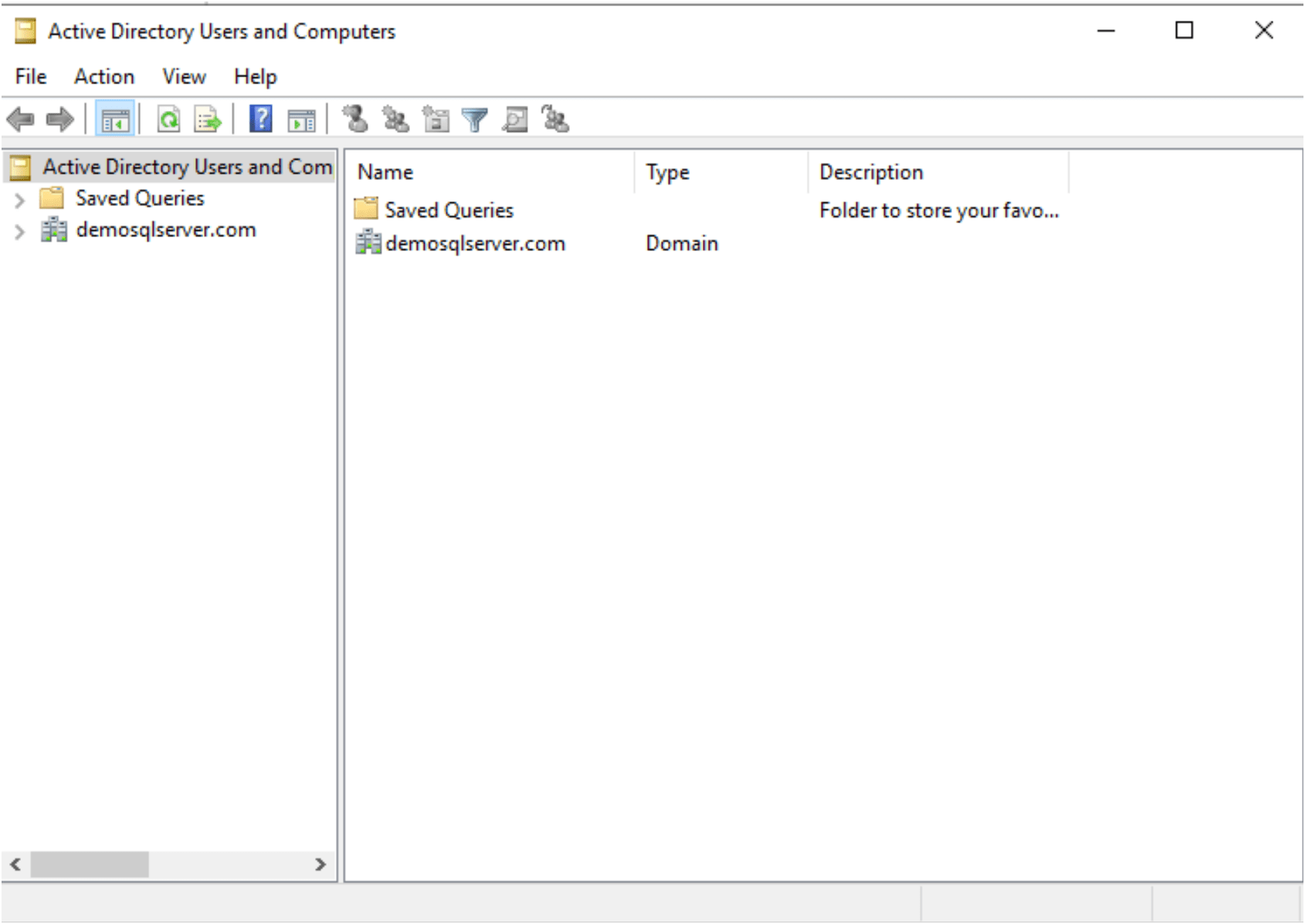
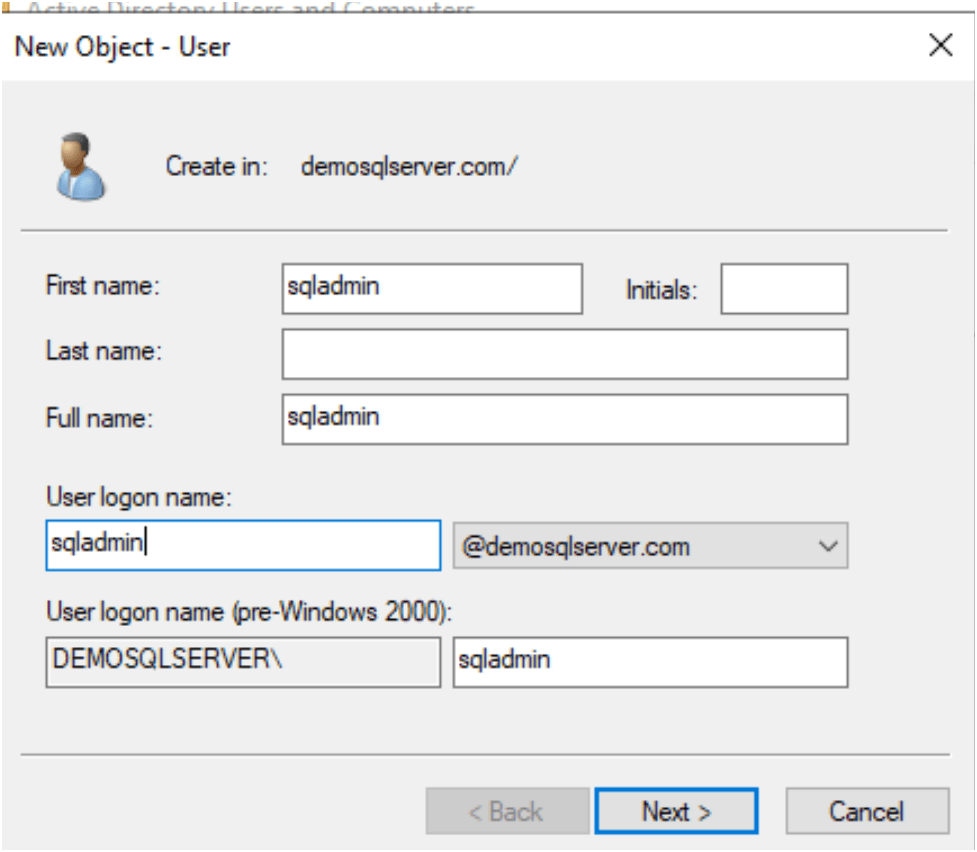
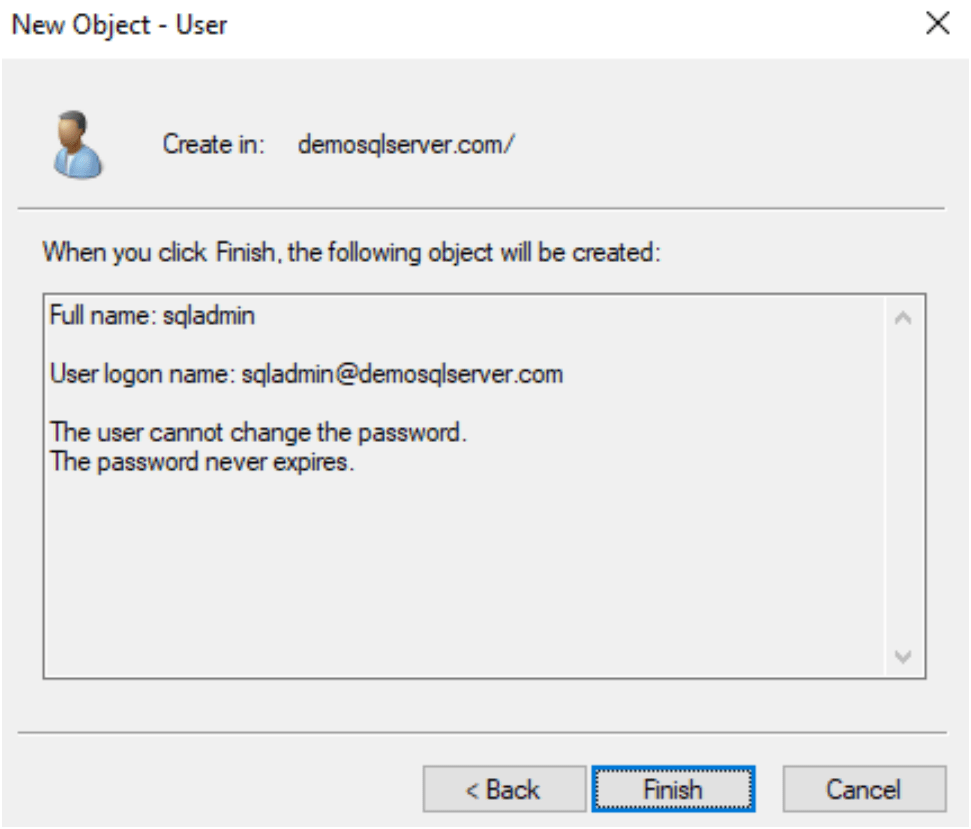
Right click on domain name and create a new user
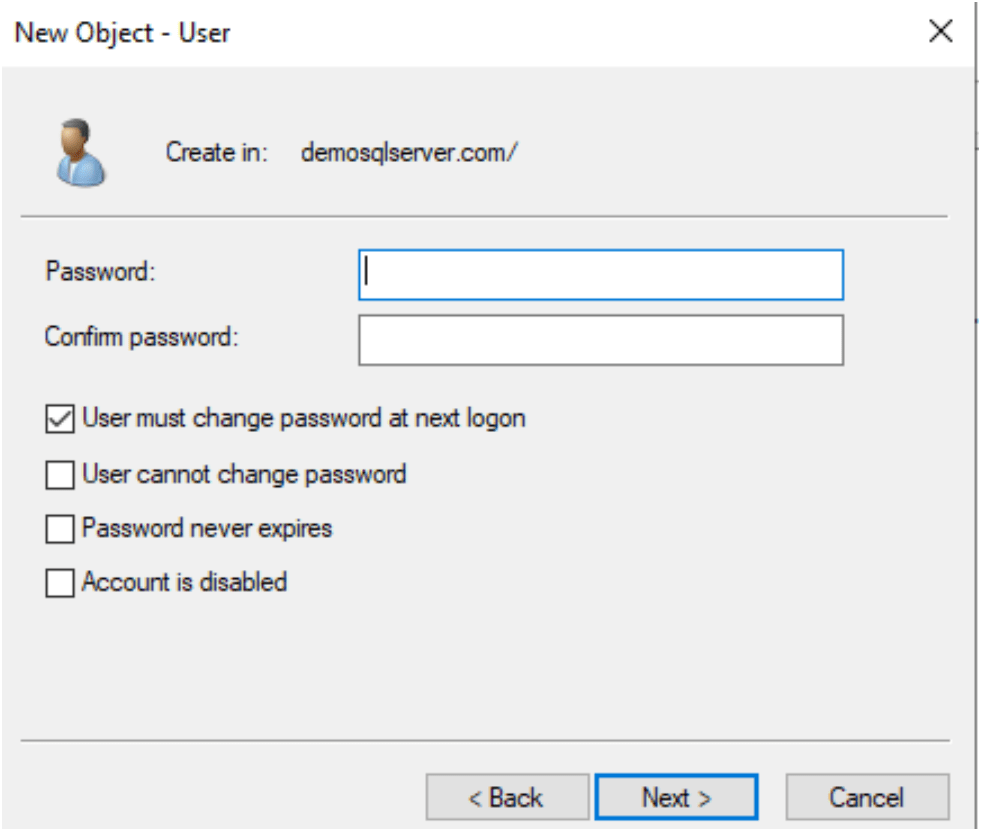
Set the password for sqladmin user:
In the active directory users, double click on the Domain Admins.
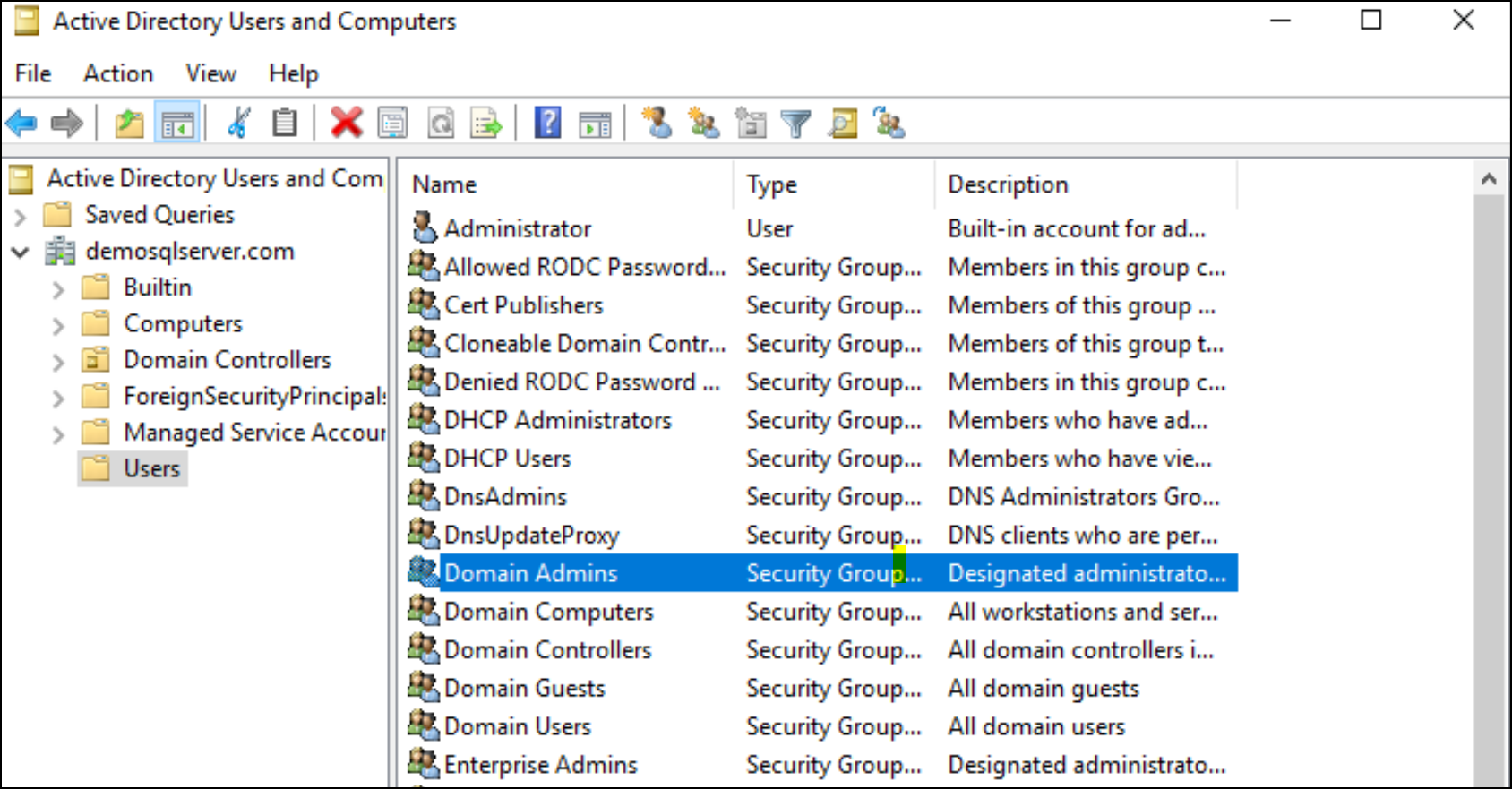
Right click on domain admins, then add user sqladmin in members of this security group.
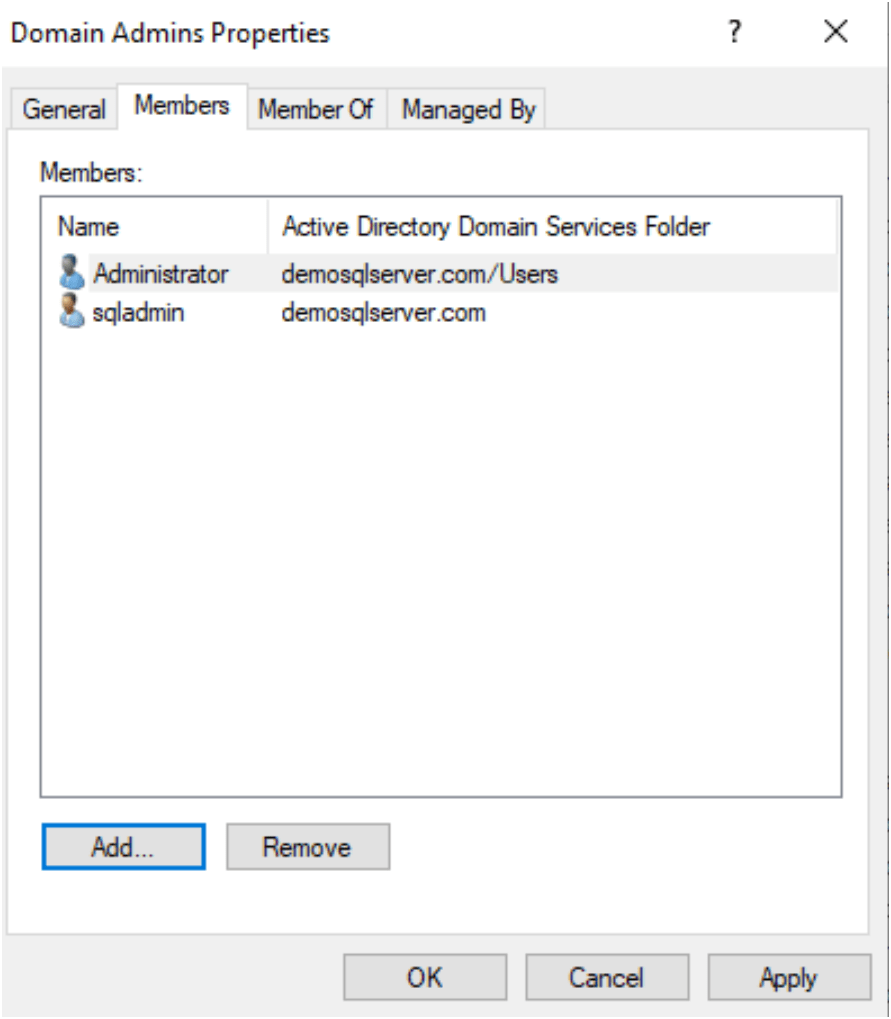
Add domain user as administrator group of local system and later on add it in sqlserver machine where always on will be used.
Go to control panel –> User account –> click on below option:
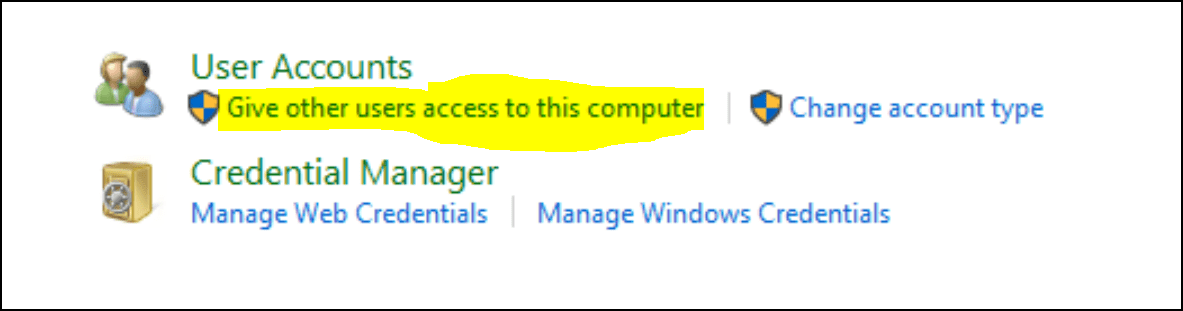
Add domain user to administrator group.
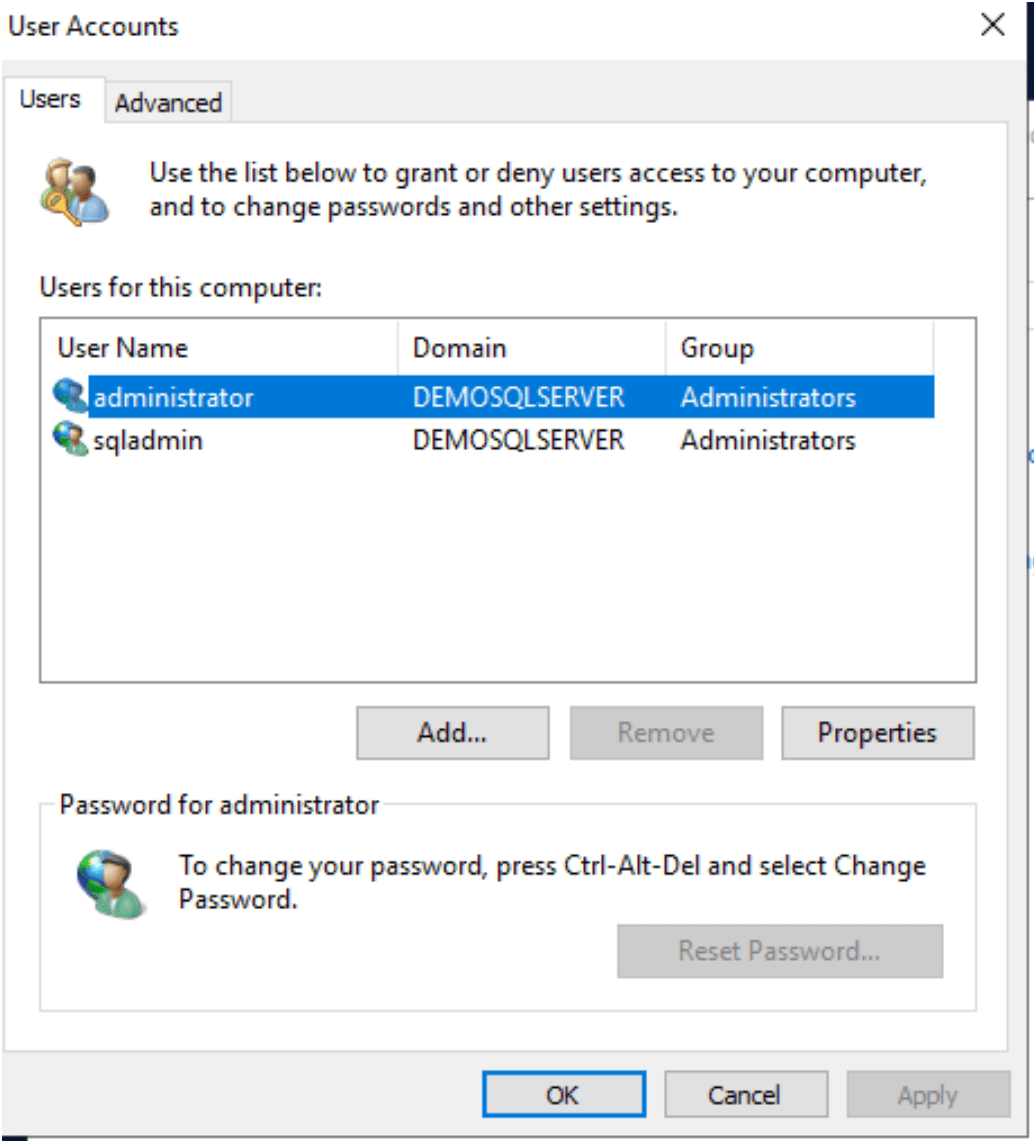
Note: Make sure your firewall allow other machines or its disabled at all.
Add Machine in Domain
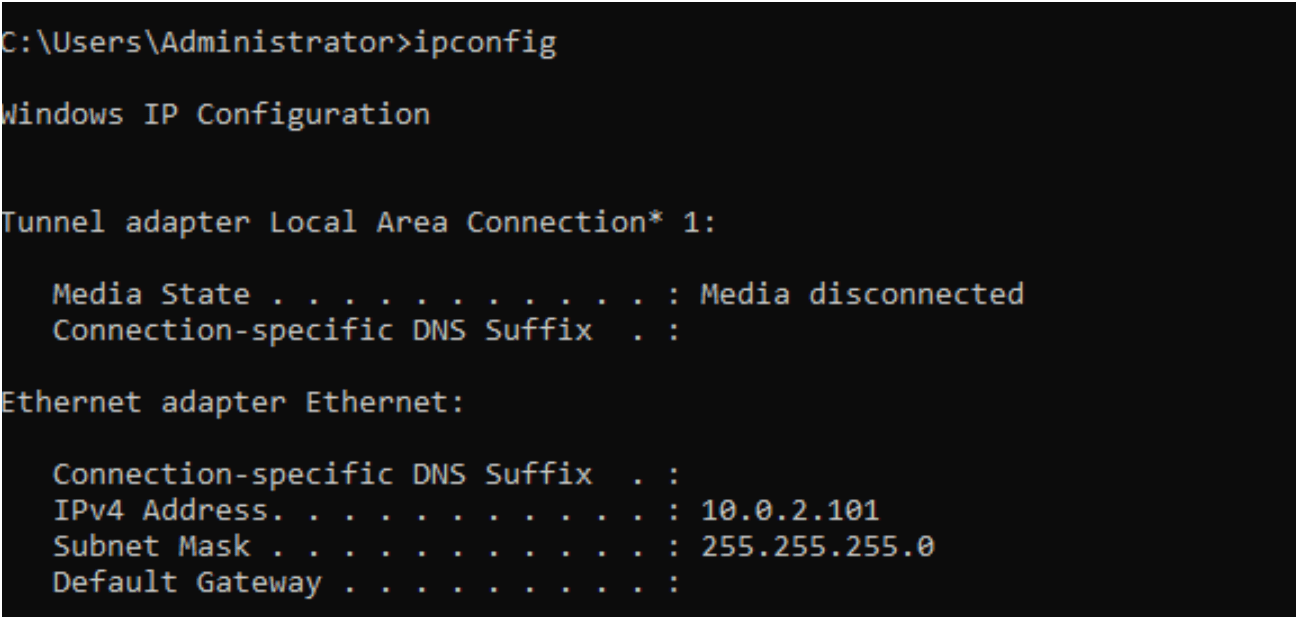
Login the first machine and check the IP address and add domain address as shown below
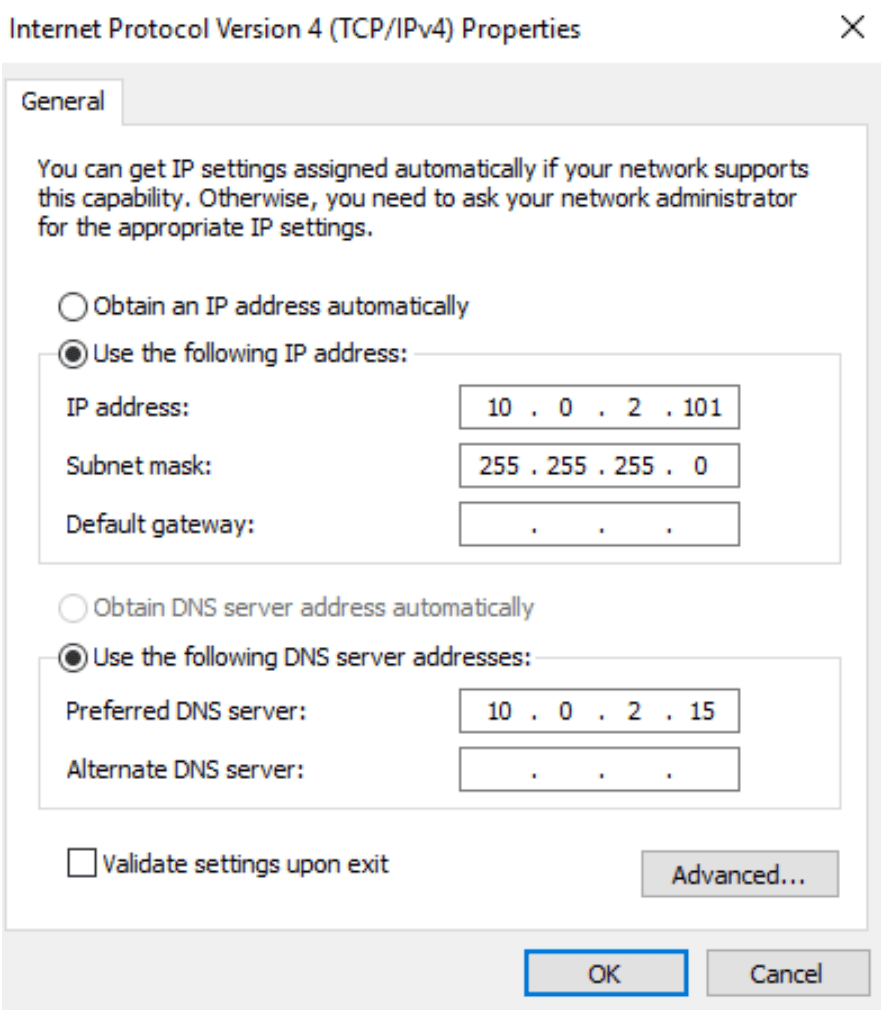
Verify:
Add first node to domain:
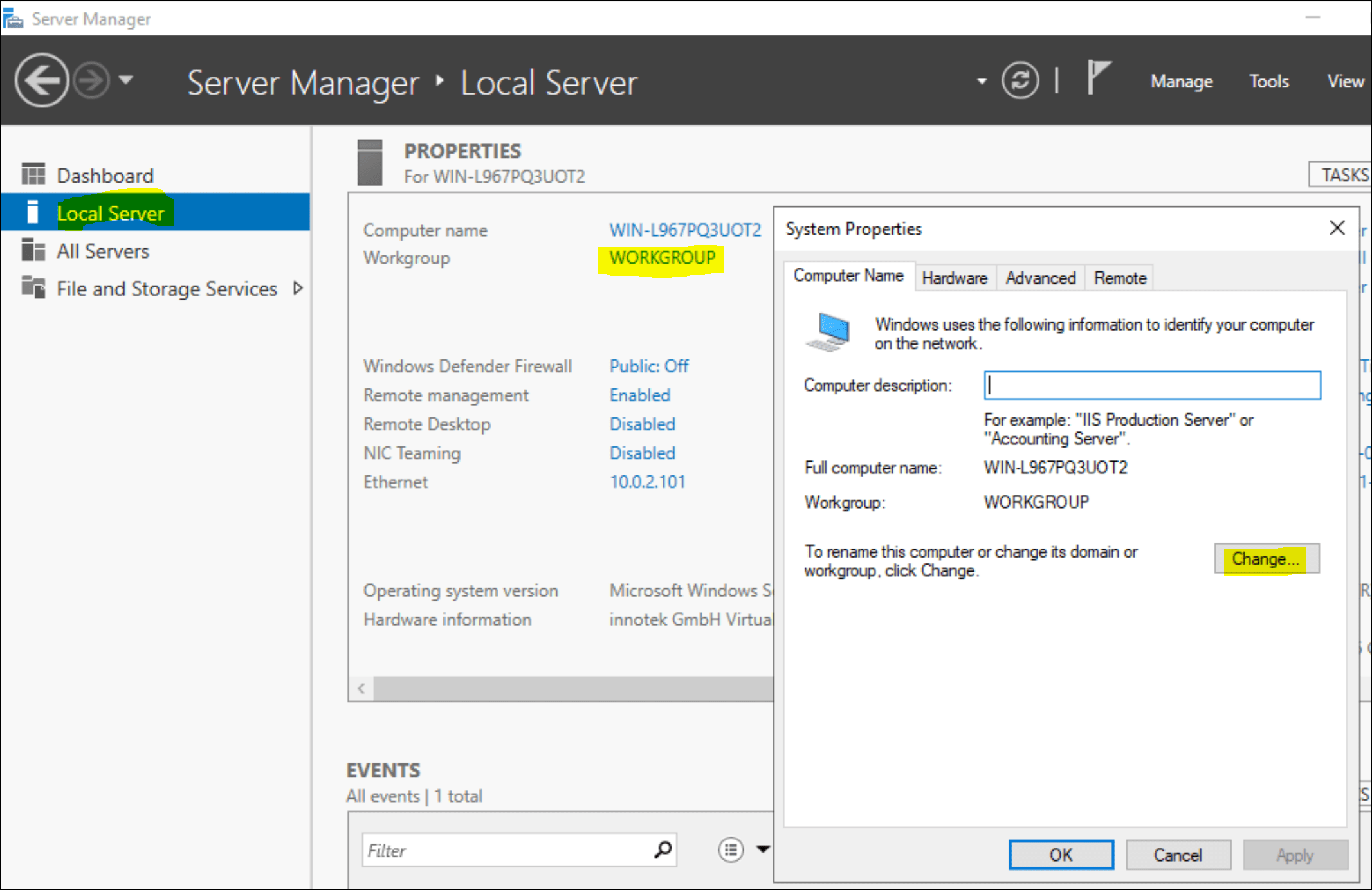
Enter the username created in domain server for put the machine in domain.
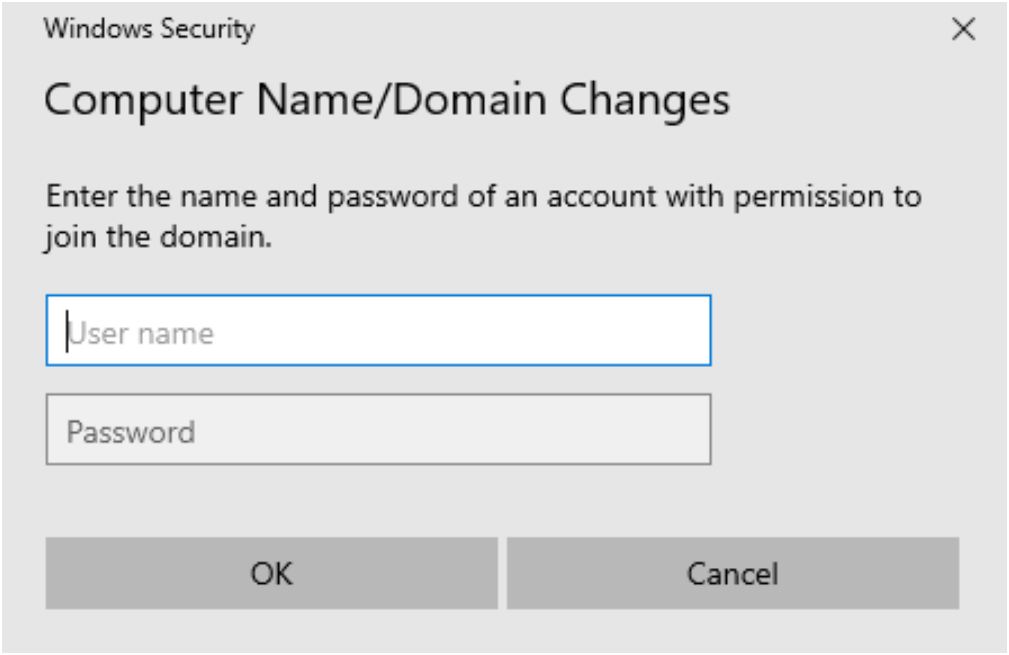
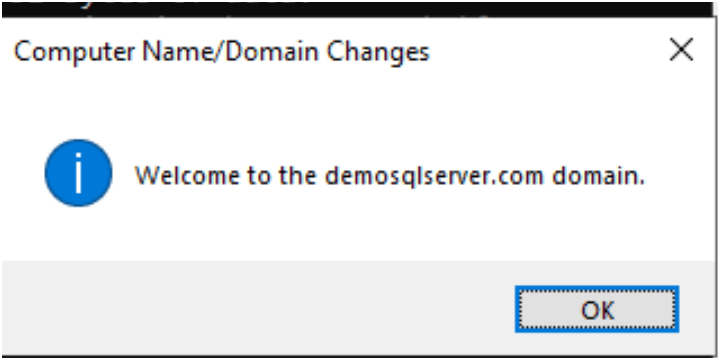
For changes effects on machine 1 its reboot.
Similar do it for Machine 2