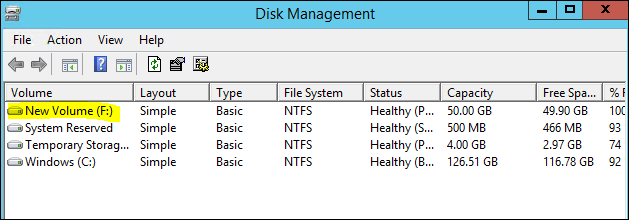
Add disk on windows with disk management in Azure Cloud
- Login on Azure Cloud Services.
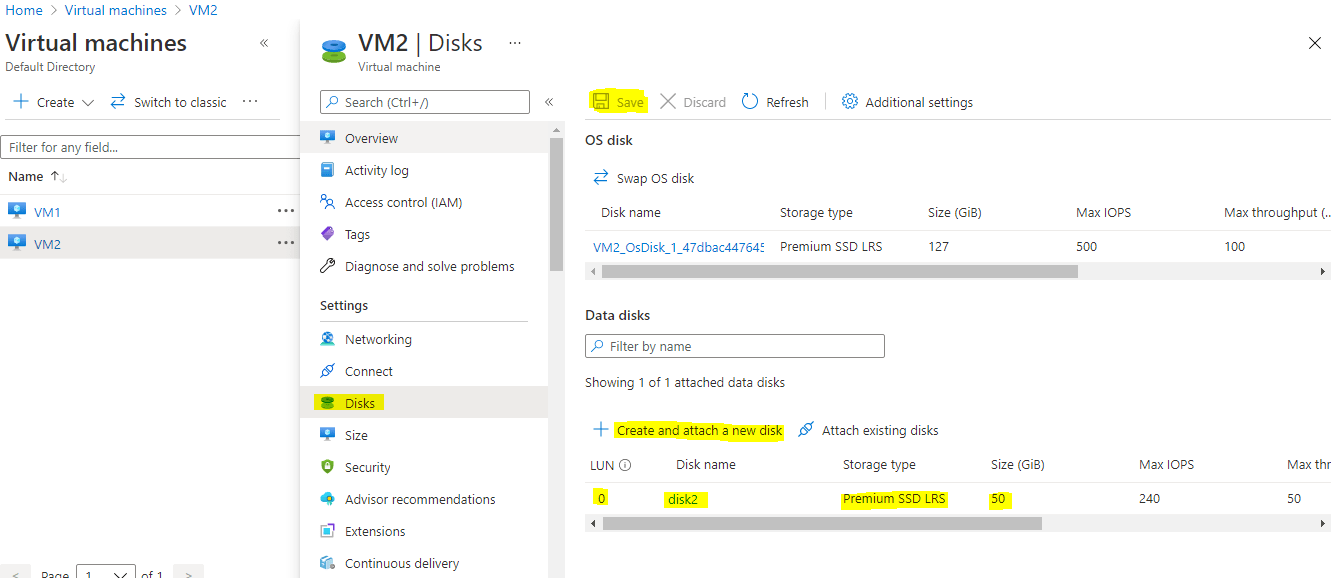
- Add a data disk on the Virtual machine having windows. Go to VM machine –> Disks on left panel –> Create and attach a new Disk —> add details below –> SAVE.
3. After adding the disk login with RDP on Window Virtual Machine. Open the disk management tool for adding disk as partition.
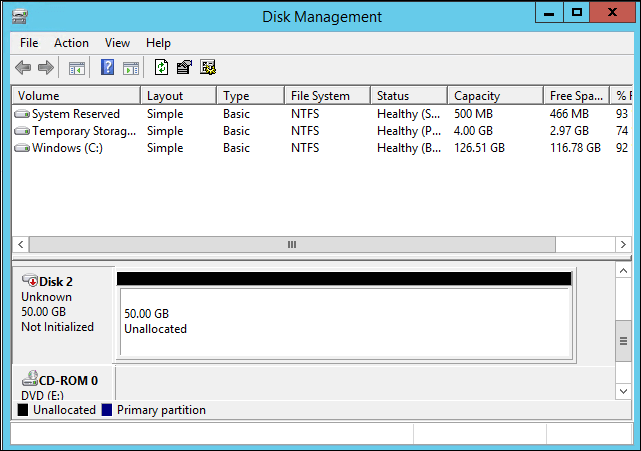
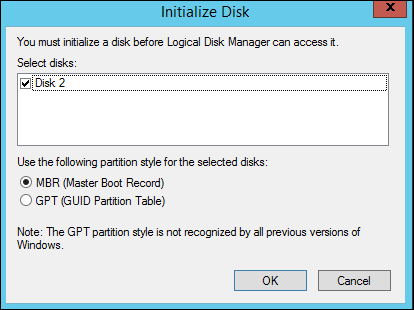
4. You find the added disk of 50 GB. Right click on the disk left panel and initialize it first.
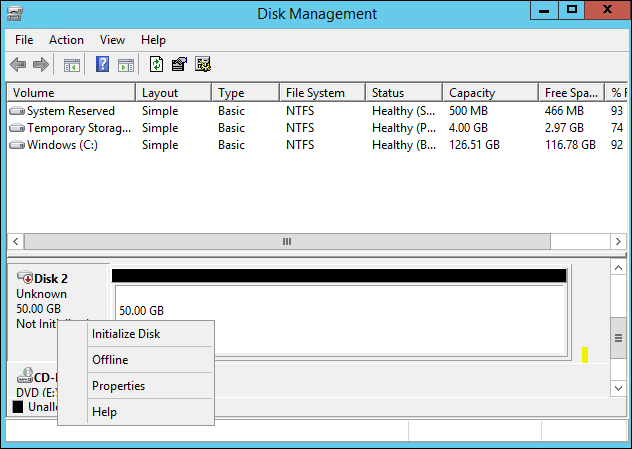
5. Initialize Disk window will open.
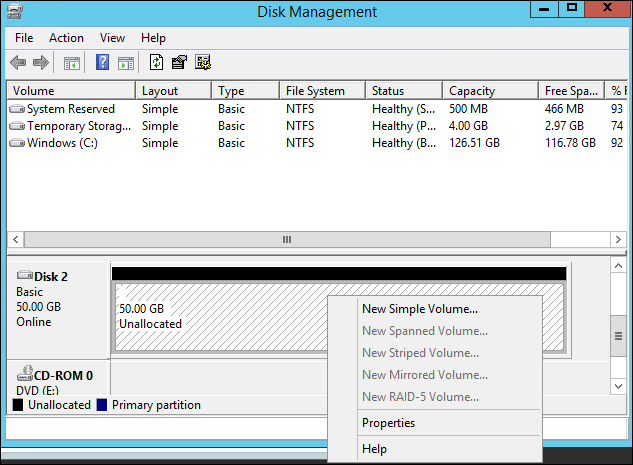
6. The disk become online in disk management window. you initiate New Simple Volume to create by right click on disk right panel.
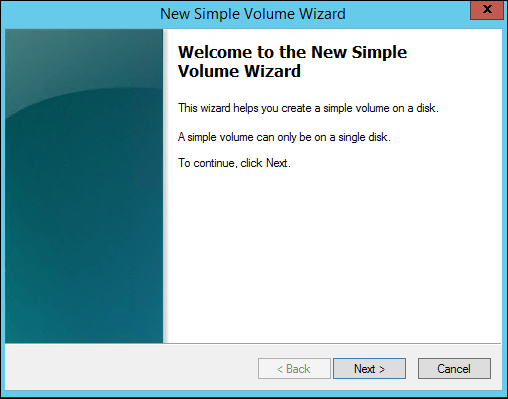
7. Simple window will open.
8. Specify the volume size.

9. Assign the drive letter to drive like F , G as you want.

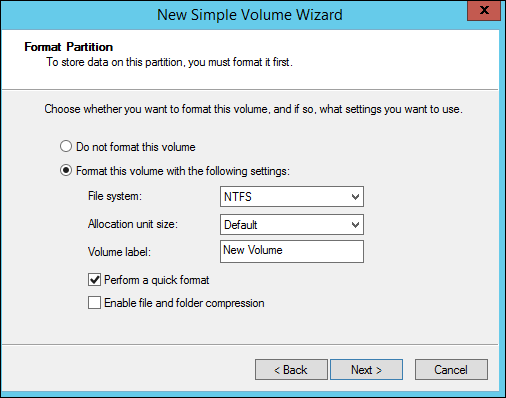
10. Format the partition.
11. Finish the New Simple Volume Wizard.
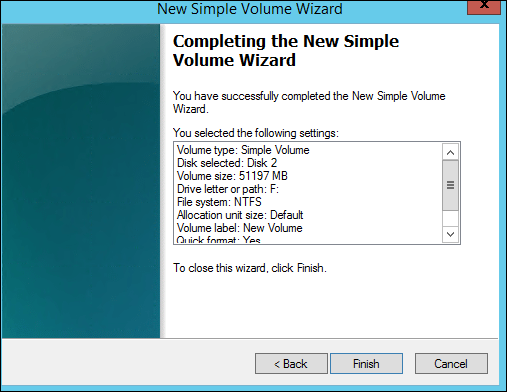
12. Drive is available for use.