How to create a copy of database with export utility in AWS RDS SQL Server
As we know, we are not able to take Backup in AWS RDS as disk is not available, we need to use another method for that we need S3 and lot of permission. If our database is not big size, then we will go with Export process to copy database in SQL Server in AWS RDS or SQL Server
Following are the steps to copy database with Export utility:
- We will generate the DDL Scripts for the database
Go to the Generate Script for the database in your EC2 machine or where you are using the SQL Server Management Studio.
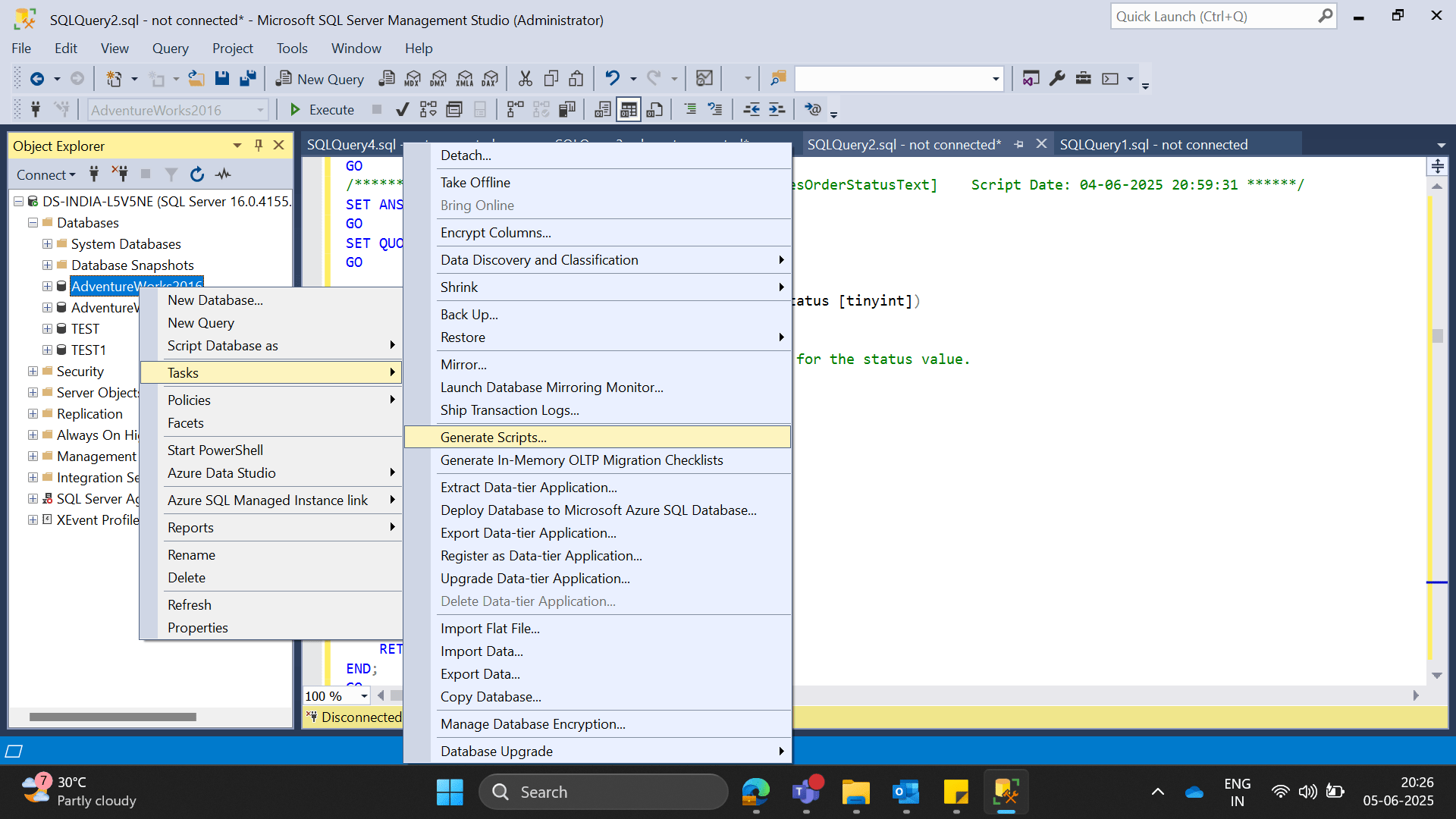
2. Generate script window is open
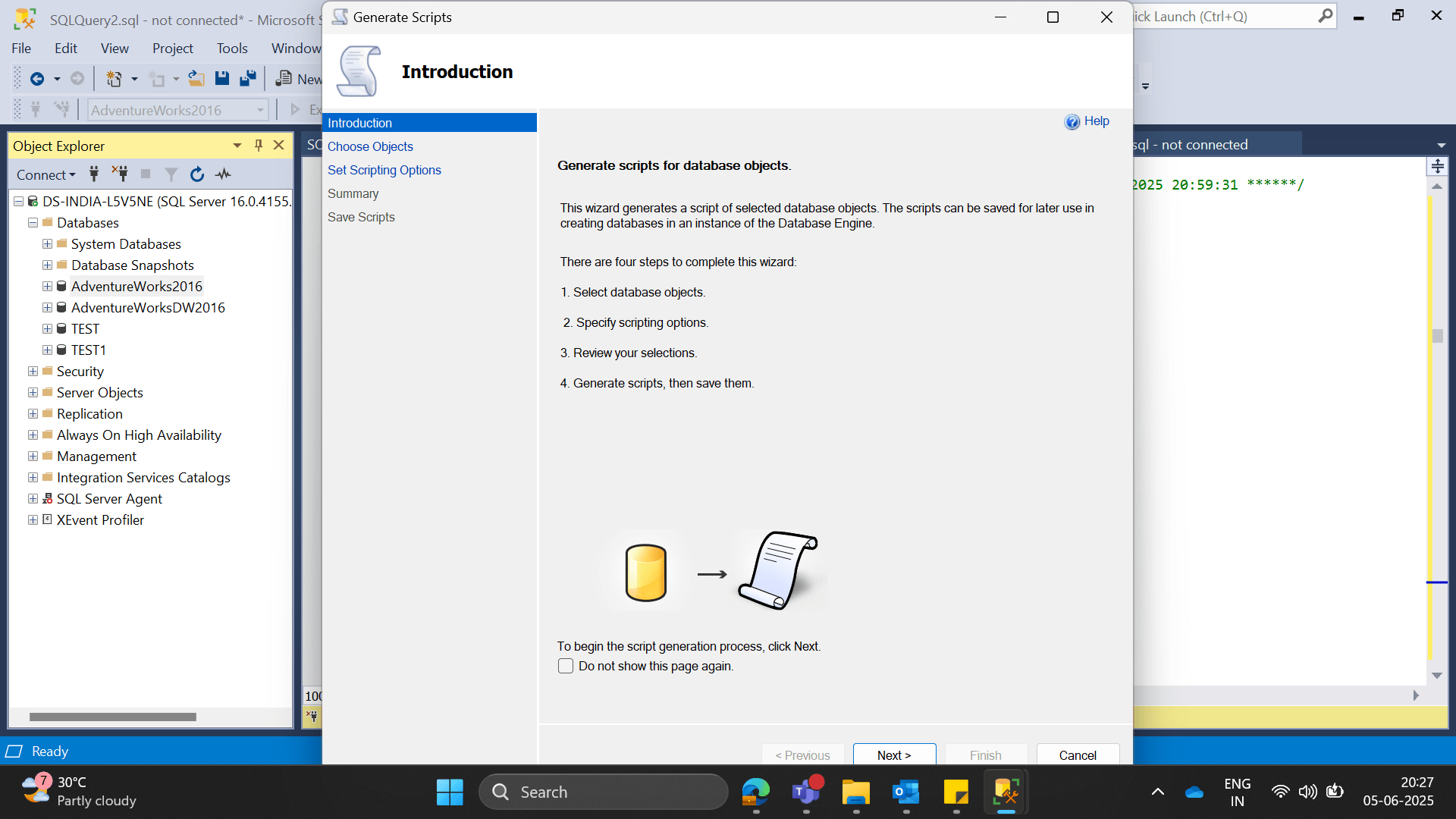
3. Now press Next and choose the entire database and all database objects
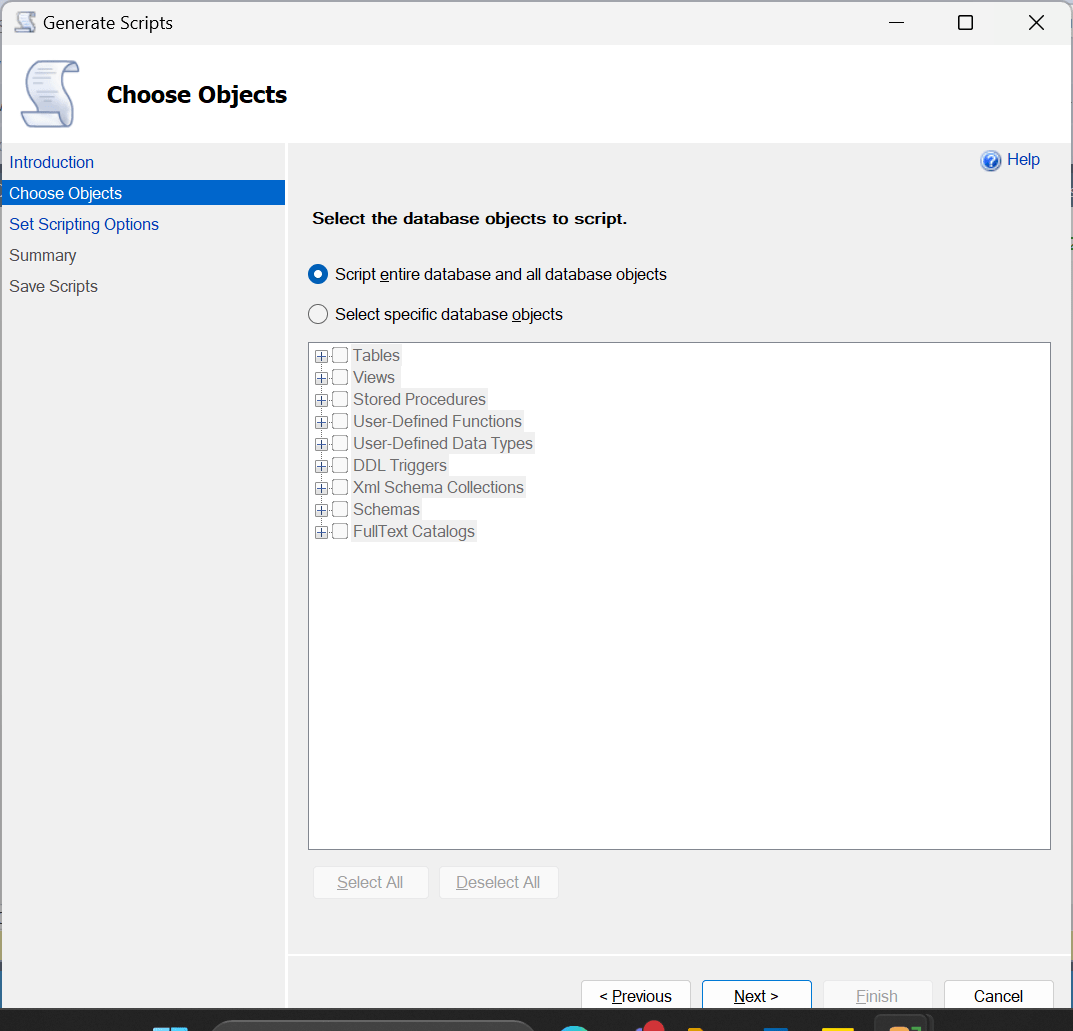
4. Specify the single file and choose the path:
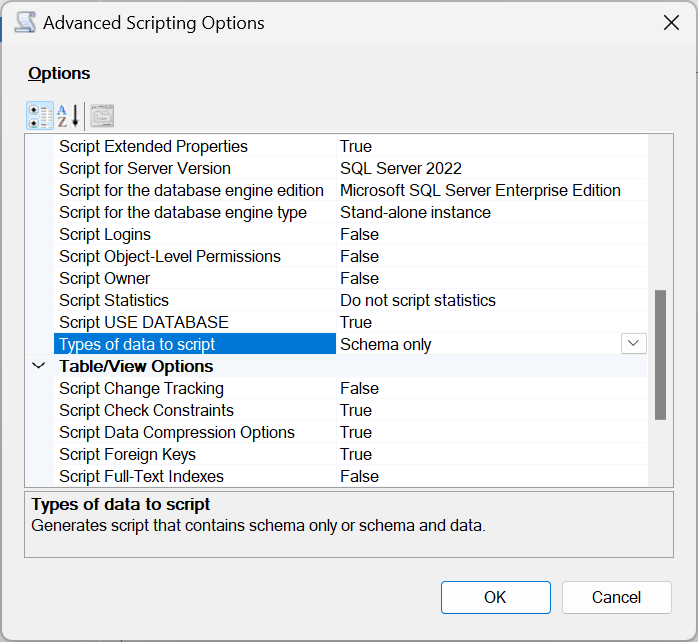
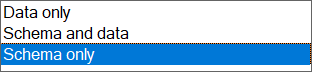
5. Go to the advance option and check schema only.
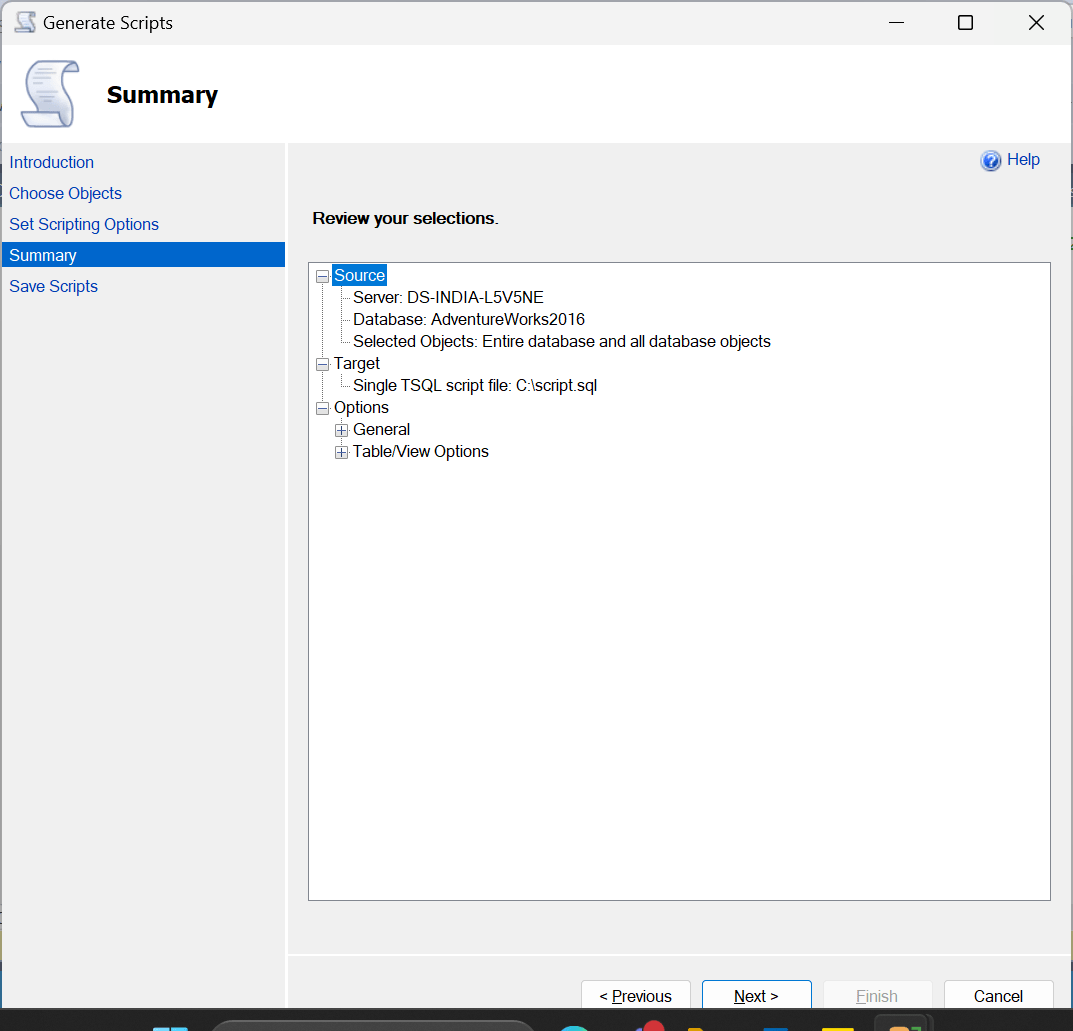
6. Summary
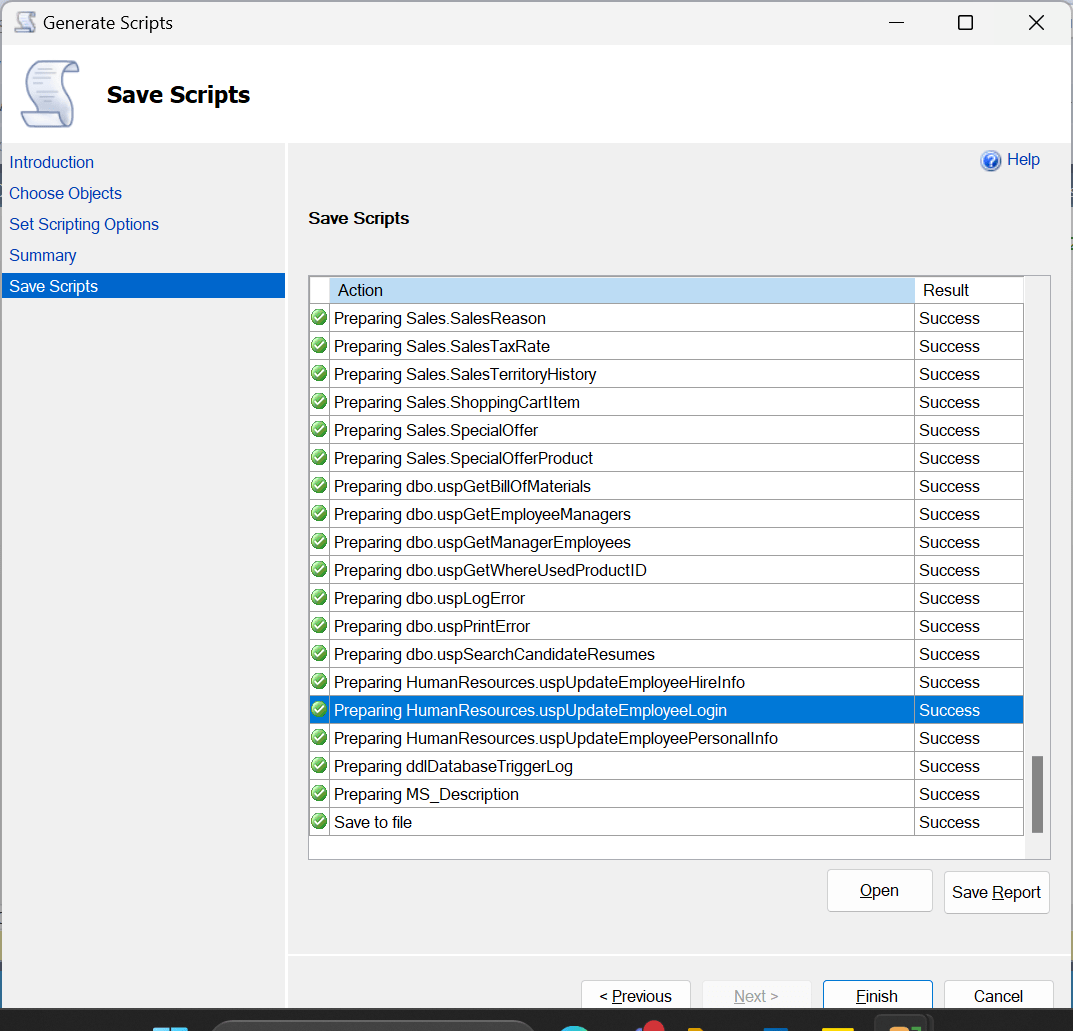
7. Generate Scripts
8. Now open the script on the server in SQL Server mangement studio and create a new database by using the DDL scripts.
9. Create a database by right click on Databases left panel
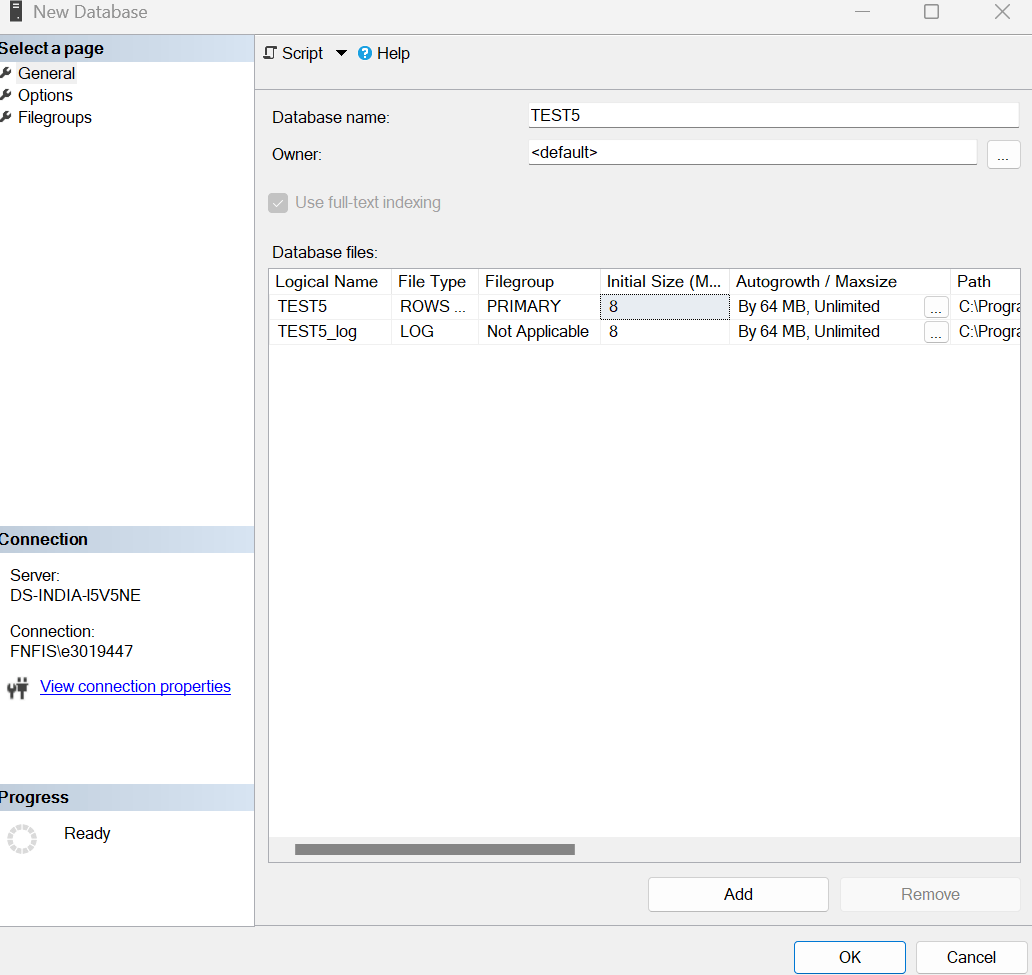
10. Run the script generated from above steps by right click on new database and open the query session and paste the script on right window.
11. Remove first few lines, upto USE [AdventureWorks2016] of old database name first few lines upto next use statement.
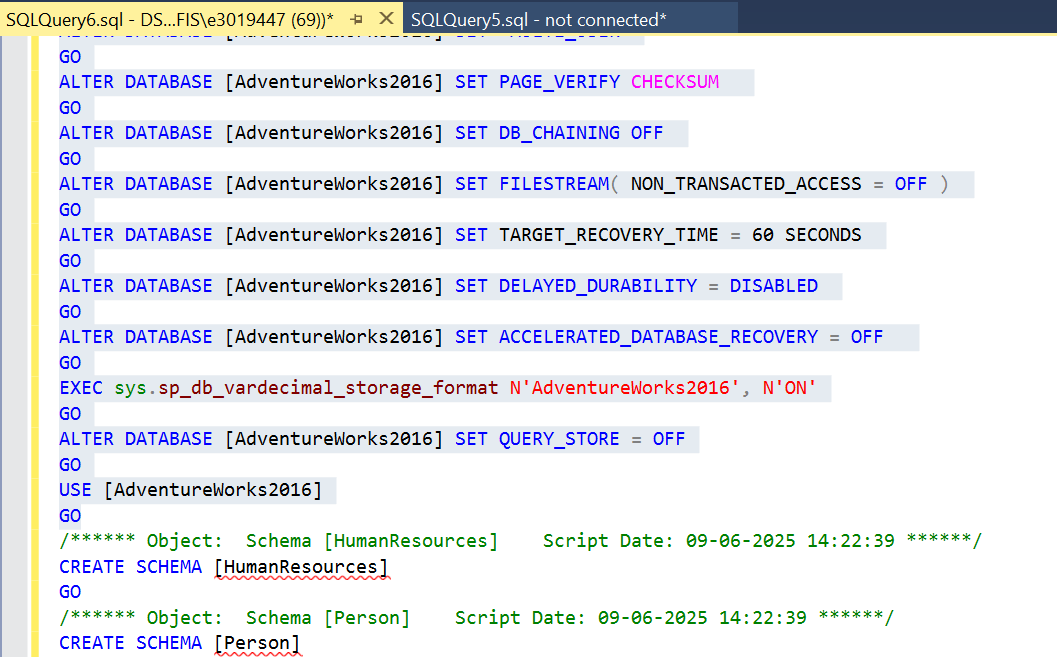
Delete lines from starting USE to second USE statement mentioned in script as shown above highlighted data is removed from script.
12. Execute the rest script in new database.
13. Disable the foreign key constraint before start the data export and import process in the database.
-- Disable all foreign key constraints
EXEC sp_MSforeachtable "ALTER TABLE ? NOCHECK CONSTRAINT ALL"

-- Enable all foreign key constraints
EXEC sp_MSforeachtable "ALTER TABLE ? WITH CHECK CHECK CONSTRAINT ALL"
14. Check the foreign key is disabled by following query for database:
SELECT
    name AS TriggerName,
    OBJECT_NAME(parent_id) AS TableName,
    CASE
        WHEN is_disabled = 1 THEN 'DISABLED'
        ELSE 'ENABLED'
    END AS TriggerStatus
FROM
    sys.triggers;
15. Start the Export and Import process for Exporting the SQL Server database from one instance/database to another instance/database.
Using Export Utility –> Right Click on Source database –> Go to Tasks –>
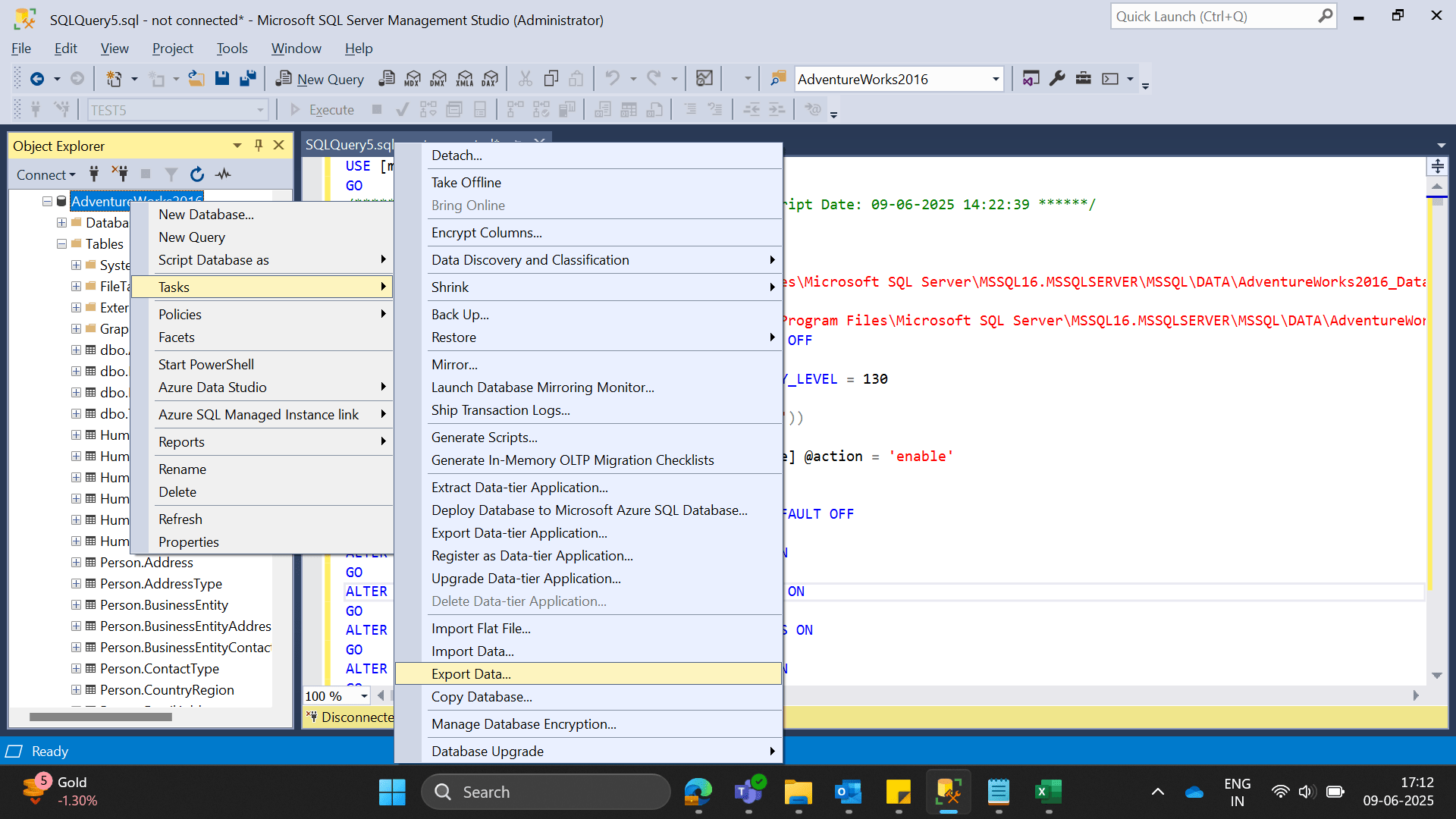
16. Start the export wizard
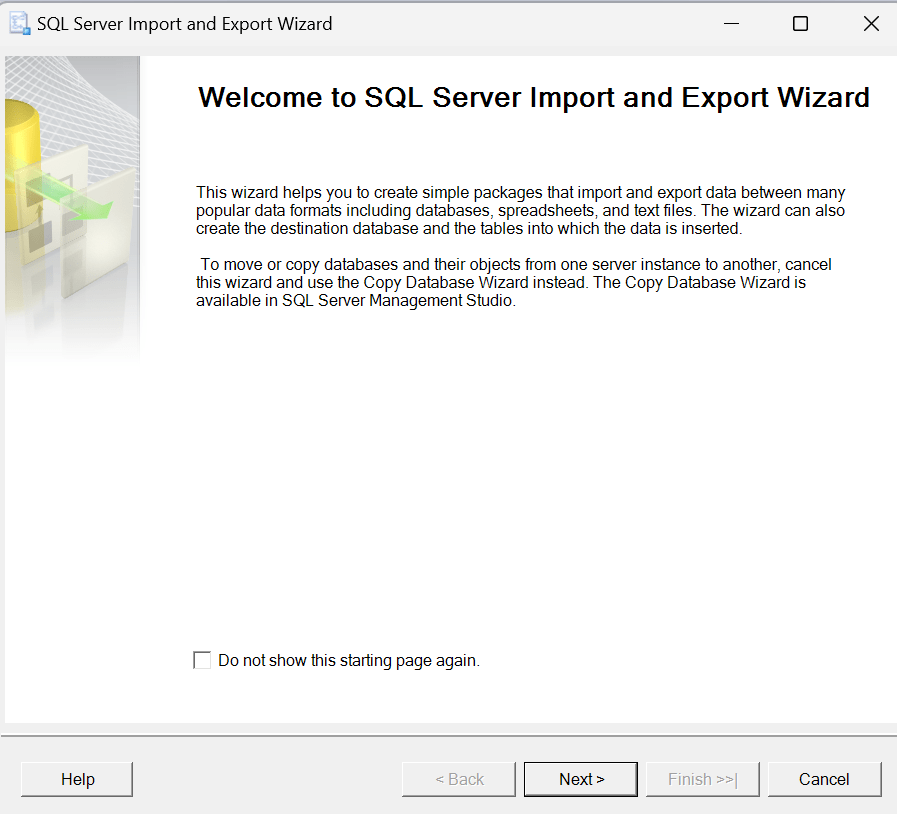
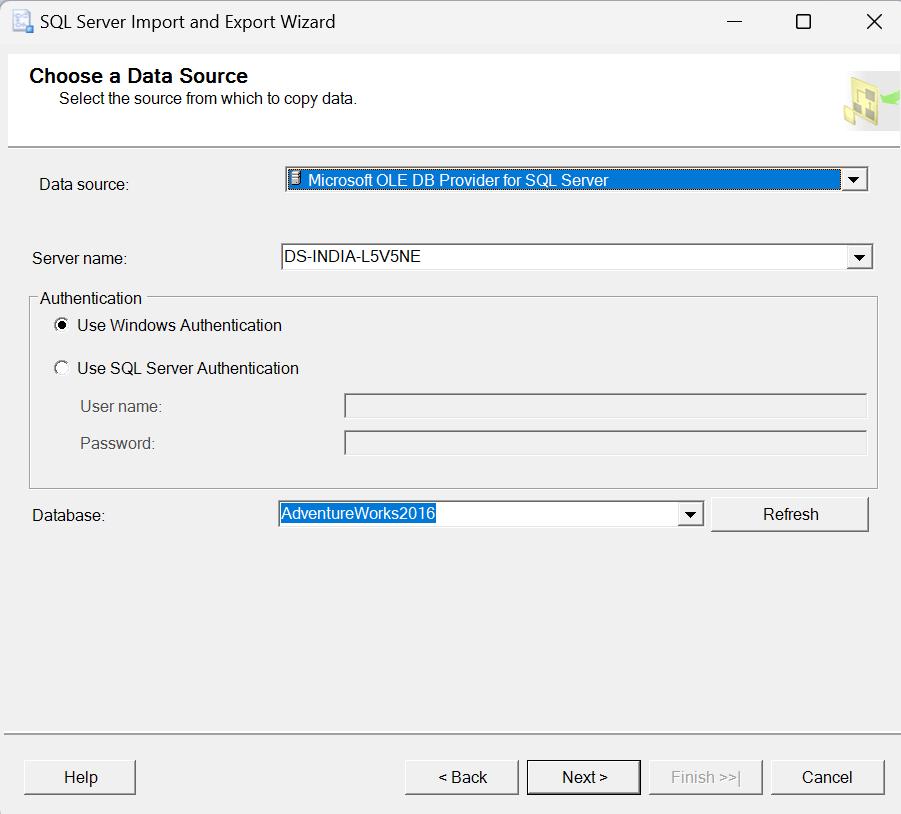
17. Choose the data source
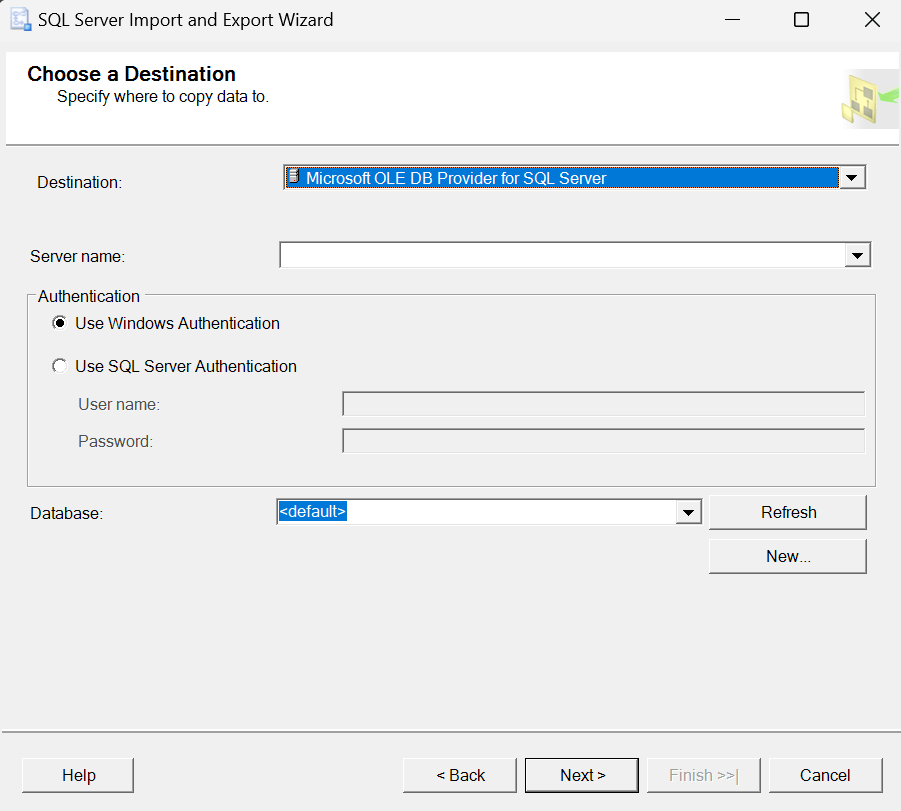
18. Choose the destination server
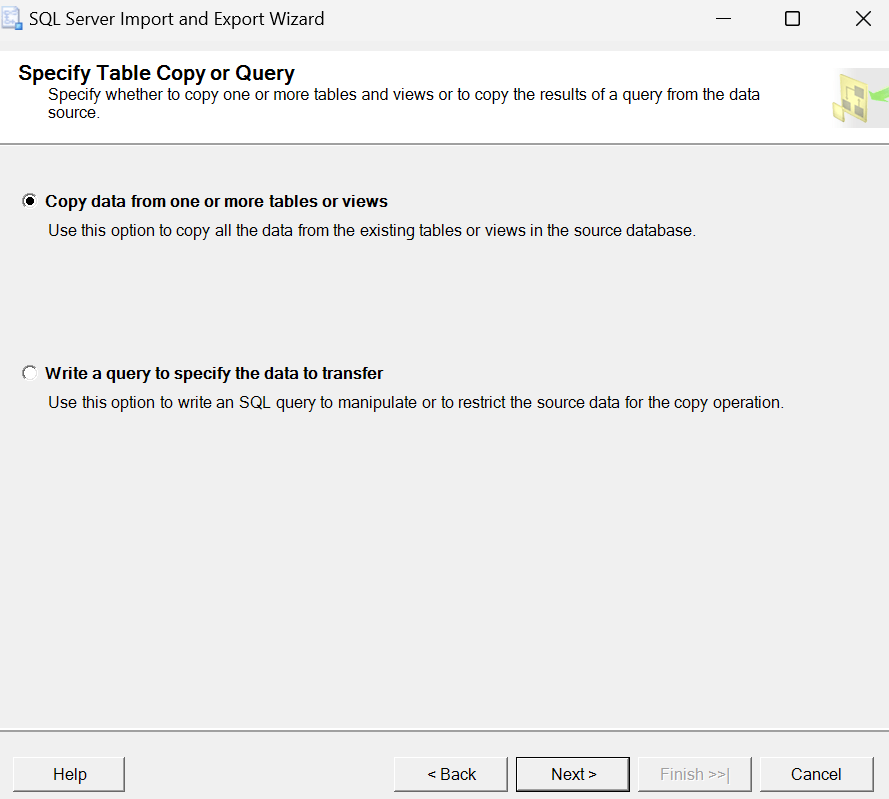
19. Copy the table data
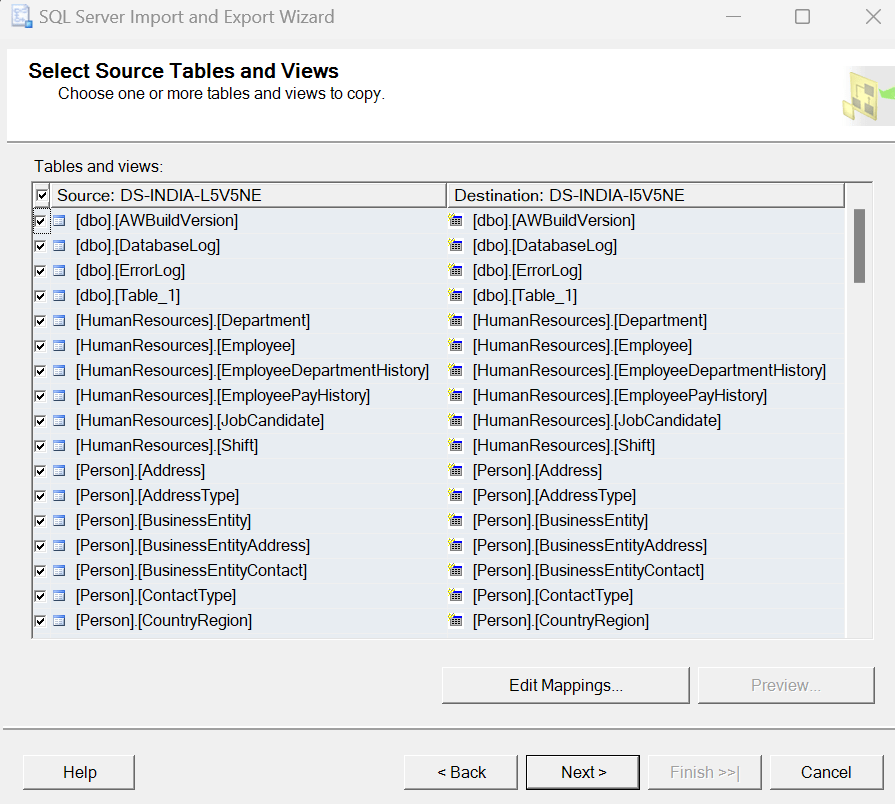
20. Select all the tables for move
21. Next, The process will start.
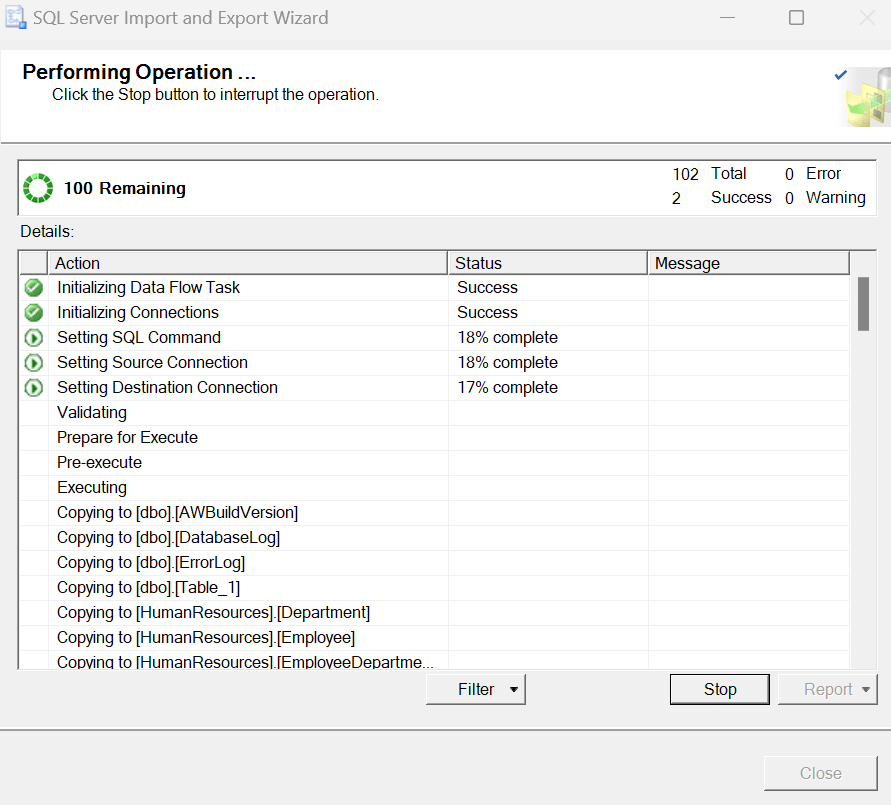
22. After finish, we will enable the foreign key constraints:
-- Enable all foreign key constraints
EXEC sp_MSforeachtable "ALTER TABLE ? WITH CHECK CHECK CONSTRAINT ALL"