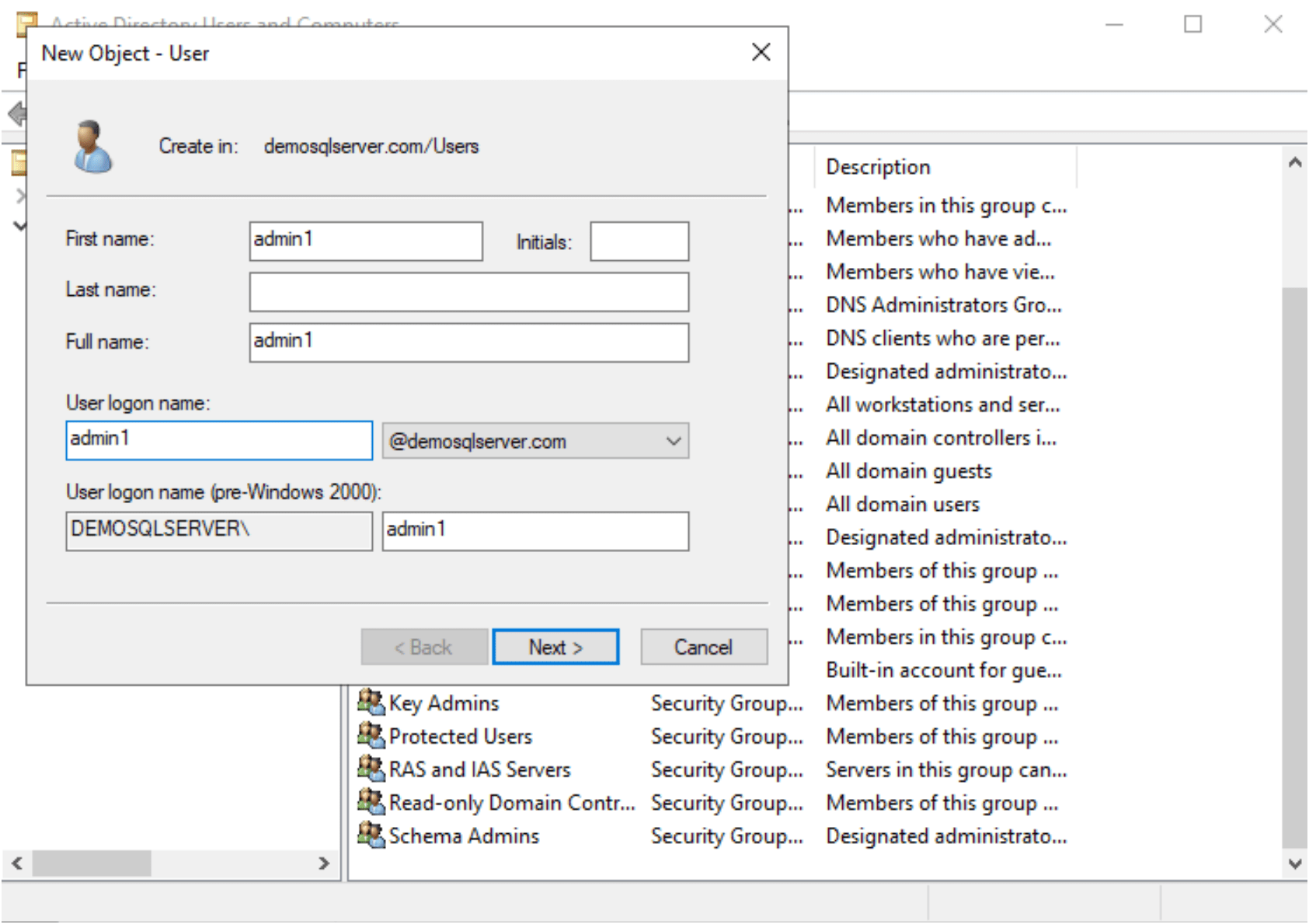
Create a domain account to access the SQL Server database.
While installation you can configure these account for the services or later on you can configure the Services to start with these account and create login account in SQL Server databases with sysadmin right.
Open the DSA.EXE ( Active Directory user and computer) and right click on user to add new User.
Start services with new account on both nodes.
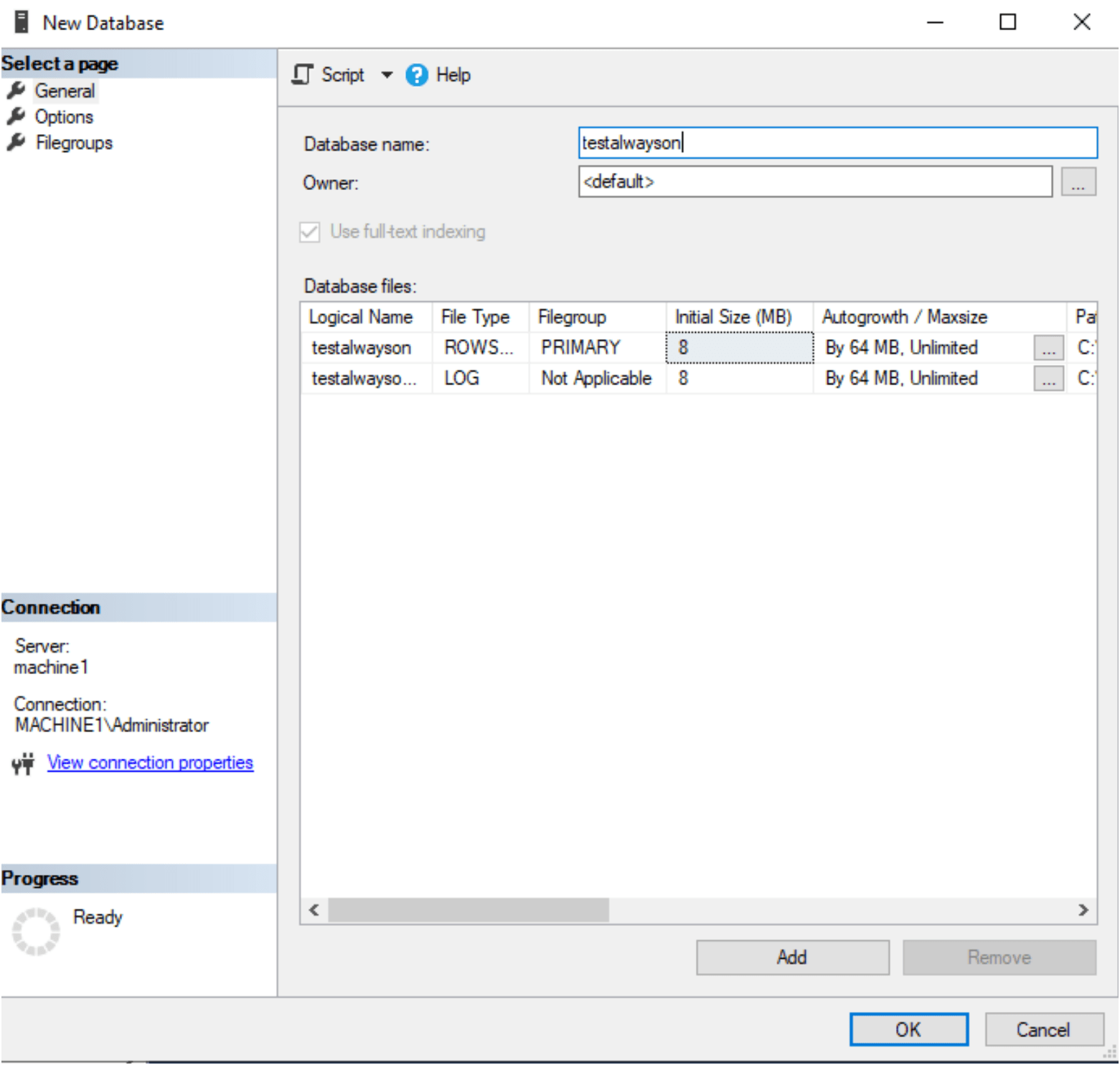
After installation of SQL Server. We will create a dataase.
Create a database for Always on in SQL Server
Enable Always on Availability Groups Service
Open the SQL Server Configuration Manager . click on the SQL Server Services. Then it will show you the SQL Services on left side window. Right Click on SQL Server Service and open the properties. Then it will give the following window to Enable the Always On Availability Groups by click on check box.
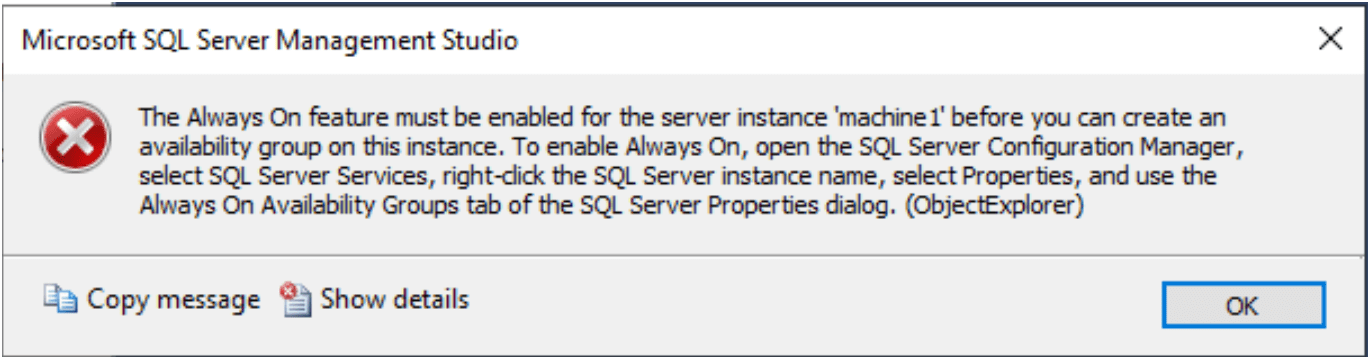
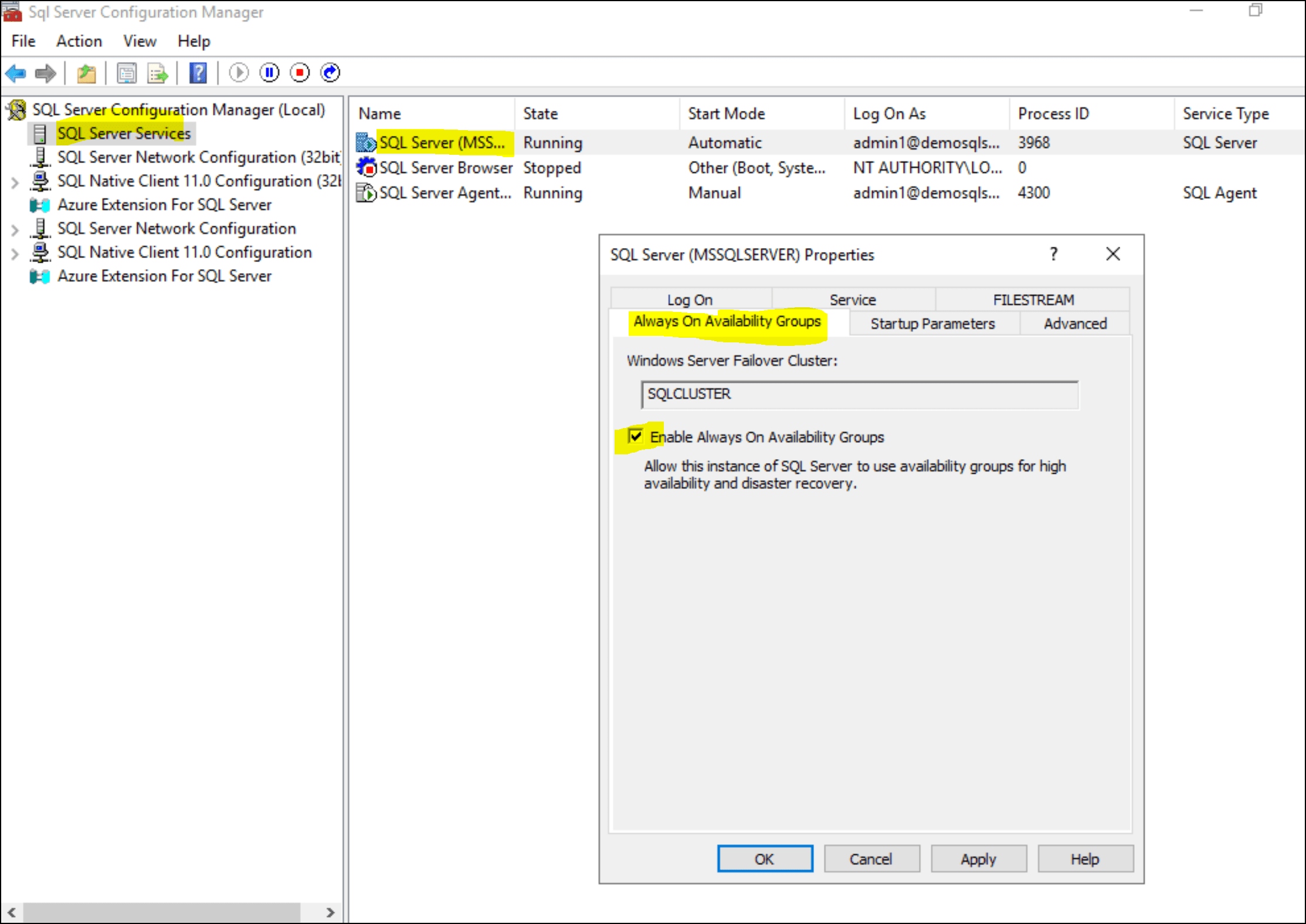
Note: Enable it on both nodes.
Start Configuring Always on Availability Group
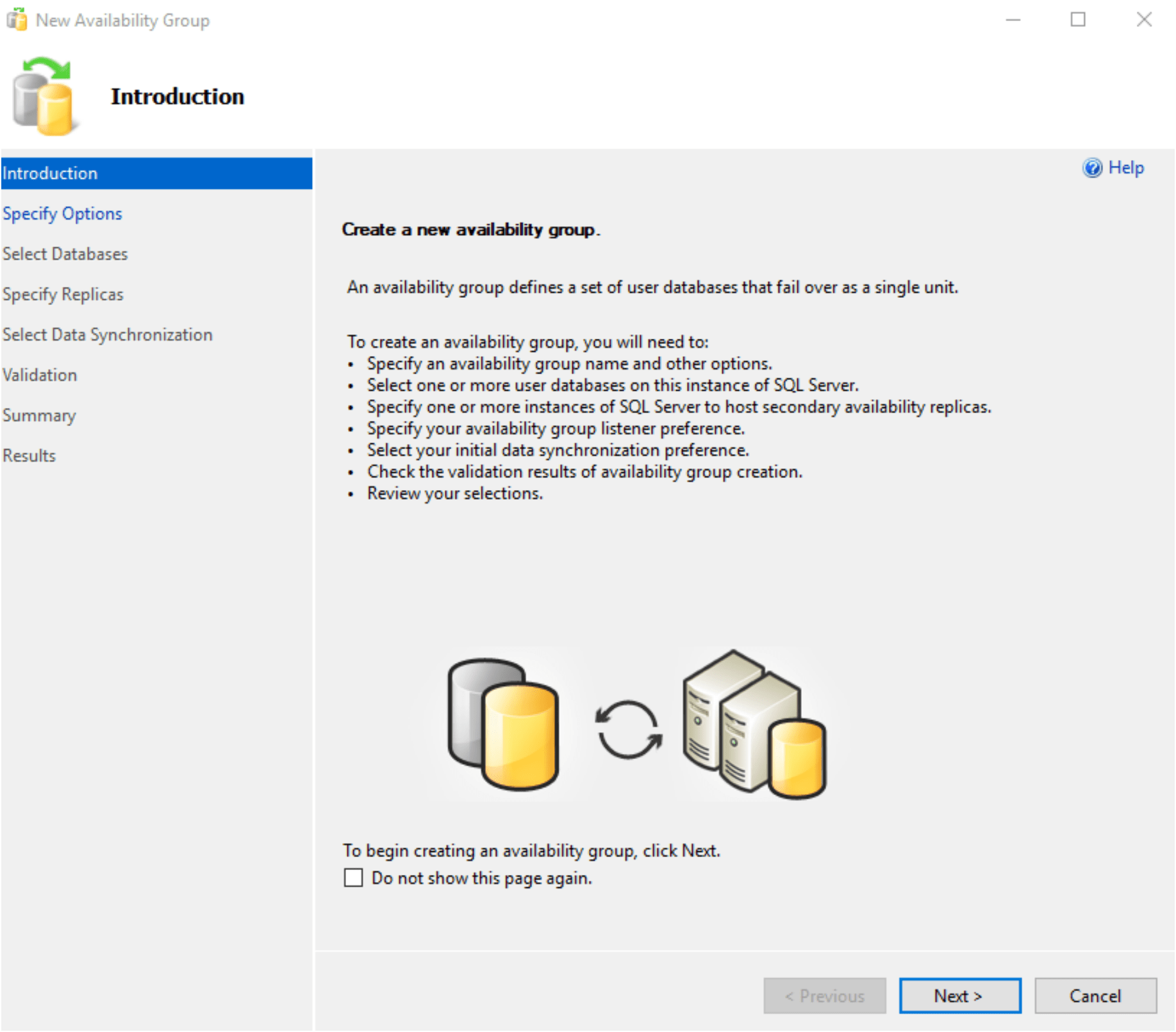
Open the SQL Server Studio, Connect with the database –> go to the Availability Group and Right click on it and choose to start create. It will open the following window.
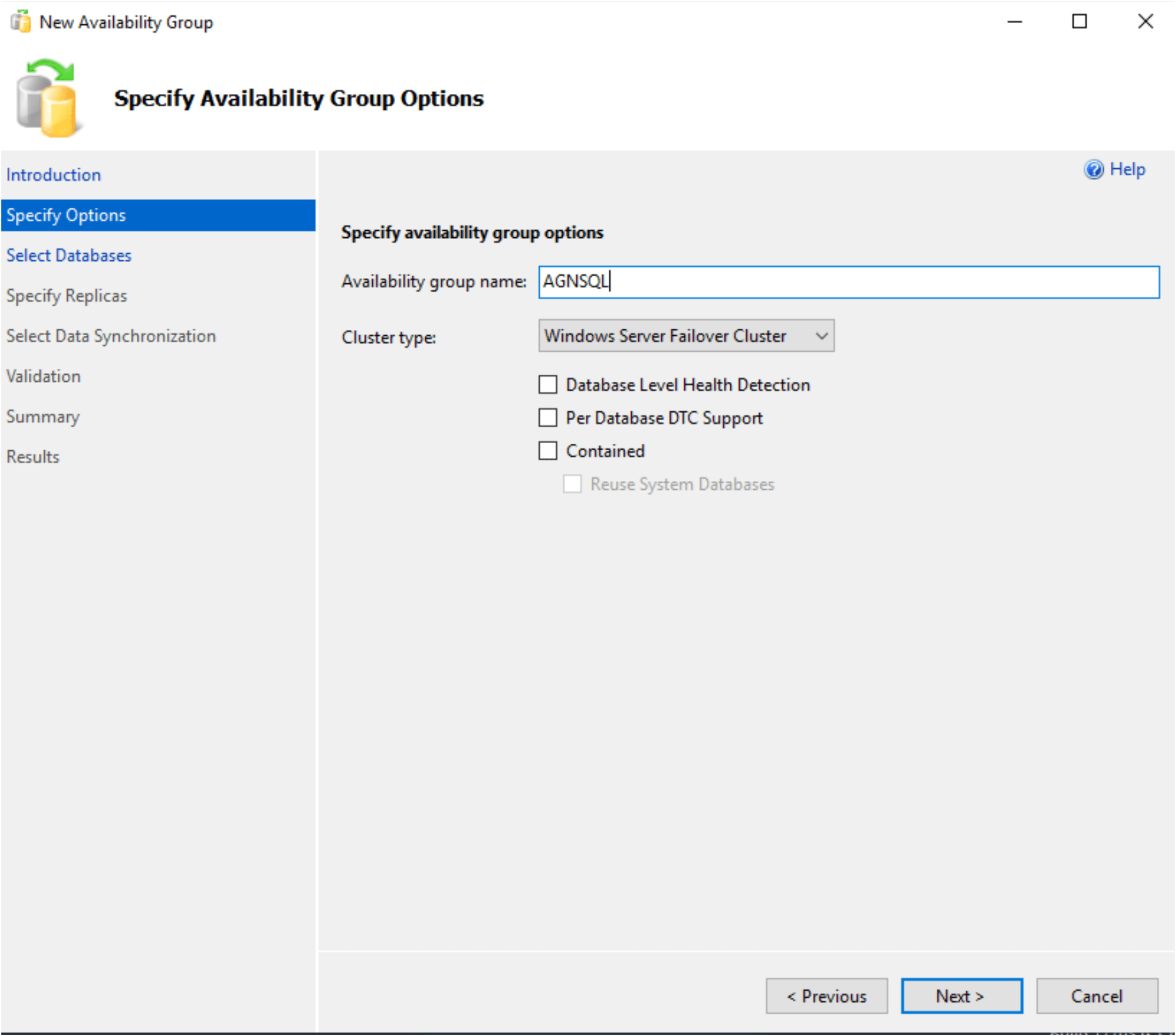
Specify the availability group options:
Choose the database which need to configure for Always on Sync process.

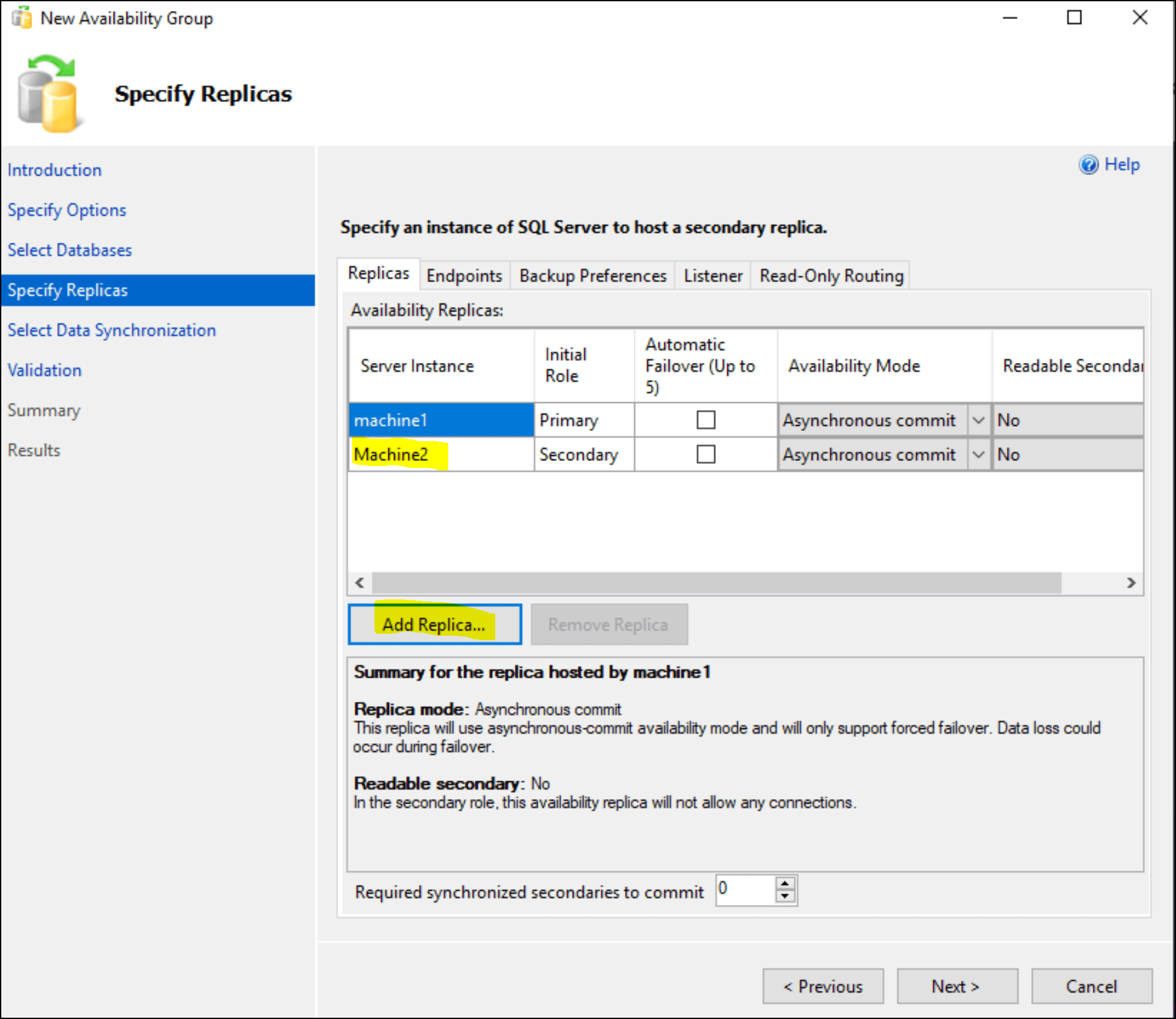
Add the second instance replica.
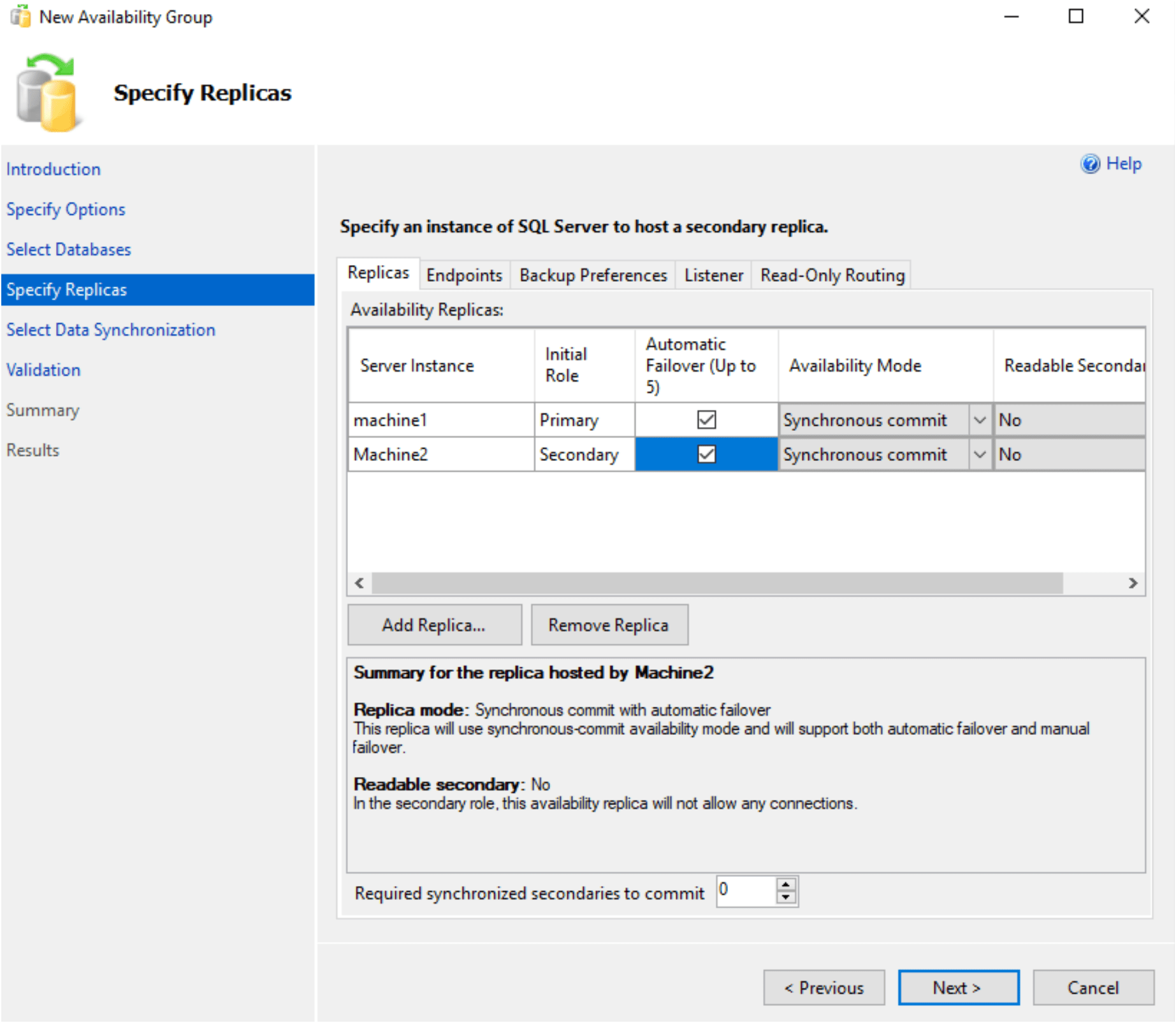
Go for Automatic Failover, it will make availability mode to Synchronous commit
Create a listener for configuring the connection routed y application.
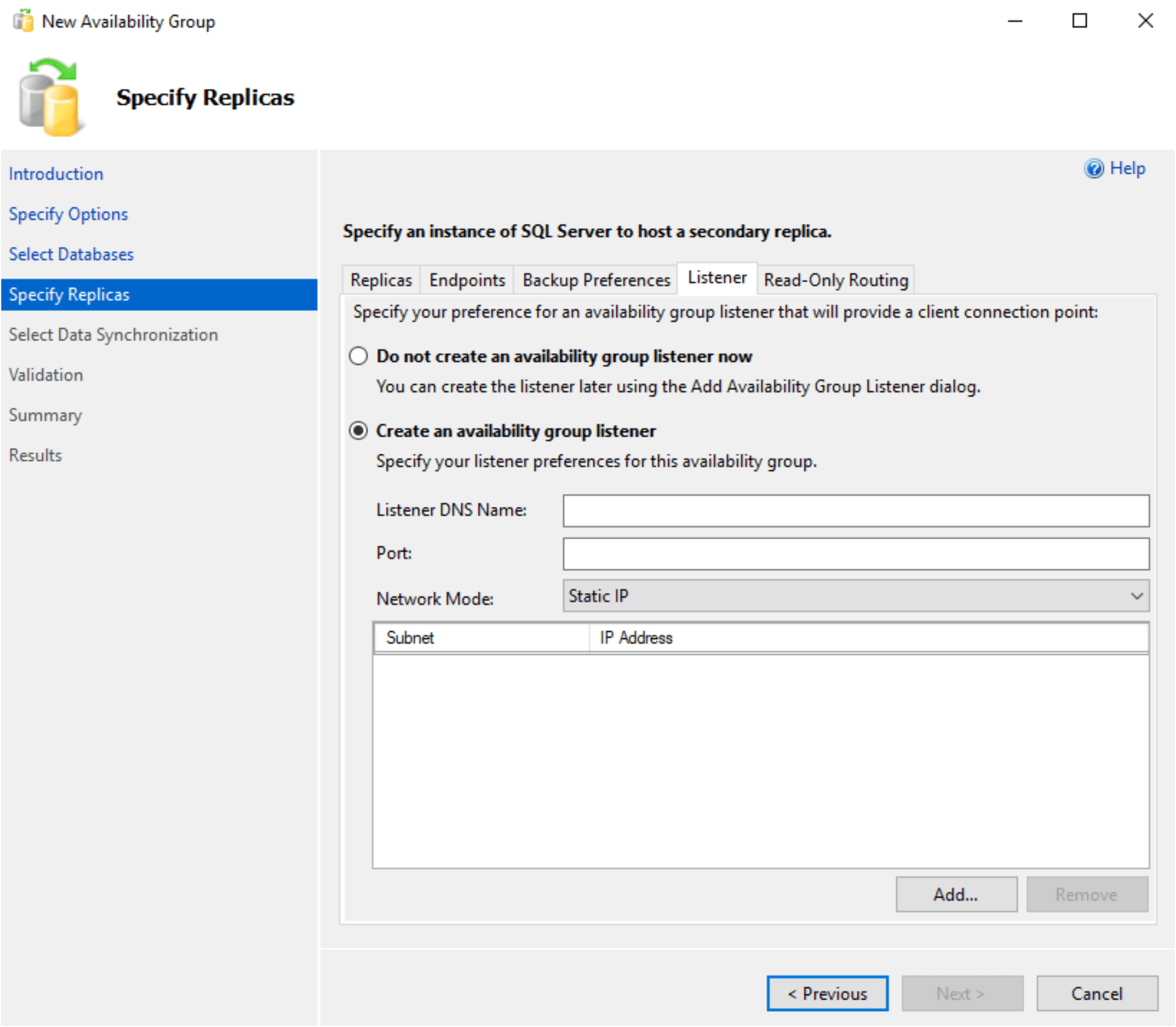
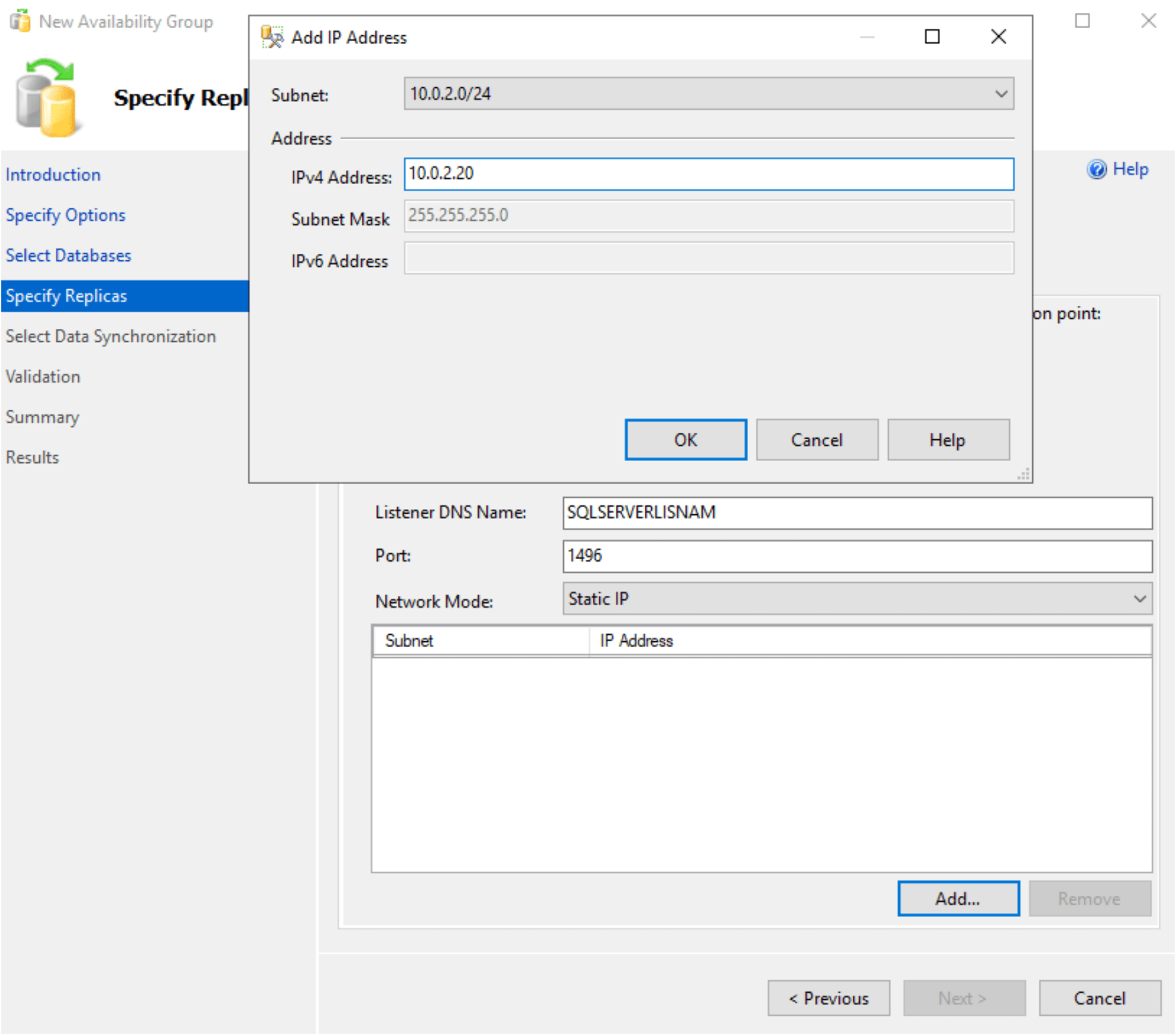
Configure the listener on the cluster ip range. Please verify the cluster ip range then choose the ipaddress.
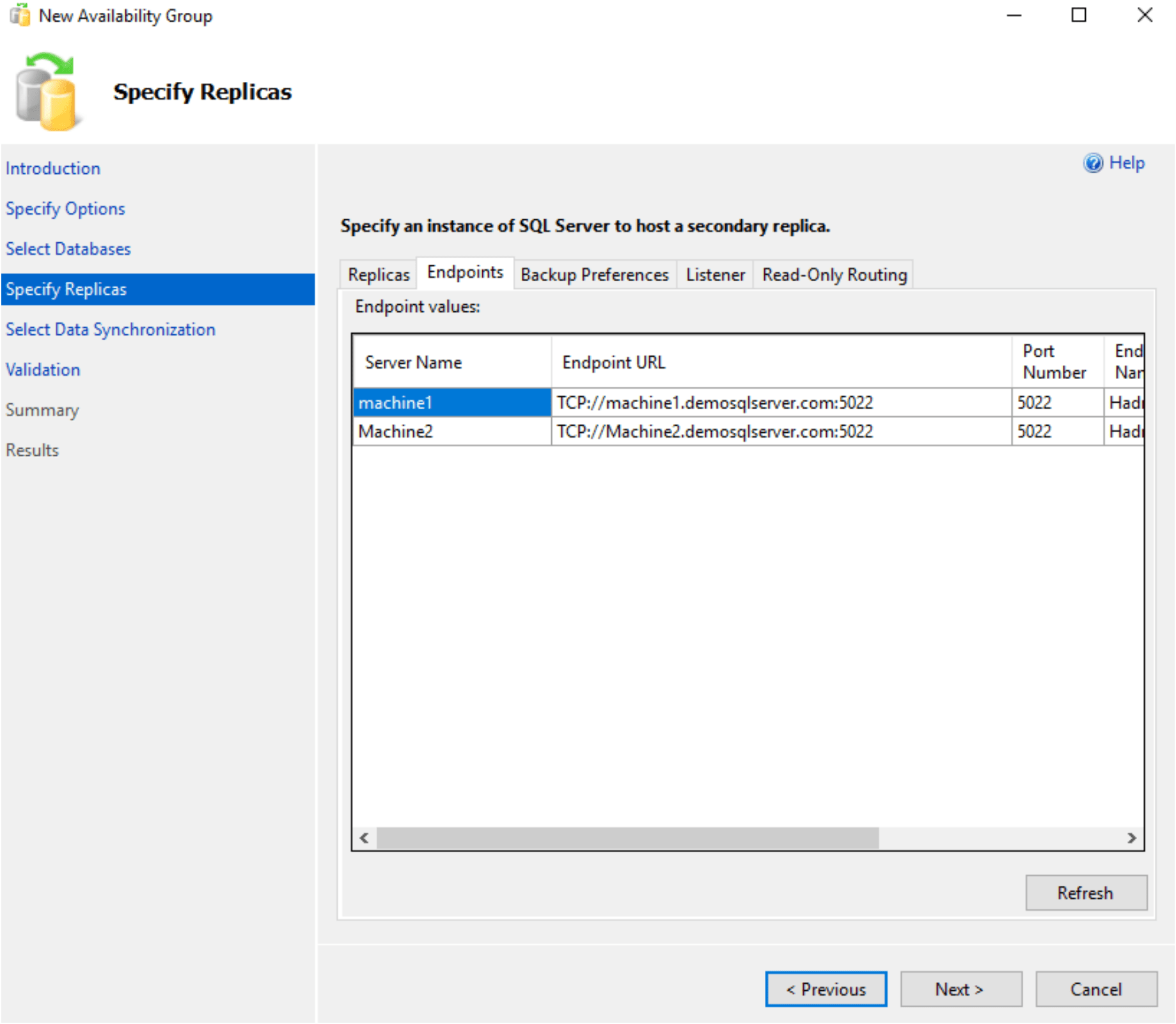
Specify an instance of SQL Server to host a secondary replica.
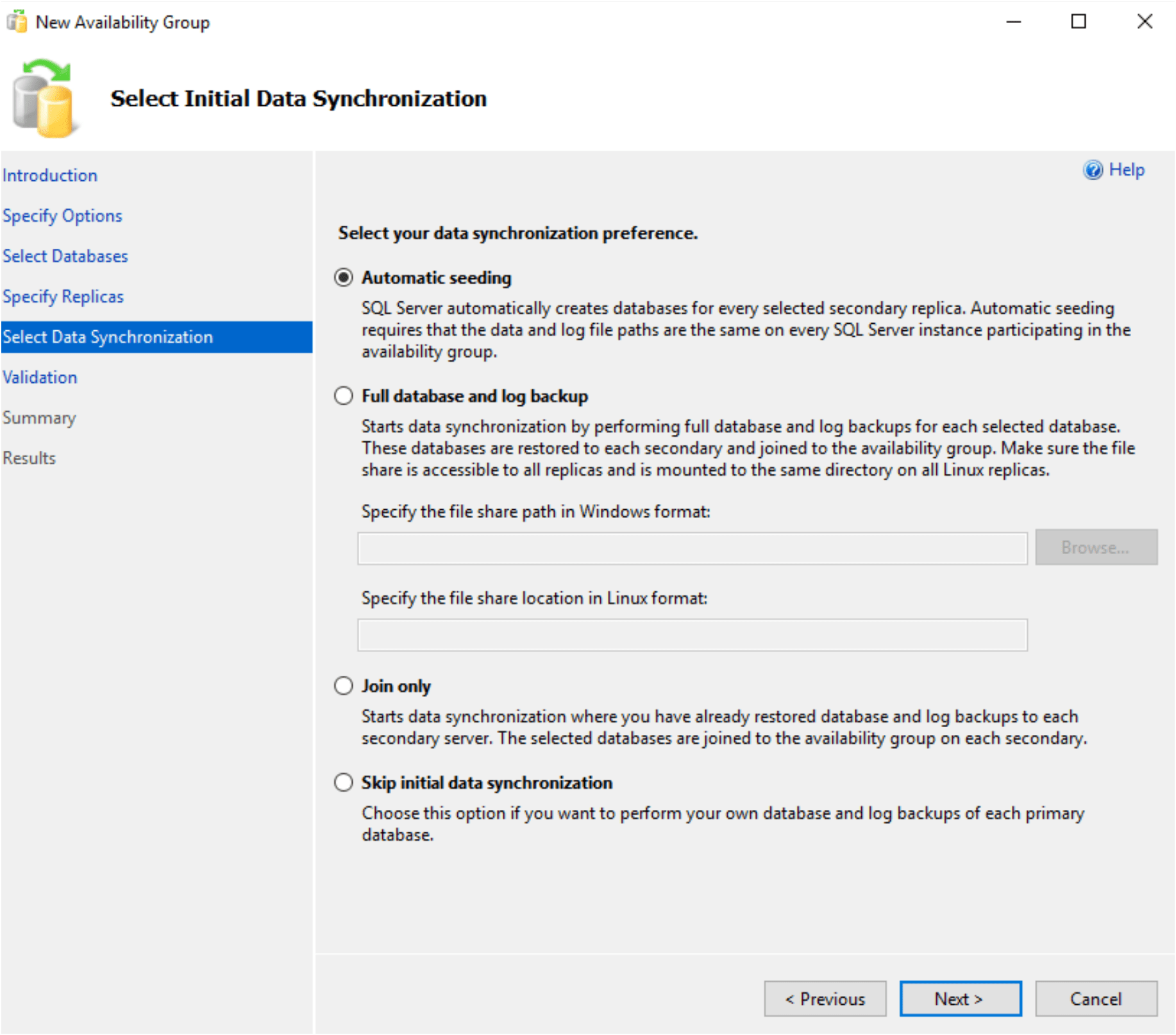
Select initial data synchronization.
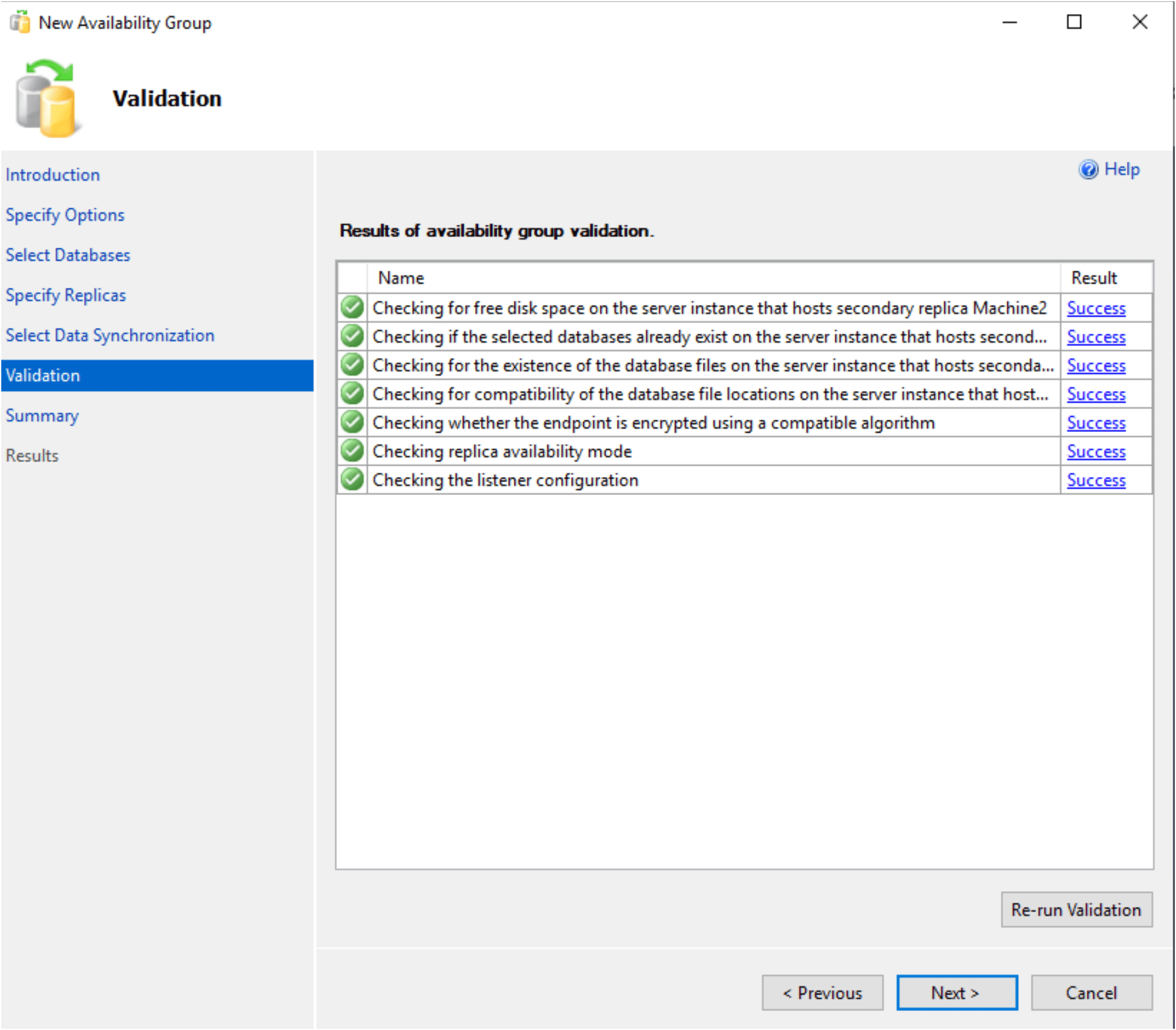
Performed the validation for configuring the Availability group.
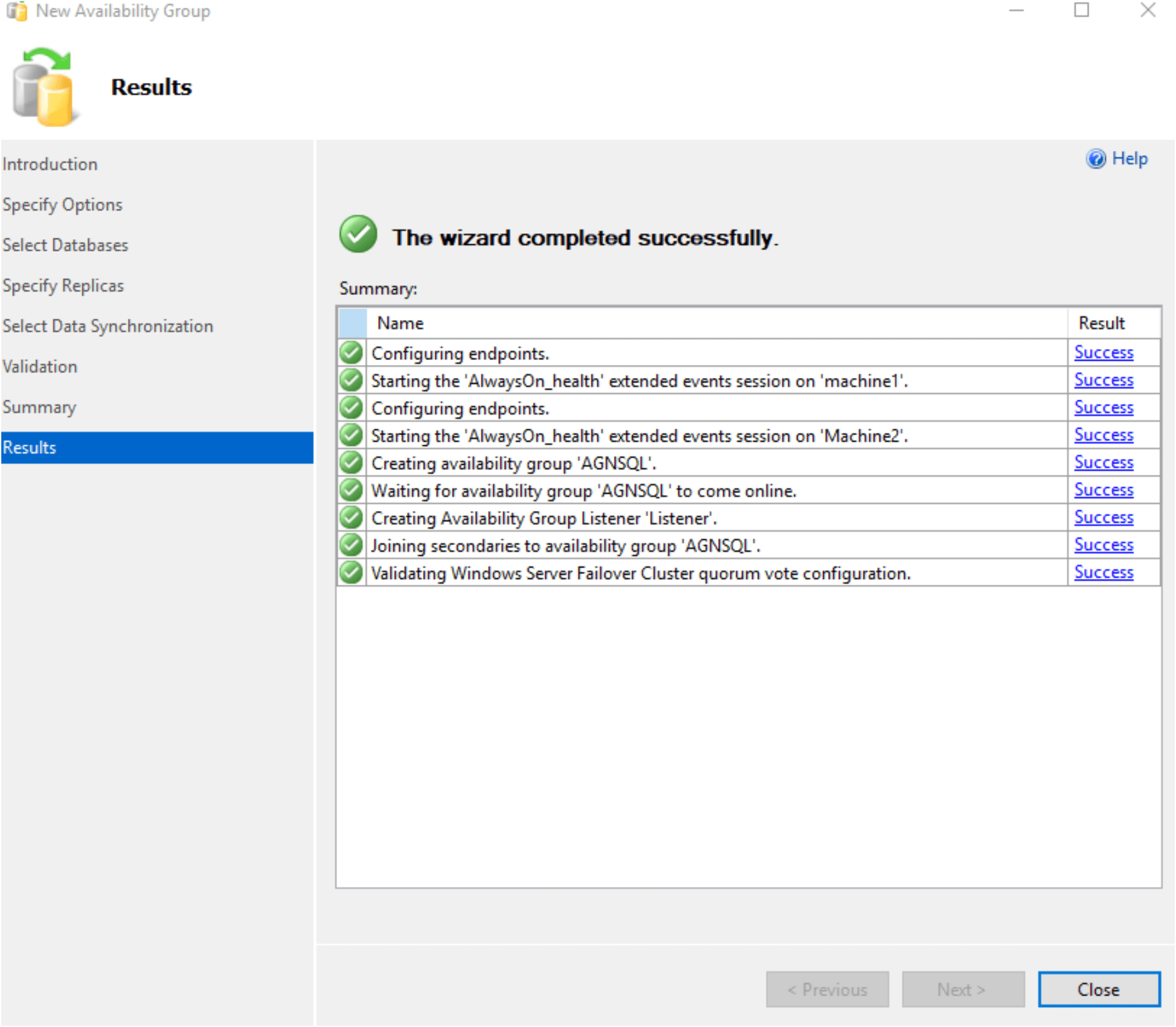
Configuration of Availability group is done.
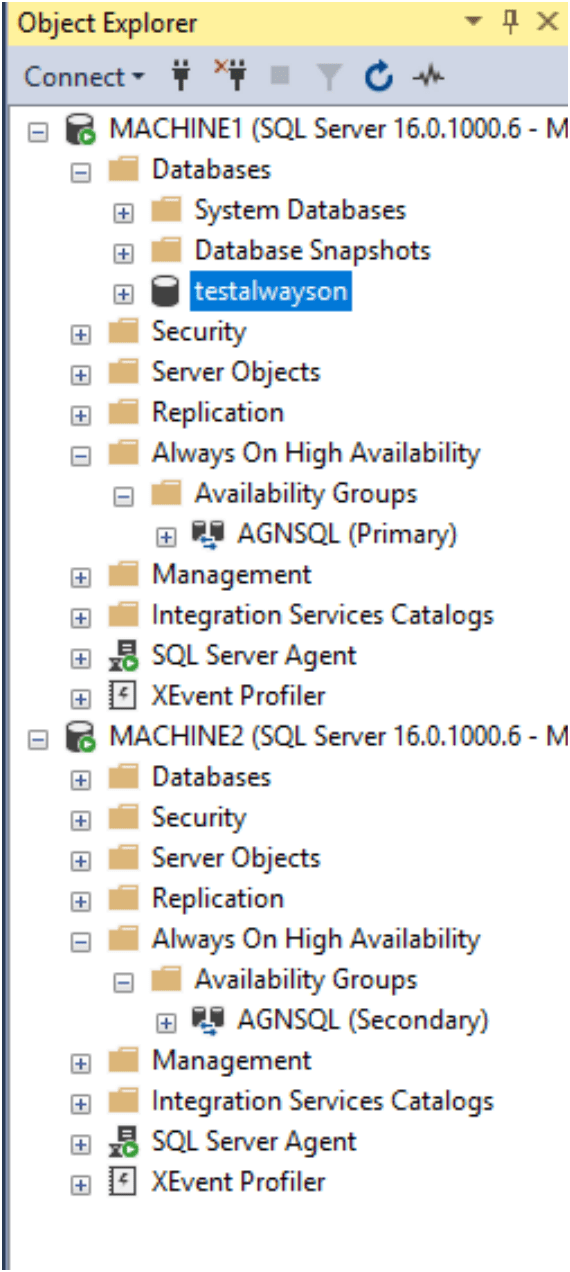
Verify with connection the machine and refresh in sql server management studio.
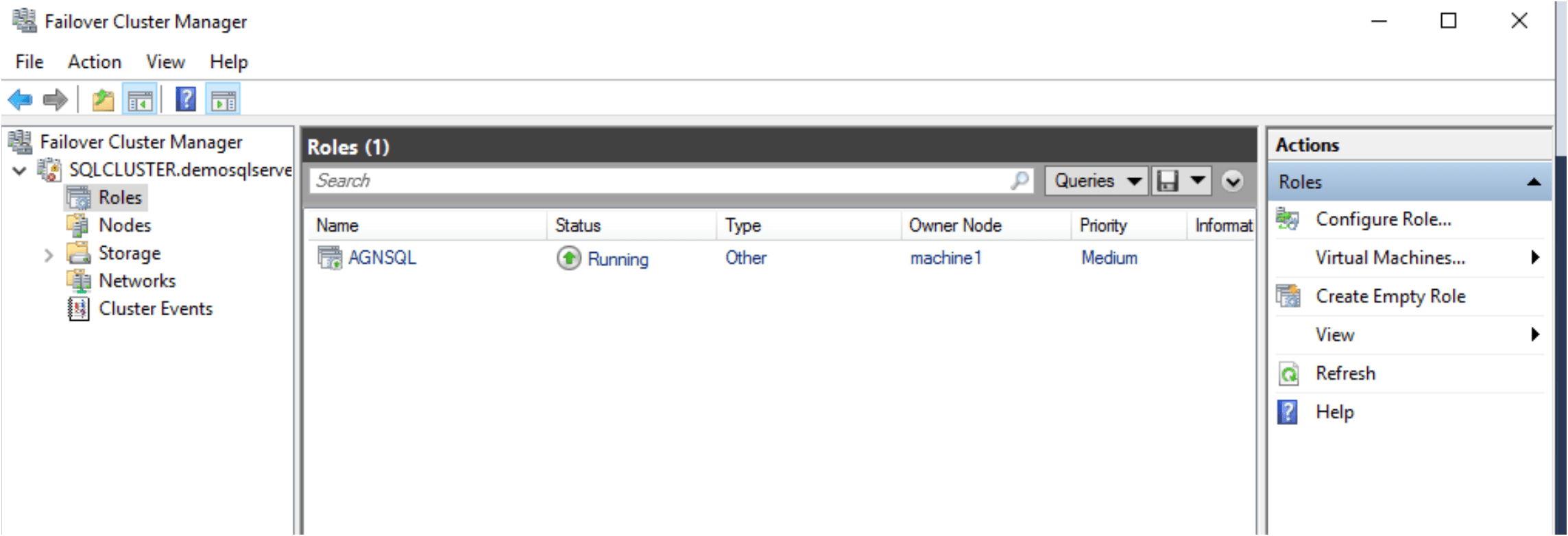
Verify the roles is created at failover cluster manager
Error 1:
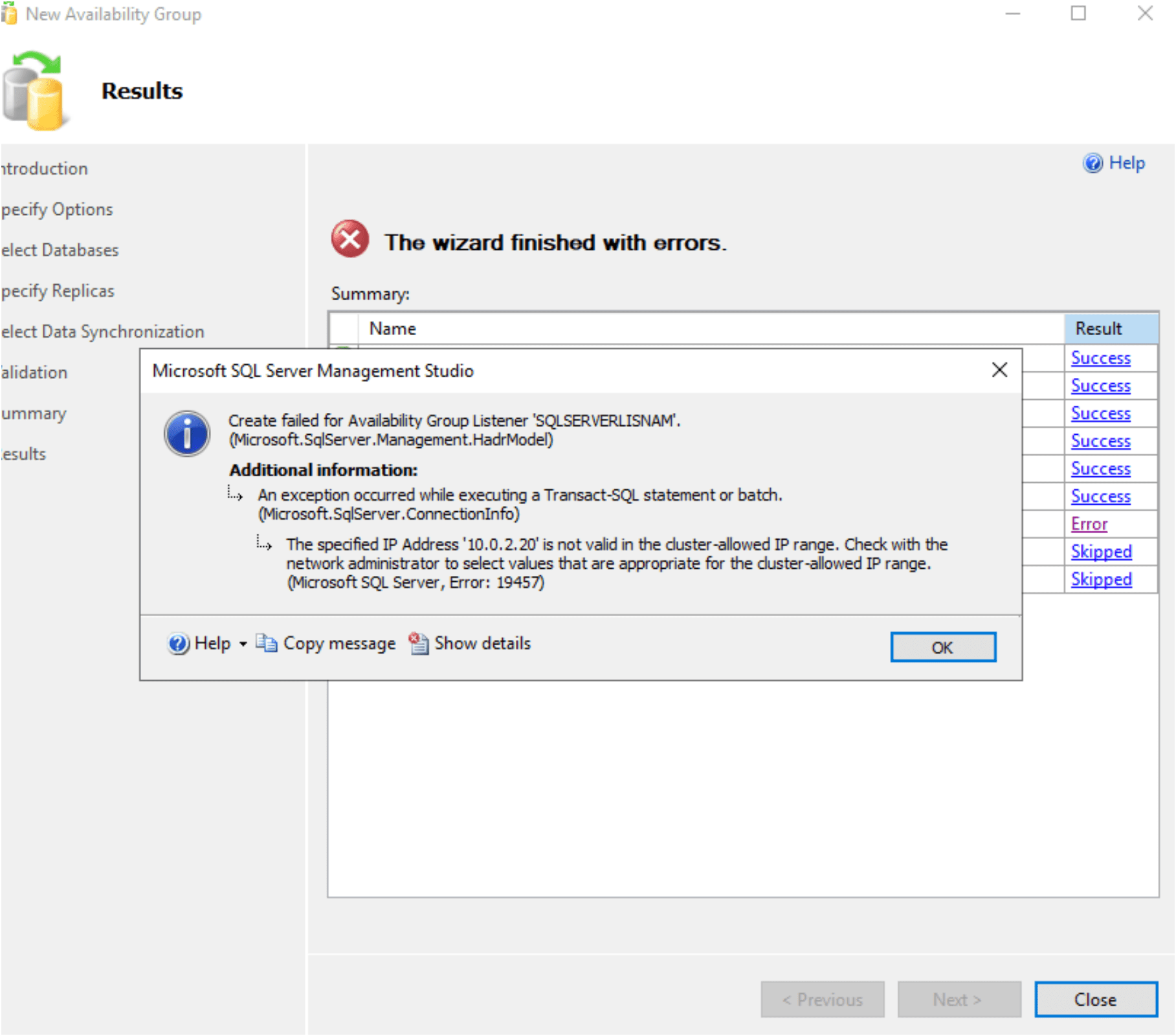
Solution : Choose the cluster ip range for configure the listener.
Error 2
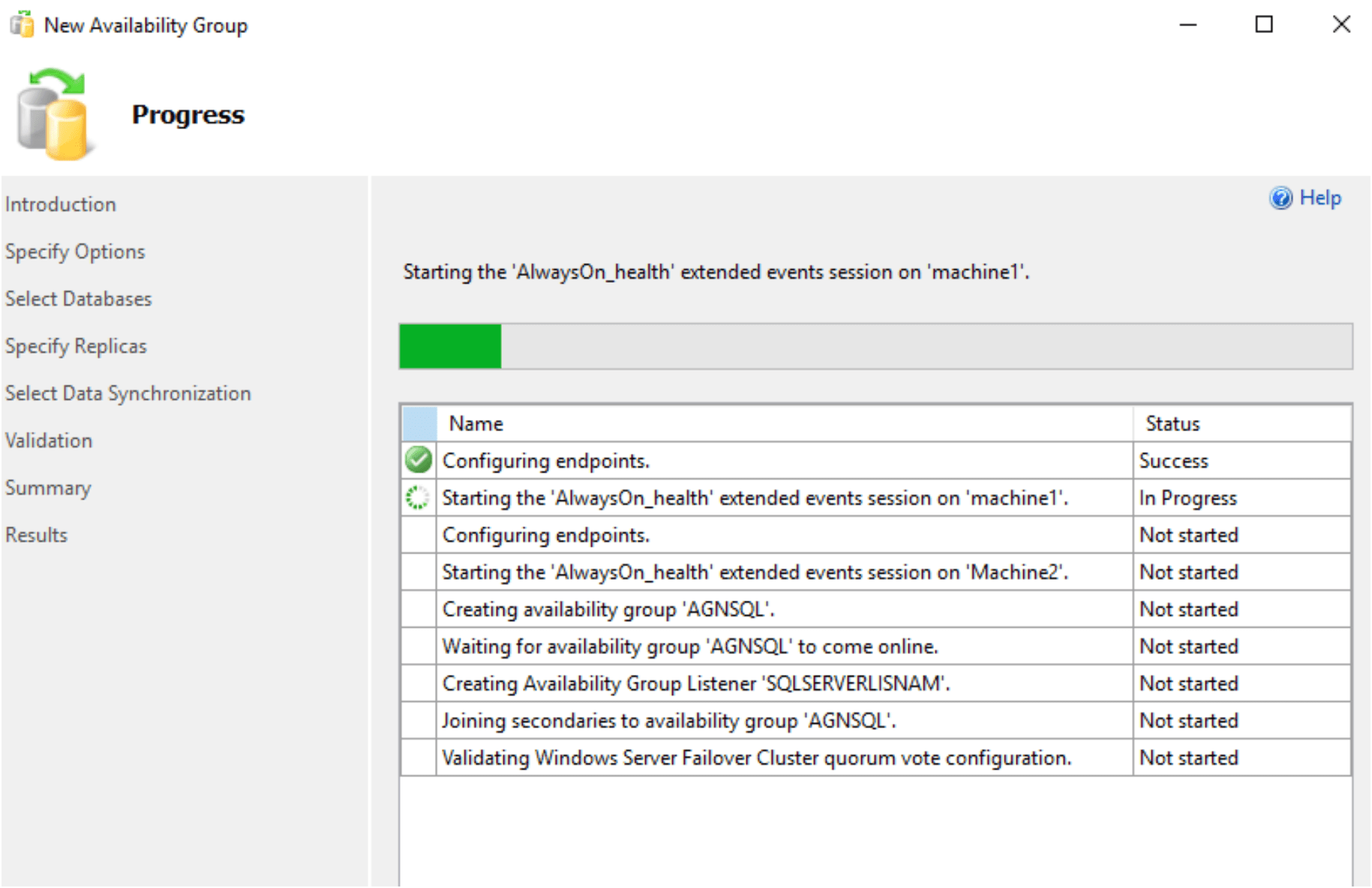
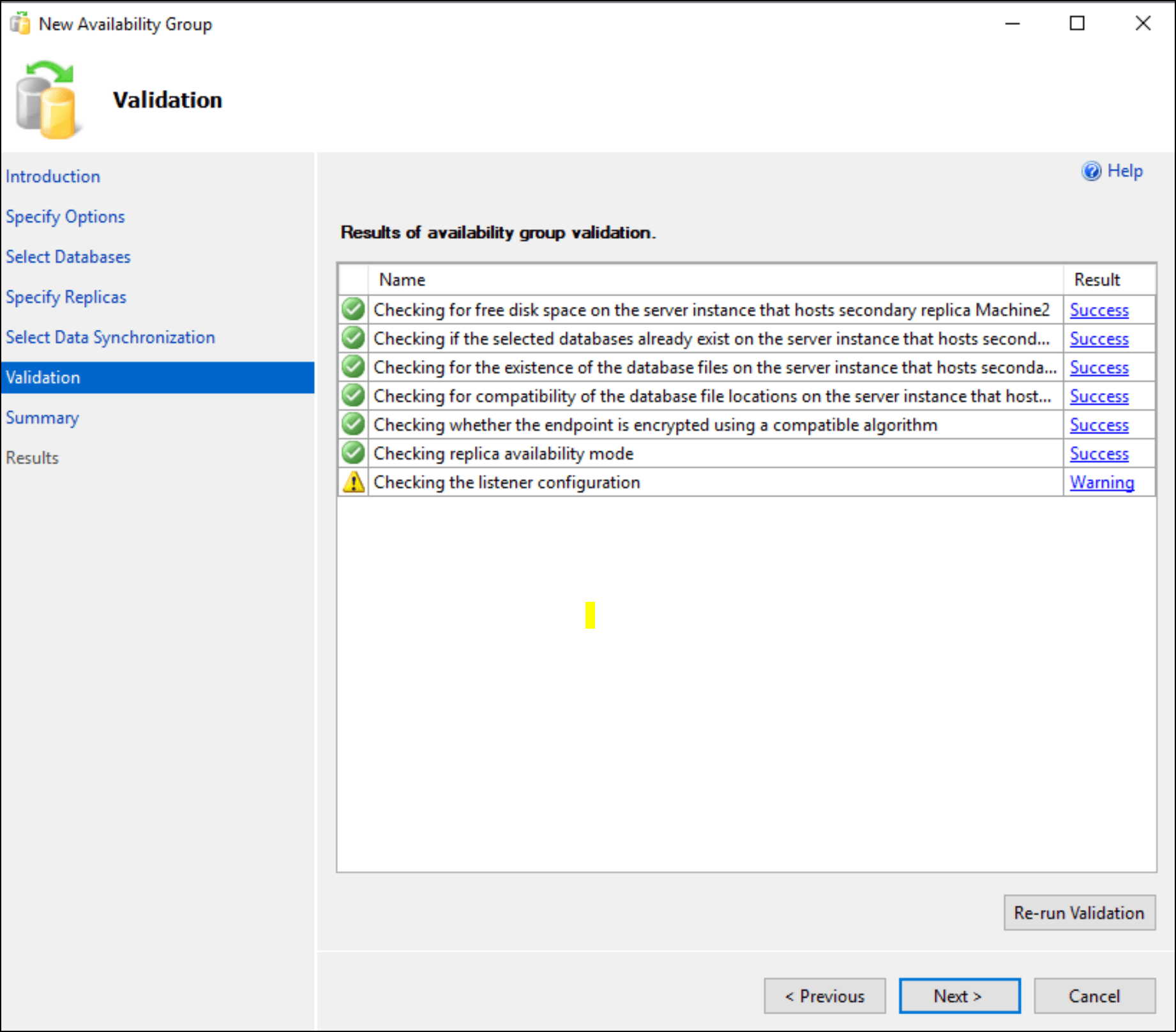
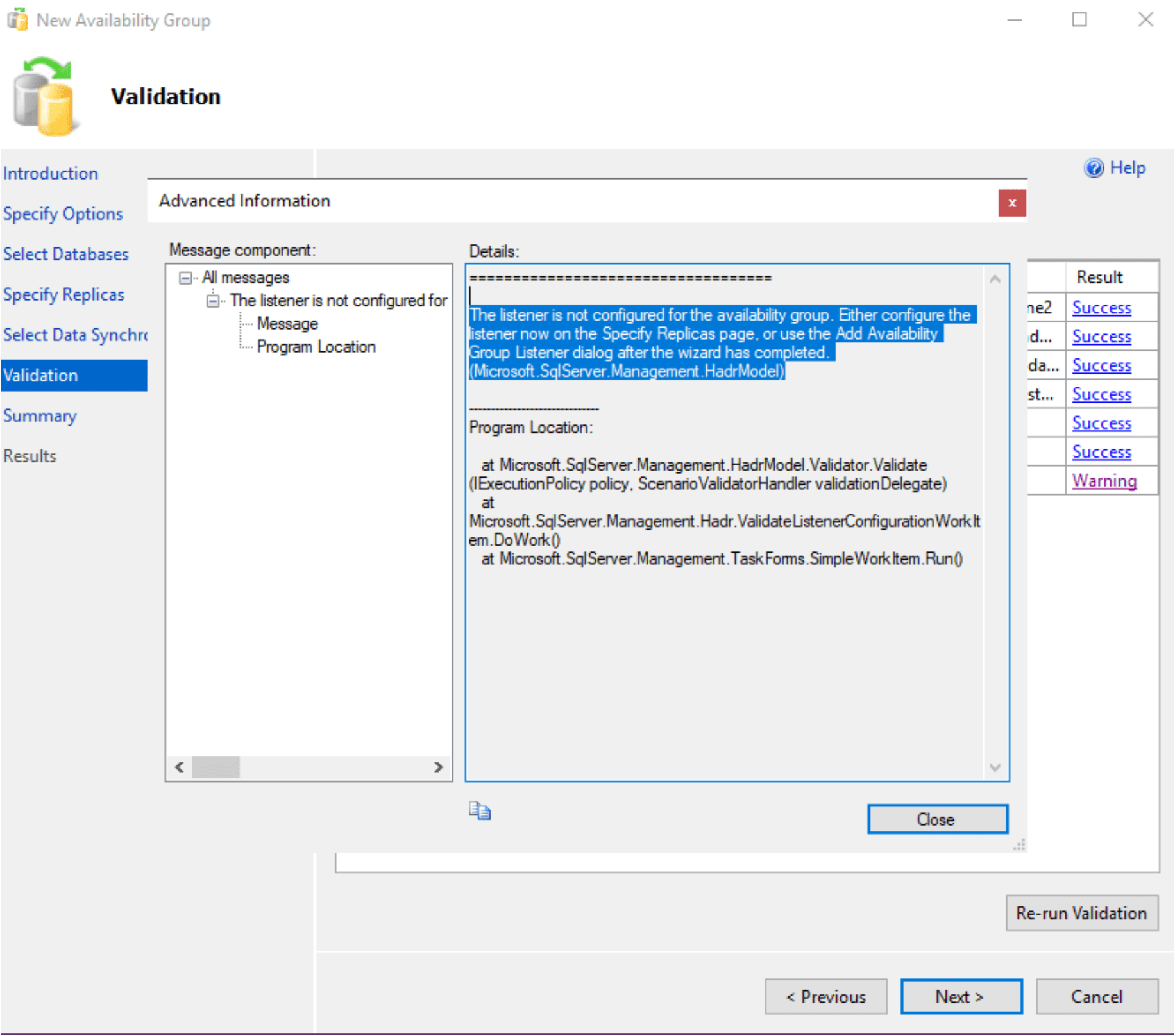
Solution: While setup we miss the listener setting to do. Again start and do the listener setting.