Mastering the SUMMARIZE Function in DAX
Introduction
The SUMMARIZE function in DAX is a useful tool for making summary tables based on specific criteria. It helps you group data and do aggregations, making it easier to analyze and present your data. In this blog post, we’ll look at how to use the SUMMARIZE function and give an example to show what it can do.
Understanding the SUMMARIZE Function
The SUMMARIZE function creates a new table that summarizes data from an existing one. It groups data by selected columns and can add calculated columns. The syntax for the SUMMARIZE function is as follows:
Syntax:
SUMMARIZE(
    <table>,
    <groupBy_columnName1>,
    <groupBy_columnName2>,
    ...,
    [<name1>, <expression1>],
    [<name2>, <expression2>],
    ...
)

Explain:
<table>: The table to be summarized.
<groupBy_columnName>: The columns by which to group the data.
[<name>, <expression>]: Optional calculated columns to include in the summary table.
Example: Summarizing Sales Data
Let’s say we have a sales table with the following columns: Date, Product, Region, and SalesAmount. We want to create a summary table that shows the total sales amount for each product in each region. Here’s how we can use the SUMMARIZE function to achieve this:
SummaryTable = SUMMARIZE(
    Sales,
    Sales[Product],
    Sales[Region],
    "TotalSales", SUM(Sales[SalesAmount])
)
In this example:
- We are summarizing the
Salestable. - We are grouping the data by
ProductandRegion. - We are creating a calculated column named
TotalSalesthat sums theSalesAmountfor each group.
Resulting Summary Table
The resulting SummaryTable will look something like this:
| Product | Region | TotalSales |
|---|---|---|
| Product A | North | 10000 |
| Product A | South | 15000 |
| Product B | North | 20000 |
| Product B | South | 25000 |
This summary table provides a clear and concise view of the total sales amount for each product in each region, making it easier to analyze and compare performance.
Example 2:
Open the Power BI –> Go to the table view left panel –> Choose new table

I am using adventureworkDW database of SQL Server. I will show the result of data with SUMMARIZE function and use as messure table in Power BI
testtable = SUMMARIZE( FactInternetSales, DimProduct[Color] , "totalsales", sum(FactInternetSales[SalesAmount] ) ,"totalquantity", sum(FactInternetSales[OrderQuantity]))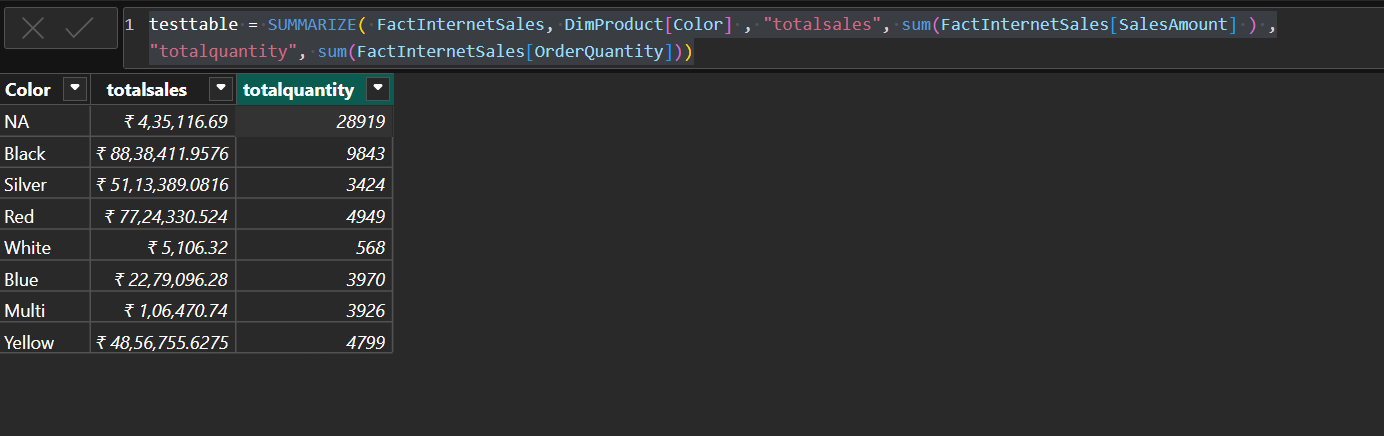
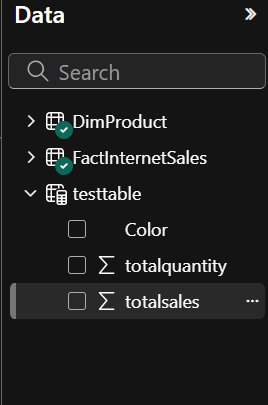
You can use this table in Data panel as shown below :