How to create a kubernetes service for nginx pods
Before creating the service, we need to add label on POD so that service able to find it.
Add and check the Label to Your Pod
The Service looks for Pods labeled app=nginx for your challenge.
-- Add label kubectl label pod nginx app=nginx --overwriteoutput:pod/nginx labeled-- Confirm that label is addedkubectl get pods --show-labelsoutput:NAME READY STATUS RESTARTS AGE LABELSnginx 1/1 Running 0 20m app=nginx
Why Are Labels Important?
Labels are like key pairs that help Kubernetes organize your resources. The label app=nginx tells your Service which Pod to target. Without this label, your Service won’t know where to direct your traffic.
Create the YAML Manifest for the Service
Create a YAML manifest need to open file in a text editor:
nano nginx-service.yaml-- add the following in file:apiVersion: v1kind: Servicemetadata: name: nginx-servicespec: selector: app: nginx ports: - protocol: TCP port: 80 targetPort: 80 type: ClusterIP
Explain:
metadata.name: This names the Servicenginx-serviceso you can easily find it later.kind: Service: This line means you’re setting up a Service resourcespec.selector: This selects Pods that have the labelapp: nginx. It ensures that traffic sent to this Service goes to yourNGINXPod.ports: This opens port80, so any incoming traffic on the Service’s port80gets sent to the Pod’s port80.type: ClusterIP: This gives the Service a steady internal IP address, making it only accessible within the cluster.
Deploy a Simple Web Application with Kubernetes
Create the YAML Manifest for the Service. Apply the YAML Manifest
kubectl apply -f nginx-service.yamloutput:service/nginx-service created
Note: kubectl apply reads the Service’s YAML and instructs Kubernetes to create or update the Service. It’s an additional layer for your application’s infrastructure. The good news is that you now have both a Pod and a Service.
Verify the Service:
kubectl get servicesNAME TYPE CLUSTER-IP EXTERNAL-IP PORT(S) AGEkubernetes ClusterIP 10.96.0.1 <none> 443/TCP 147mnginx-service ClusterIP 10.111.81.162 <none> 80/TCP 102s
To get more information about the Service, you need to run the following command:
kubectl describe service nginx-service
Test Using CURL
Your Service is now internal to the cluster. To test it, use kubectl port-forward to send traffic to the Service, just like you did with your Pod. You can also use curl to check the Service and get quick responses without using a browser.
kubectl port-forward service/nginx-service 8080:80output:Forwarding from 127.0.0.1:8080 -> 80Forwarding from [::1]:8080 -> 80-- for testing using CURL command in new terminalcurl http://localhost:8080
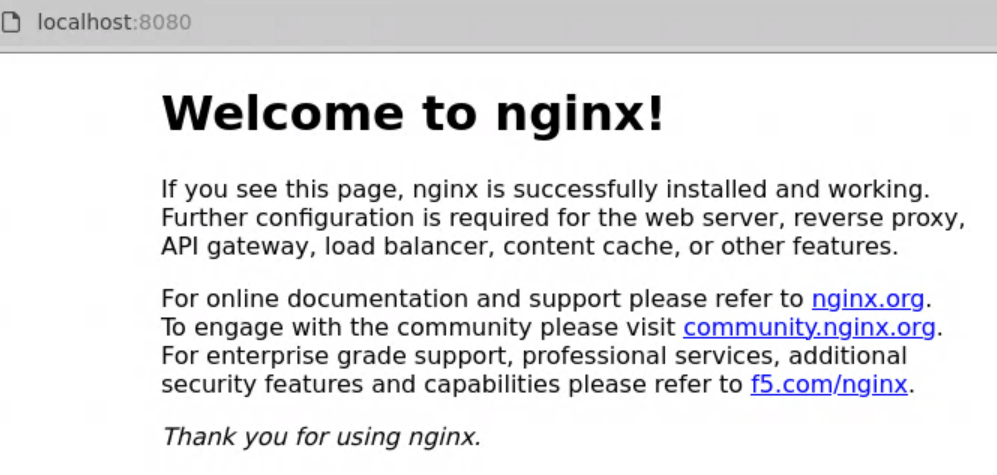
Test using web browser also: localhost:8080