Losing table records from SQL database when executing the DROP or DELETE command with the incorrect WHERE clause is a quite common situation. Thus, if you are in the same situation and have lost your crucial table records, then don’t worry, you are in the correct place.
This write-up describes how to recover deleted records from SQL database tables using LNS (Log Sequence Number). It also mentions the trustworthy SQL Database Recovery Software to recover deleted records in SQL Server without losing data.
Read further to know more in detail…
Methods to Recover Deleted Records from SQL Database Tables
Follow the below step-by-step methods to bring back your lost table records in SQL database.
Method 1- Use LSN (Log Sequence Number) to Recover Deleted Records
Please Note: This technique will only work if a transaction log backup is not missing or corrupted. In that circumstance, you can skip this method and try the next solution.
The LSNs are exceptional identifiers that are allocated to every record in MS SQL Server transaction logs. Thus, deleted SQL table rows are recoverable only if the deletion time is known.
However, to begin the data recovery process using Log Sequence Number, there are numerous requirements to be fulfilled. For smooth deleted rows recovery from SQL database table, it’s necessary to have Logged Recovery Model or Full Recovery Model at the time the data loss took place.
Follow the below steps to get back deleted data from SQL Server 2005, 2008, 2012, 2014, 2015, 2016, or later versions.
Step 1- First of all, run the below query in order to check the total number of rows existing in a table from which the data got erased:
SELECT * FROM Table_name
Step 2- In the second step, you have to run the below query to consider taking the log back:
USE Databasename
GO
BACKUP LOG [Databasename]
TO DISK = N’D:\Databasename\RDDTrLog.trn’
WITH NOFORMAT, NOINIT,
NAME = N’Databasename-Transaction Log Backup’,
SKIP, NOREWIND, NOUNLOAD, STATS = 10
GO
Step 3- After that, collect info about the lost records from table of MS SQL Server to recover the data effectively. Run this query:
USE Databasename
GO
Select [Current LSN] LSN], [Transaction ID], Operation, Context, AllocUnitName
FROM
fn_dblog(NULL, NULL)
WHERE Operation = ‘LOP_DELETE_ROWS’
By running this query, you can obtain the Transaction ID of the deleted table records.
Step 4- Now, use the below query to locate exact time at which your records got erased using a Transaction ID.
USE Databasename
GO
SELECT
[Current LSN], Operation, [Transaction ID], [Begin Time], [Transaction Name], [Transaction SID]
FROM
fn_dblog(NULL, NULL)
WHERE
[Transaction ID] = ‘000:000001f3′
AND
[Operation] = ‘LOP_BEGIN_XACT’
This query will help you to get the ongoing LSN.
Step 5- At this time, bring back the deleted data from a SQL Server Table by running this query.
Recover Deleted D USE Databasename
GO
RESTORE DATABASE Databasename_COPY FROM
DISK = ‘D:\Databasename\RDDFull.bak’
WITH
MOVE ‘Databasename’ TO ‘D:\RecoverDB\Databasename.mdf’,
MOVE ‘Databasename_log’ TO ‘D:\RecoverDB\Databasename_log.ldf’,
REPLACE, NORECOVERY;
GO
Step 6- Finally, check if the deleted records are restored back to a SQL database table.
USE Databasename_Copy GO Select * from Table_name
Method 2- Recommended Way- Use SQL Recovery Software
The SQL database recovery software from Stellar® is the most reliable program that can assist you to recover deleted records from SQL database tables with ease.
Apart from that, it can recover all the DB objects, like Tables, Views, triggers, Collations, indexes, Stored Procedures, etc. while keeping data integrity. You can even download the demo version of Stellar Repair for MS SQL to execute deleted record recovery.
But before proceeding to use this tool to get back the lost records, ensure your system meets these requirements:
- Any SQL Server should be installed on your Windows PC.
- Ensure you have the SSMS (SQL Server Management Studio) installed.
- Also, make sure to download and install the SQL database recovery tool from Stellar.
How to Use Stellar Repair for MS SQL to Recover Lost Table Records?
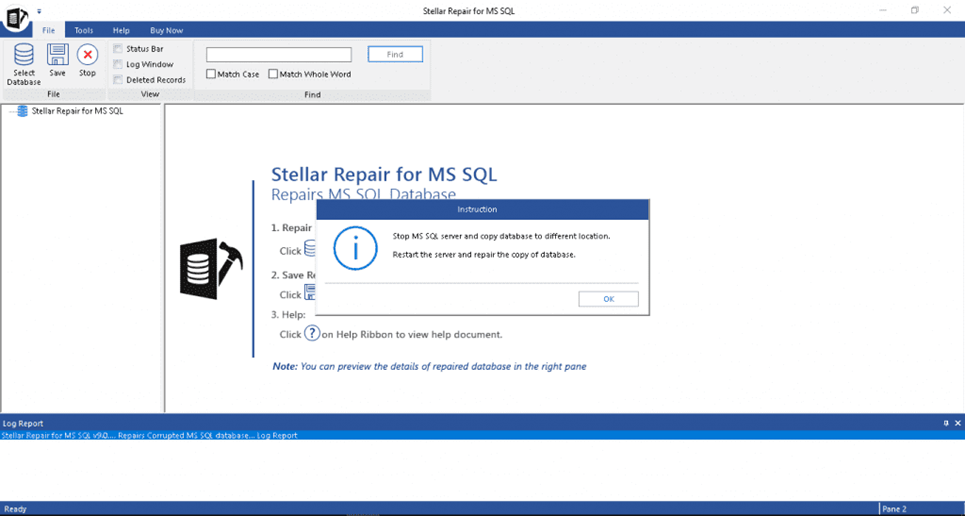
Step 1- Launch the Stellar Repair for MS SQL on your PC. Now, you need to stop the SQL Server & create the copy in another location by pressing OK.
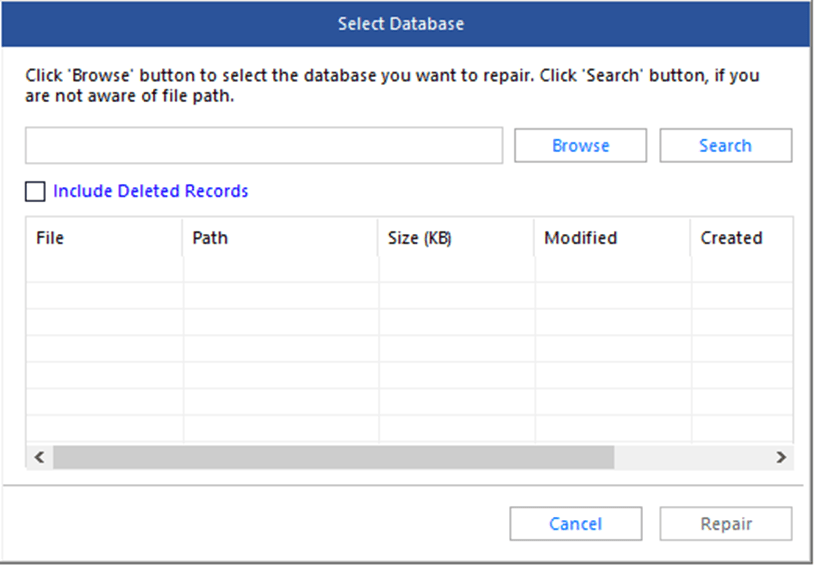
Step 2- Next, click on the Browse button to select the SQL DB file (MDF) that you need to repair. In case, if you don’t know the exact location of the MDF file, you have to click on Search button to find & choose the file.
Please Note: If you don’t know the location of your database, then locate it in the SSMS under the database properties (see the below-given image).

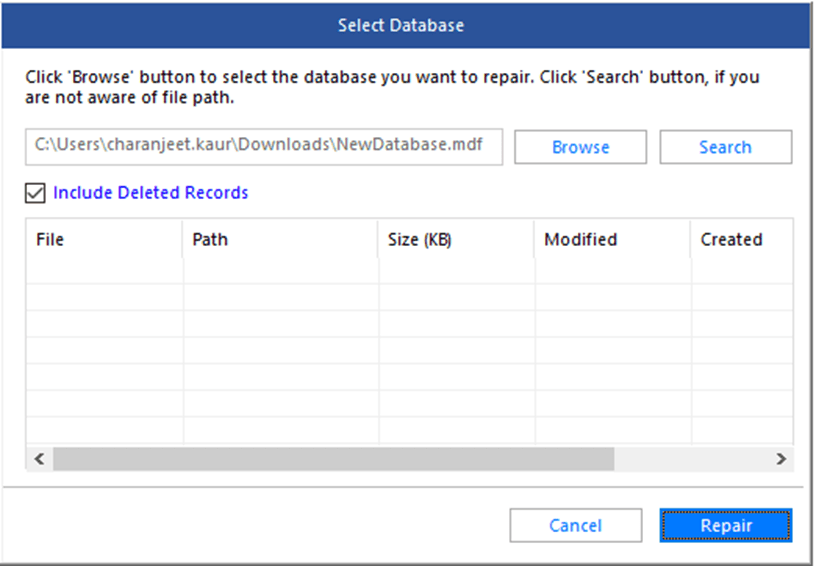
Step 3- Once selected the DB file, choose the option “Include Deleted Records” >> then click on the Repair button on the pop up window.
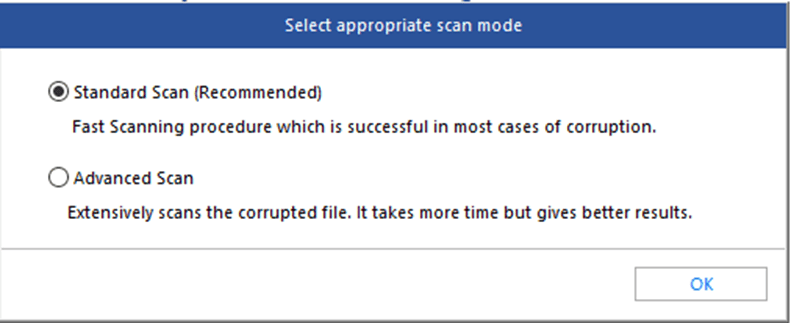
Step 4- After this, you have to select a correct scan mode in order to repair your database file. Choose ‘Advanced Scan’ or ‘Standard Scan’ >> then click on OK.
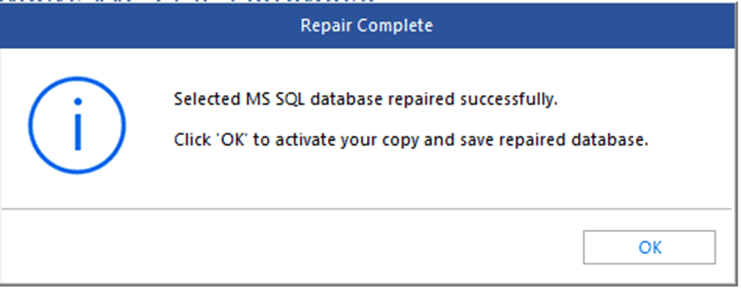
Step 5- Now, you will get the ‘Repair Complete’ pop up on your screen >> click OK.
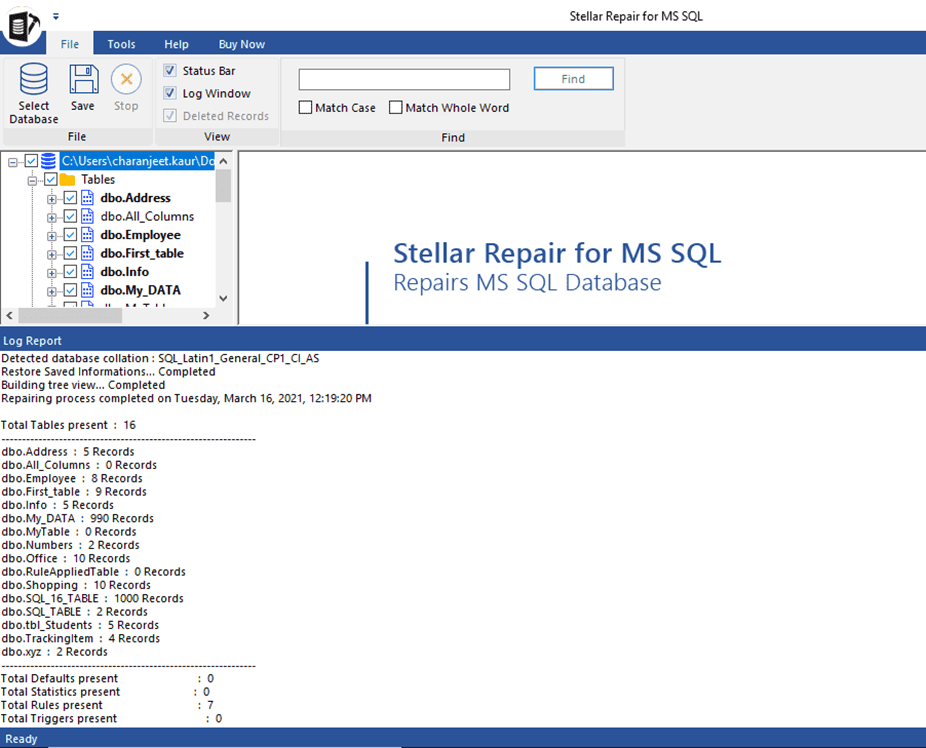
Step 6-The program displays the preview of the recoverable records of a table. It also shows a log report holding information such as the path of the .mdf file, database size, collation, list of tables & objects, etc.
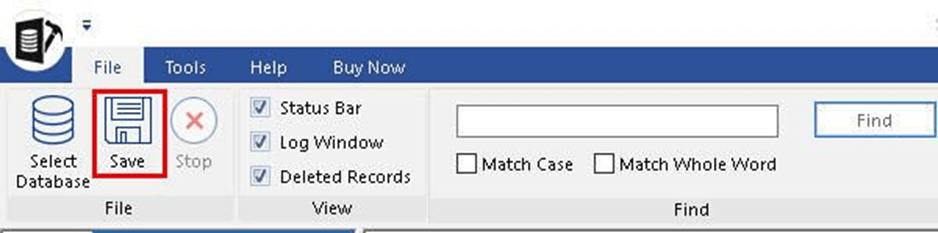
Step 7- Then, go to the File menu and click on save option for saving recovered data.
Step 8- Now, you can save your recovered data in any file format like MDF, CSV, XLS (Excel), and HTML under the ‘Save Database’ pop up box. Choose any file format as per your choice.
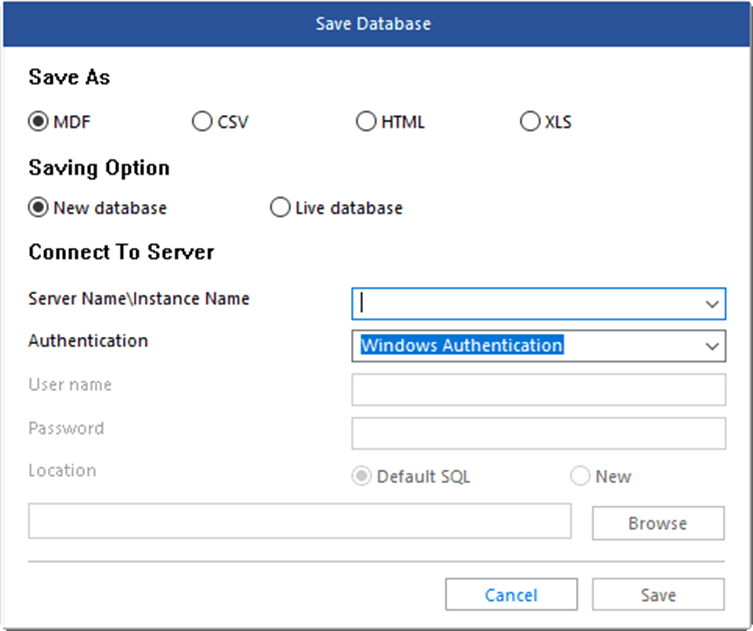
Step 9- At this time, you can either create the new DB or work with a database online. However, you can simply restore in different SQL Server instances & stipulate an Authentication type, for example- SQL Server Authentication or Windows Authentication. Moreover, state the location of the database files.
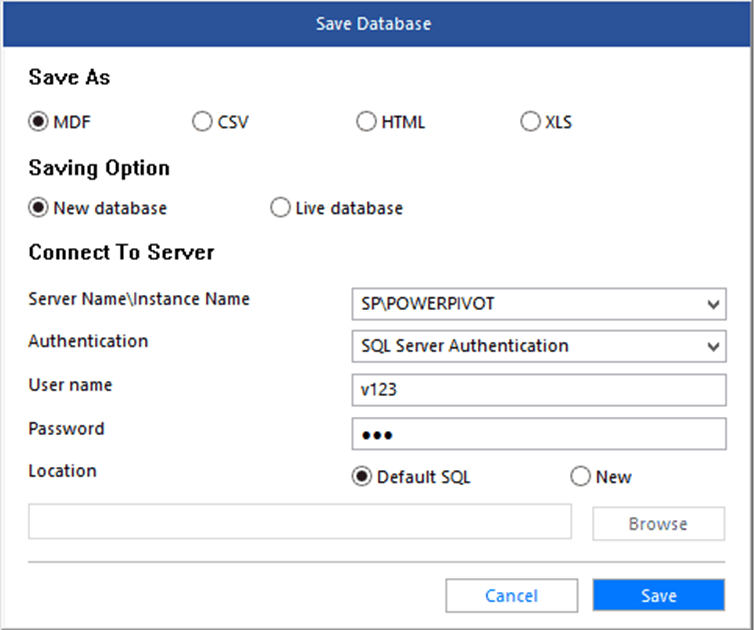
Step 10- Finally, click on Save button. This will save all the recovered records of the table & other data in the fixed MDF file.
And you are done!
Time to Conclude
Above, I have conferred 2 easy methods to recover deleted records from SQL database tables. But let me tell you very clearly, if you’ve SQL Server administrator-level knowledge then only you can go for manual method to perform record recovery.
However, if you’re a non-technical user, it is suggested to use an advanced SQL database recovery tool for restoring deleted table records from the SQL database.
Thanks for reading!